
Using filters in the Platform to control tables
Filters are useful when looking for a particular subset of information in the Platform.
Applying filters
Most tables in the Platform can be filtered, including Training Insights, Trainees, Training Schedule and the Admin pages.
To open the filters, select the filter icon at the top-left of the table (1). The Filter panel will open on the right-hand side of the page.
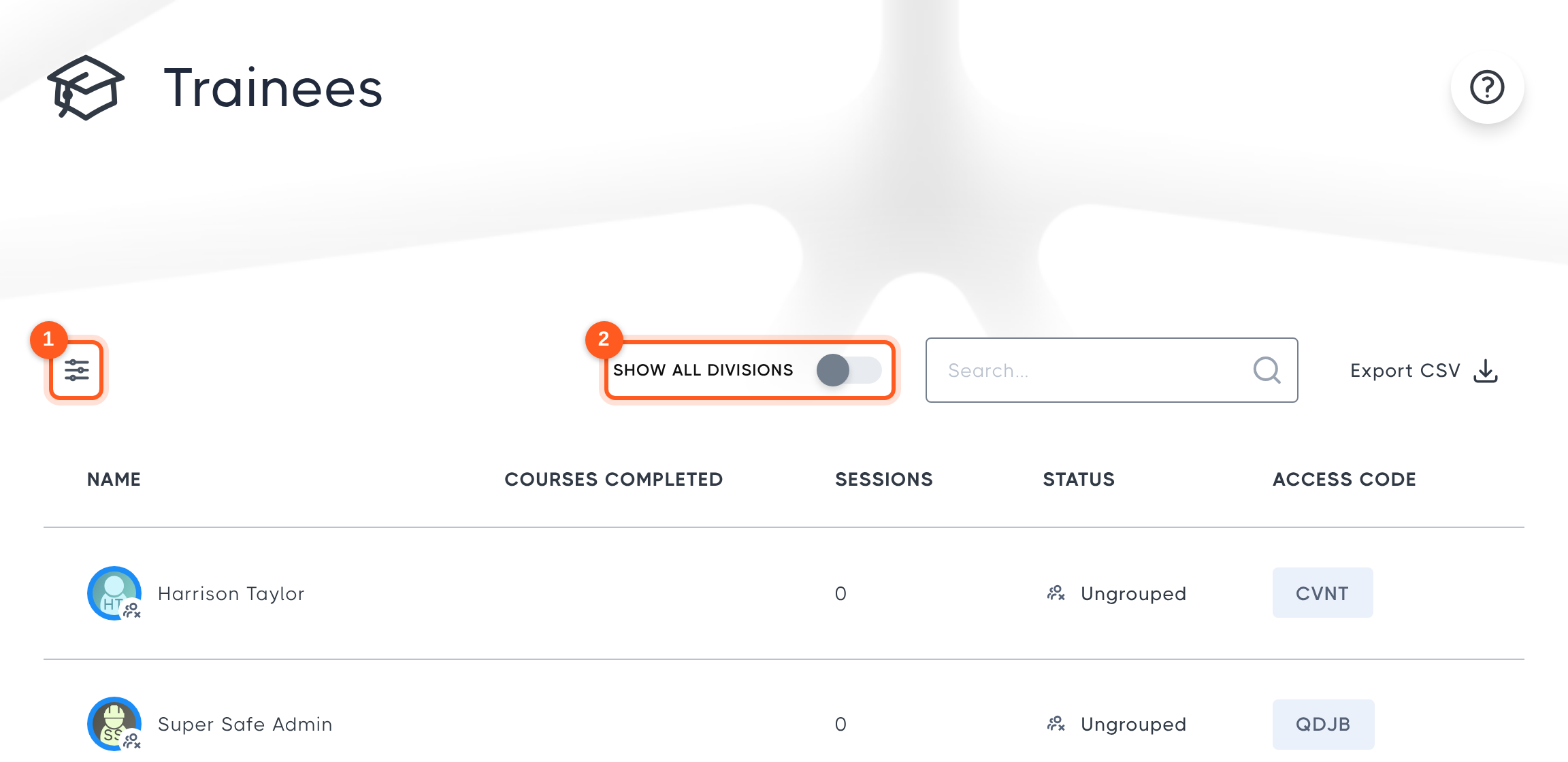
Next to the filter icon is the Show All Divisions toggle (2). Turn it on to include data from every division under your current one.
The filters available depend on the page. For example, on Training Insights you can include sessions from your divisions, archived divisions, in-progress and incomplete sessions, show only certified sessions, and filter by date range or experience.
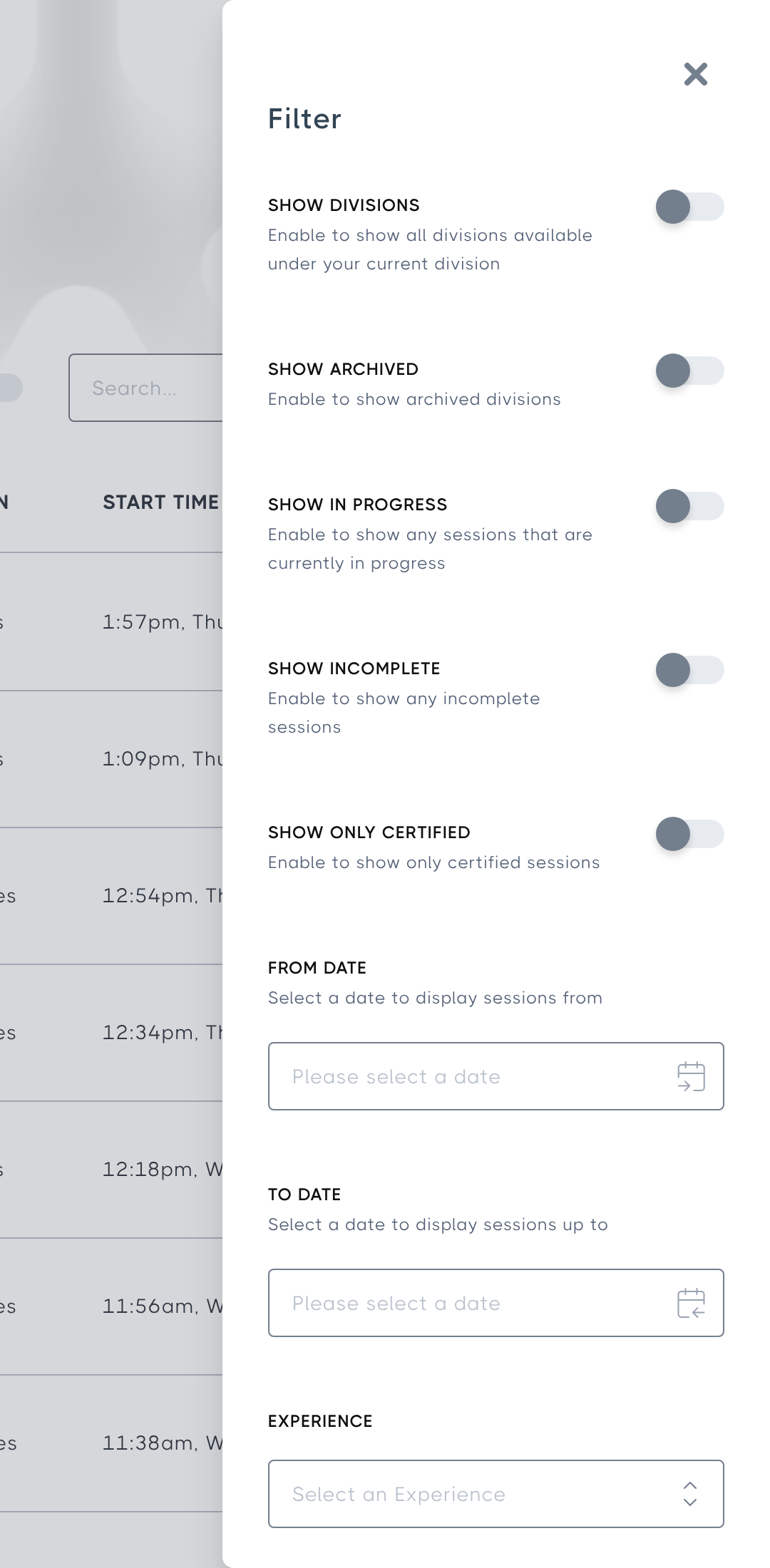
Close the panel with the X in its top-right corner. Your filters stay applied to the table, and to anything you export with Export CSV.
No Comments