
Managing the members of your division
TheUpdating Members page lets you add and edit the members of your organisation, allowing for more detailed team and member management.
How to add a member
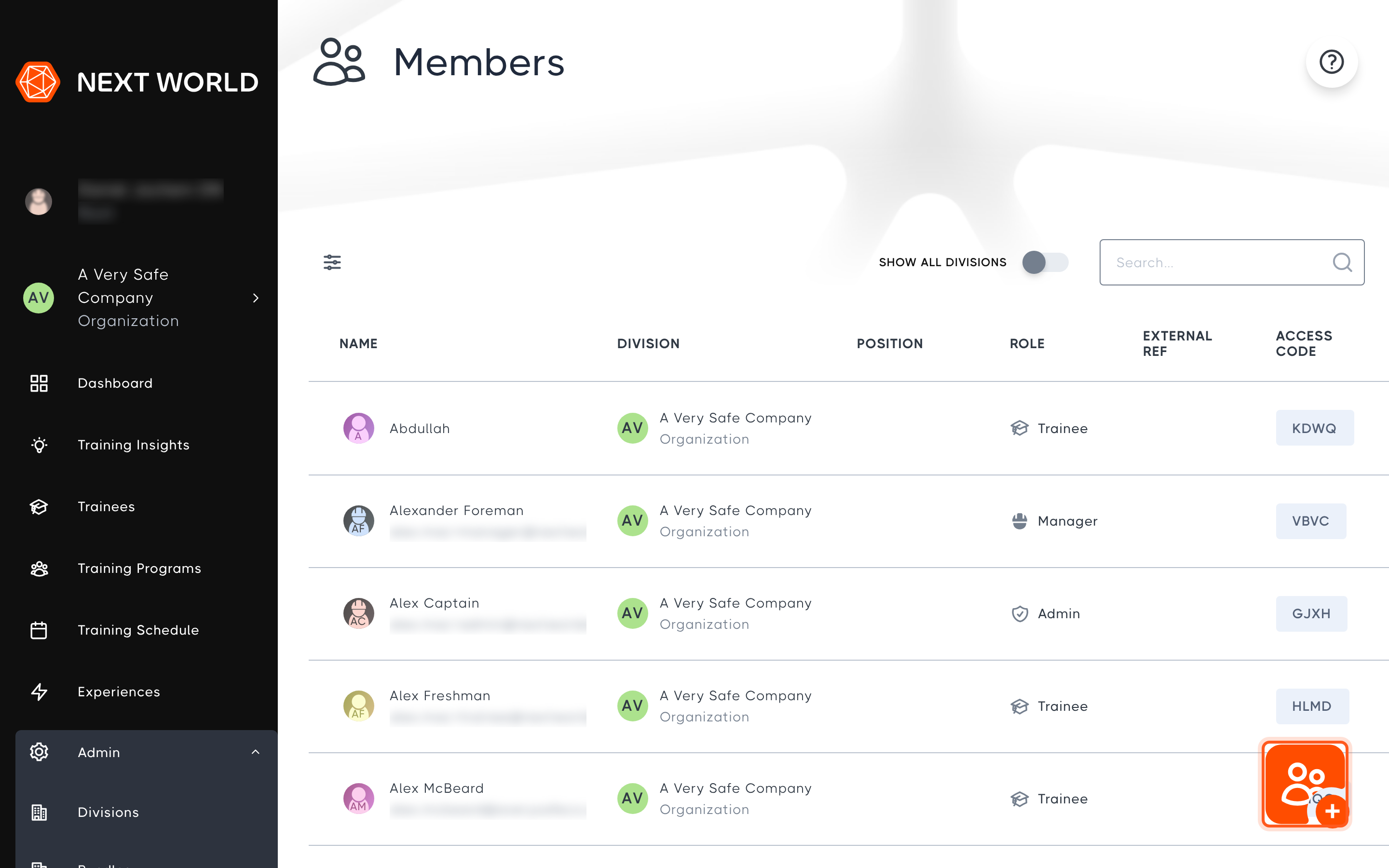
To add a new member to your organisation, go to Admin > Members and select the orange + button in the bottom-right corner.
Fill in the following details:
Full Name: the member's full nameEmail Address(optional for trainees): lets the member receive notifications and log in to the PortalDivision: the division the member belongs toRole: what the member can do in the Portal.Traineescomplete training in the headset,Managersschedule trainees and manage training programs, andAdminsmanage the whole organisation, including members, divisions and devices.Position(optional)External Reference(optional)Email Reminders: whether the member receives training reminder emails
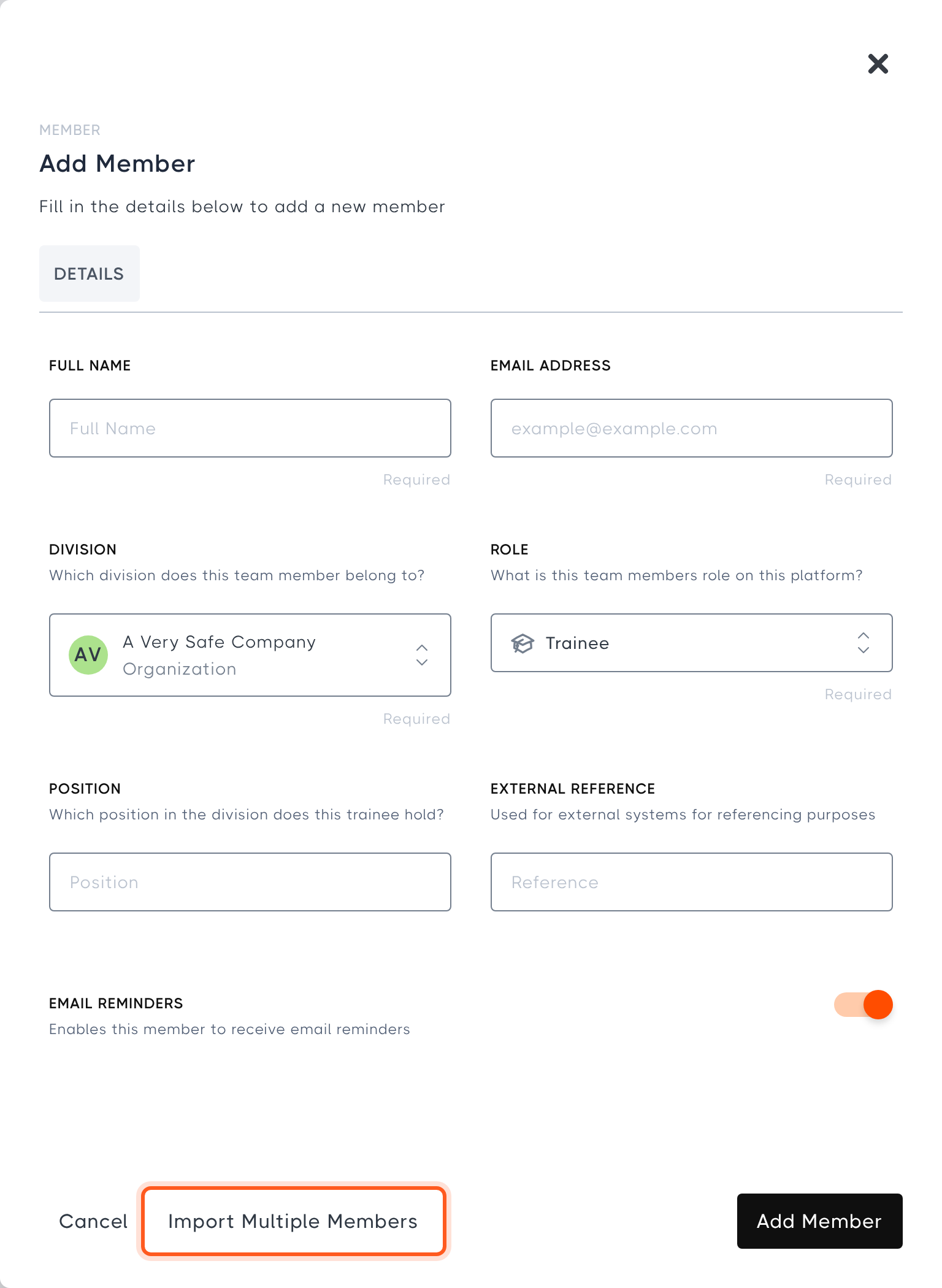
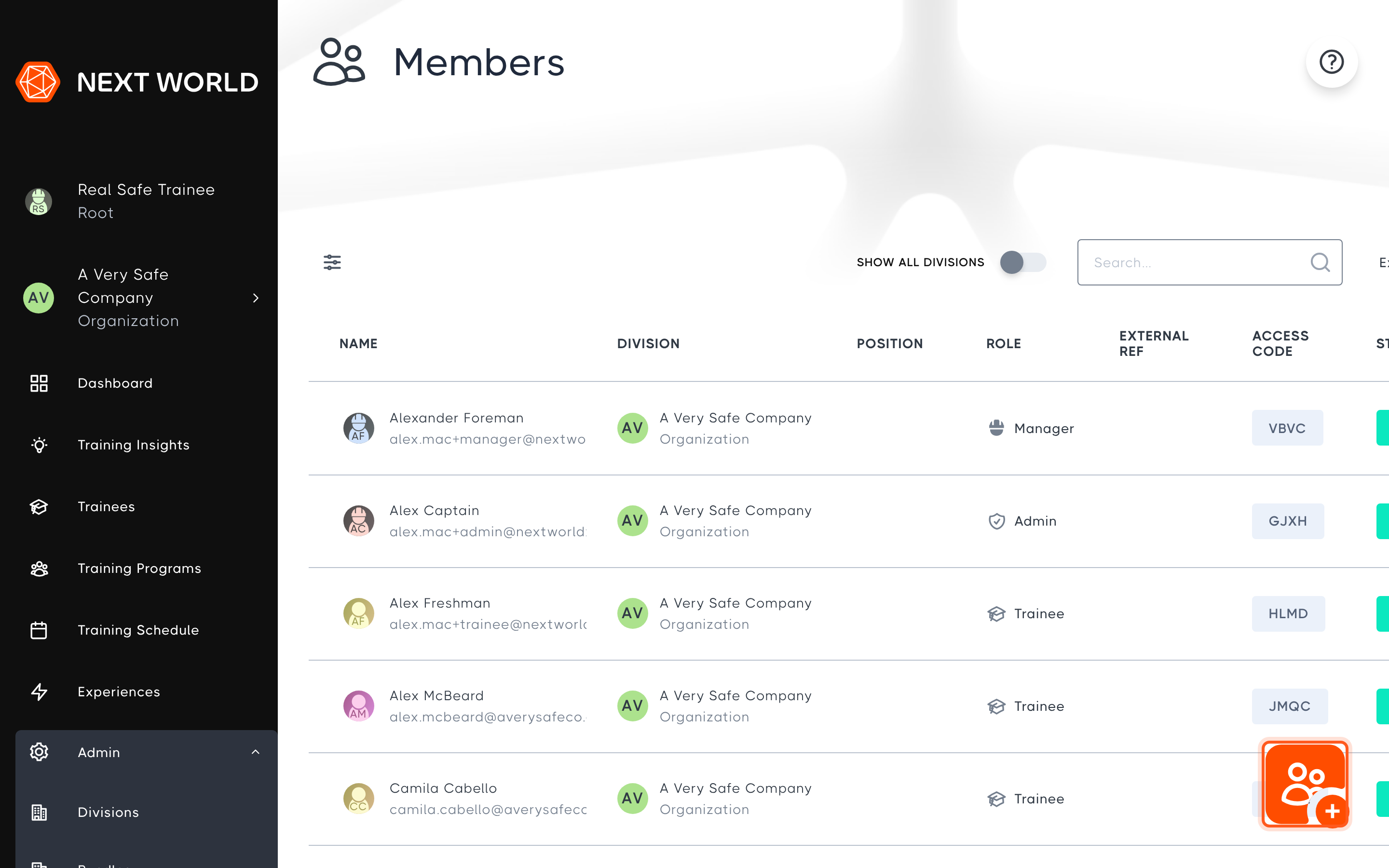
When you're done, select Add Memberscreenshots.. This generates a unique 4-letter access code that the member uses to start training in the VR headset. If they have an email address, they will also be emailed instructions to set up a password for the Portal.
Manager and Admin members require an email address, as they will need to log in to the Portal.
How to bulk add members
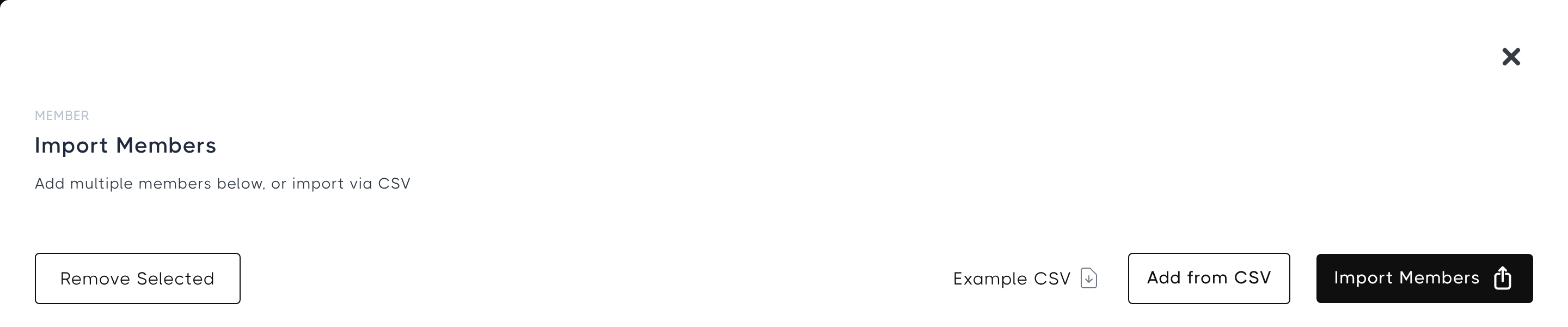
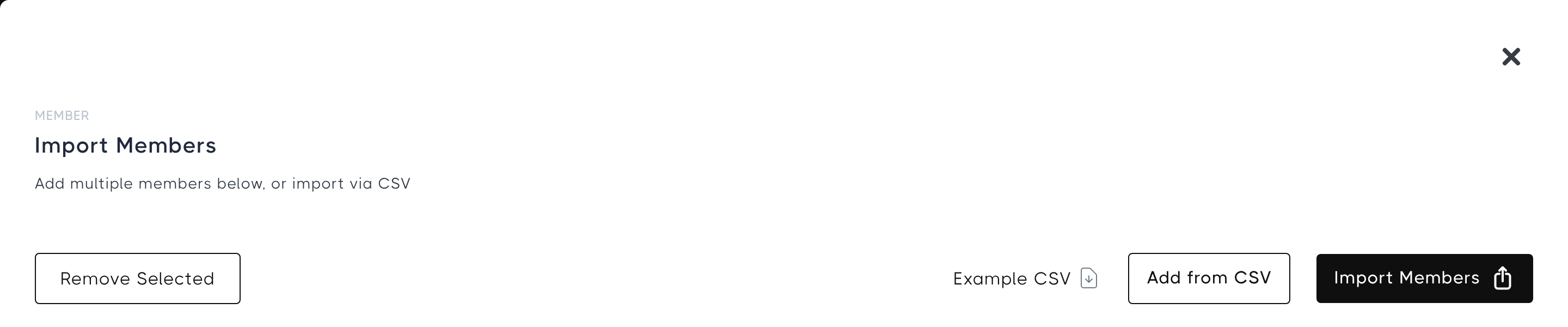
To add several members at once, select Import Multiple Members at the bottom of the Add Member form. You can fill in a line for each member (Full Name, Position, Email, External ID, Training Program and whether they are a manager), using Add Line to add more rows, or select Add from CSV to import a CSV file. Download the Example CSV to see the format to use. When you're ready, select Import Members.
How to archive a member
To remove a member, go to Admin > Members, select the member, and select Archive at the bottom of the Details tab.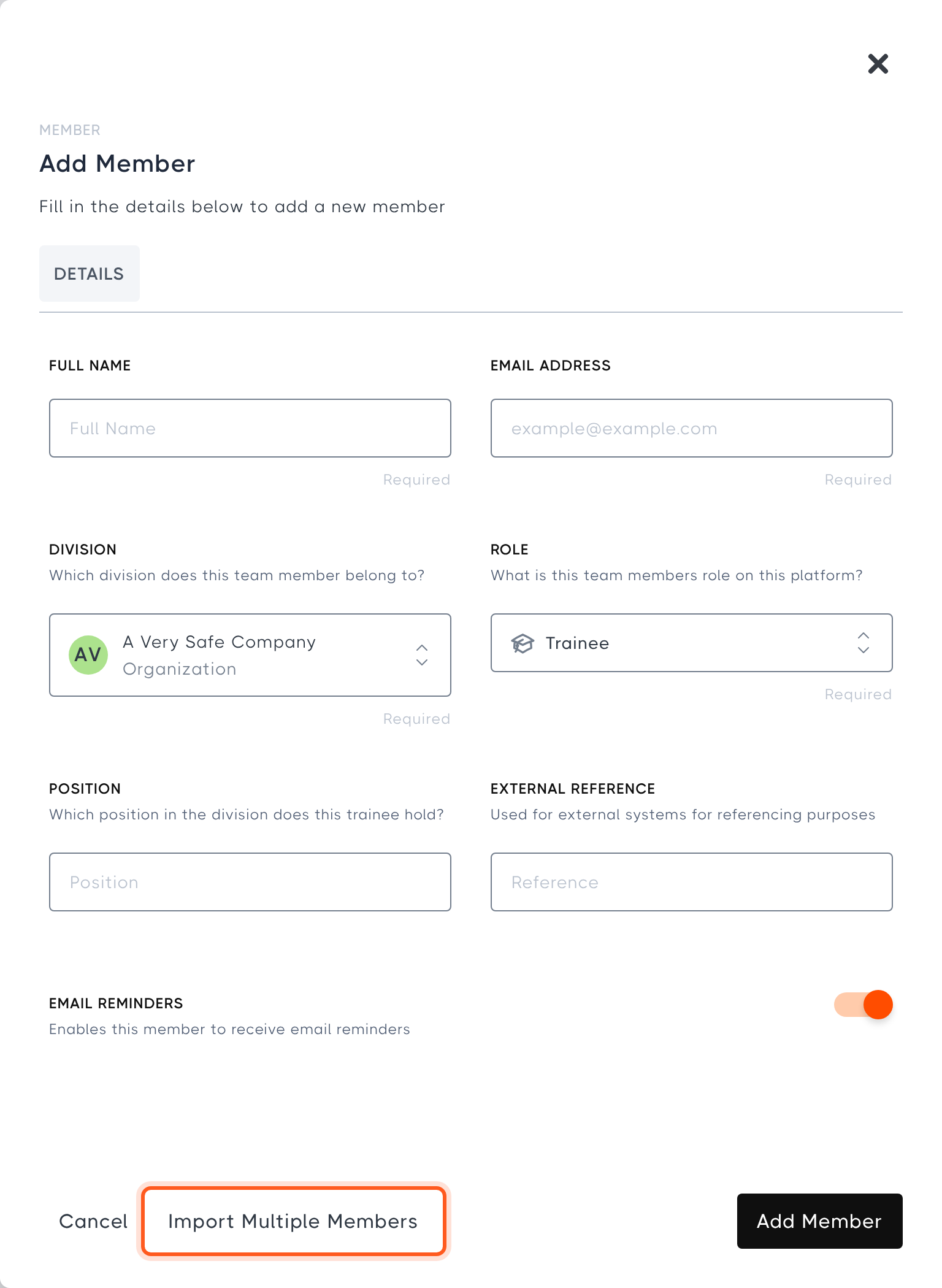
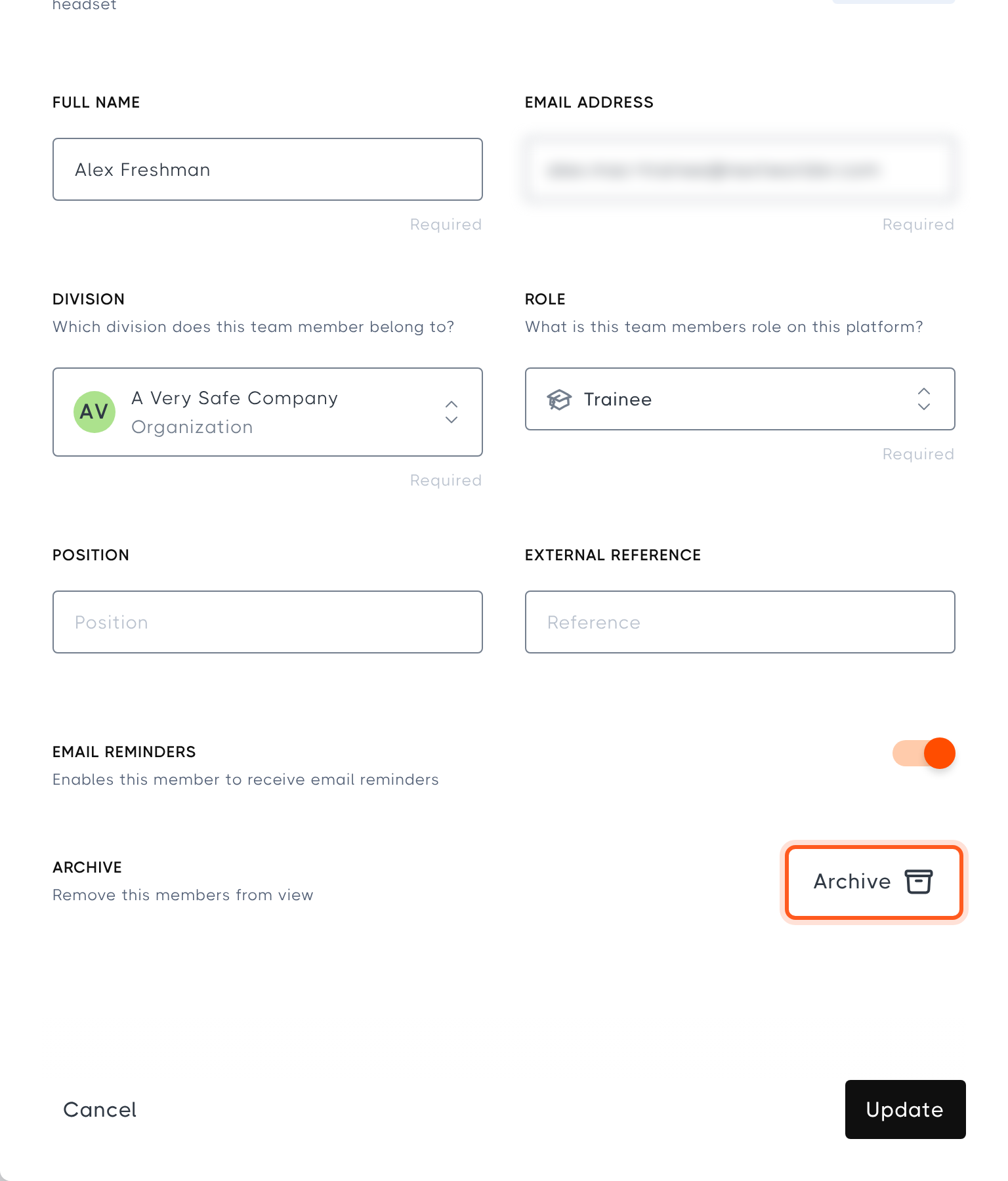
Archived members are removed from your member lists and can no longer start training with their access code. If you archive a member by mistake, contact support@nextworldxr.com and we can restore them.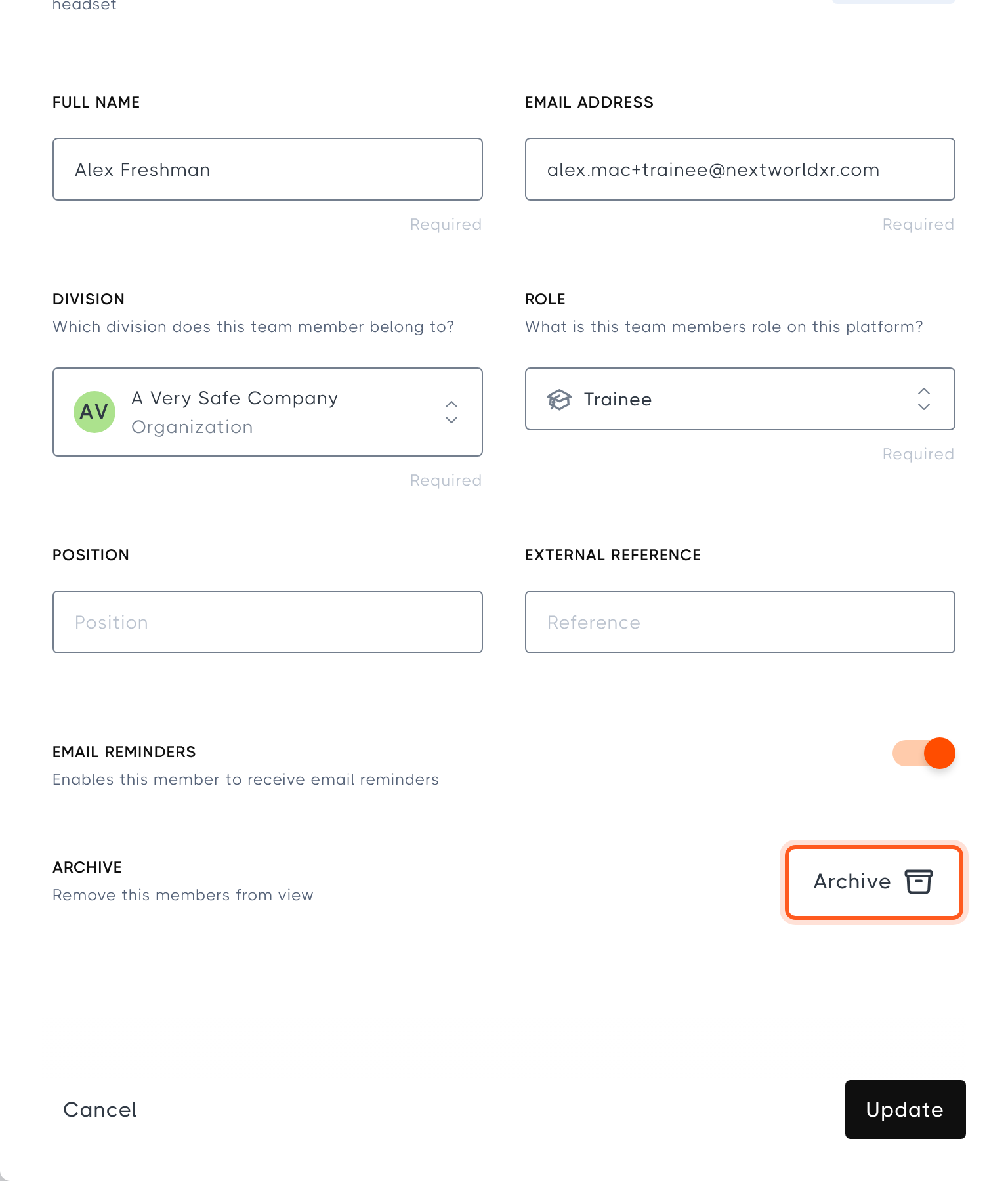
Multiple members cannot have the same email address, even after a member has been archived. If you intend to create a new member with the same email address as an old record, remove the email address from the old record before archiving it, otherwise you will not be able to use that email address again.
FAQ
Q: What is an External Reference?A: A field where you can add your own reference to a member, for example an employee number or site ID.
Q: Where do notifications go if a member doesn't have an email address?A: Notifications are forwarded to the manager(s) of any training programs that member is a part of.