
How to schedule or roster using the Training Schedule
The Training Schedule lets you book a dedicated time for your trainees to complete their required courses, while also showing the current status of their training.
How to schedule training
Select Training Schedule in the left-hand menu to open the scheduler.
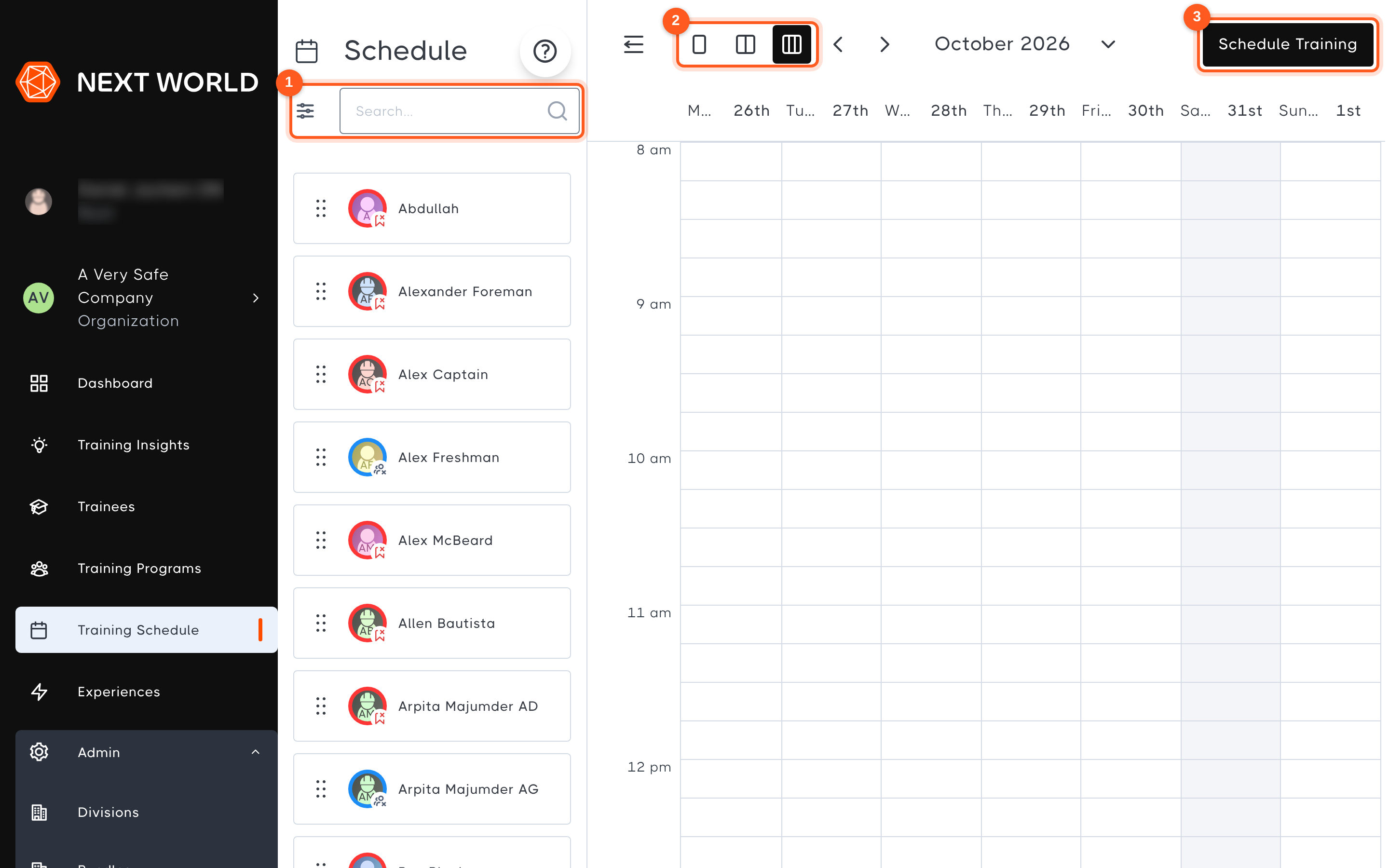
- On the left you will see a list of members in your organisation who you can book in for training. Use the search bar to find a particular person by name, or select the filter icon to the left of the search bar to narrow the list by Experience, Training Program, Training Status or Division.
- Use these buttons to change how many days the calendar shows, and the arrows and month picker to move between dates.
- Select Schedule Training to book a session (see below).
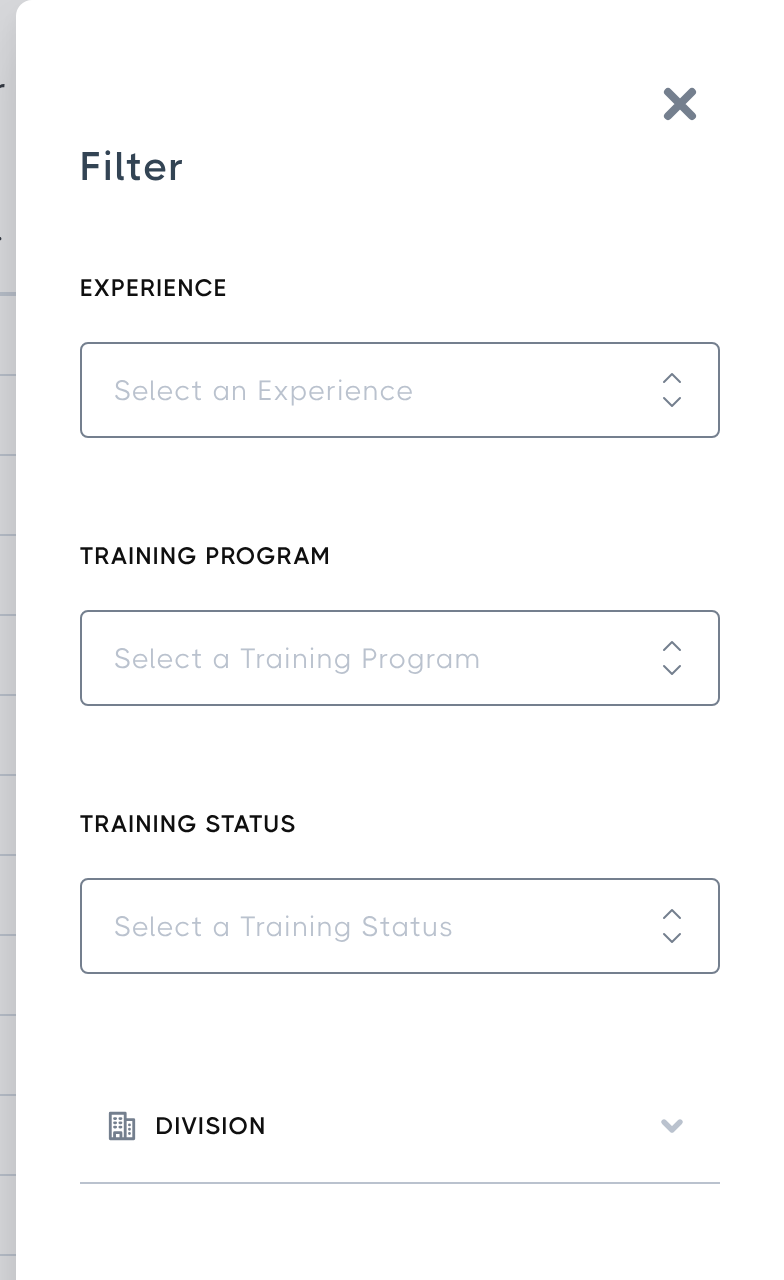
Filtering makes it easy to see everyone whose training has expired, for example, and book in their refresher training in one go.
Trainees must be in at least one training program before they can be scheduled, because the experiences you can book for them come from their programs. See Organising your trainees into Training Programs.
You can book a trainee in for training in three ways:
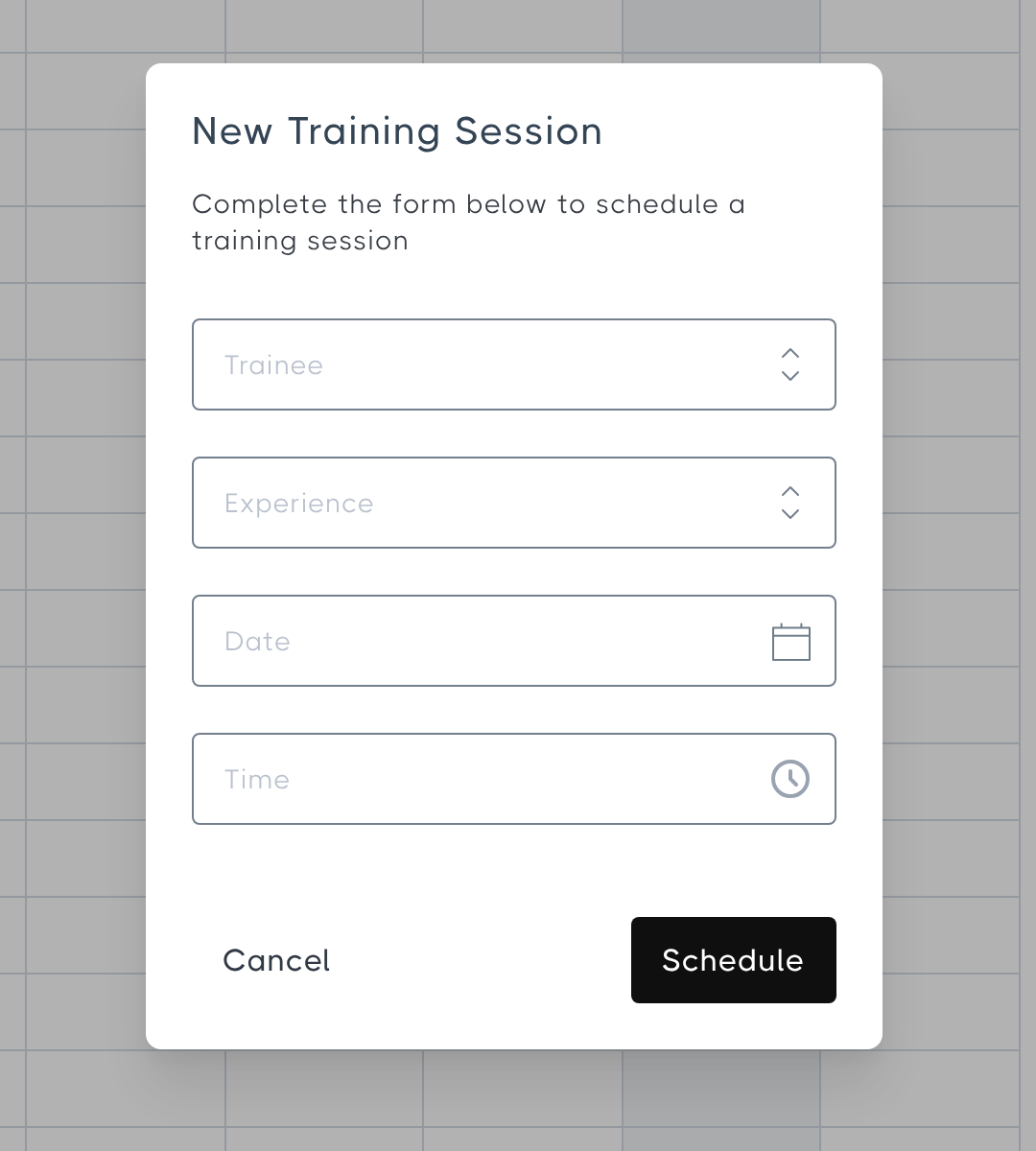
- Select Schedule Training in the top-right corner, fill in the Trainee, Experience, Date and Time, then select Schedule.
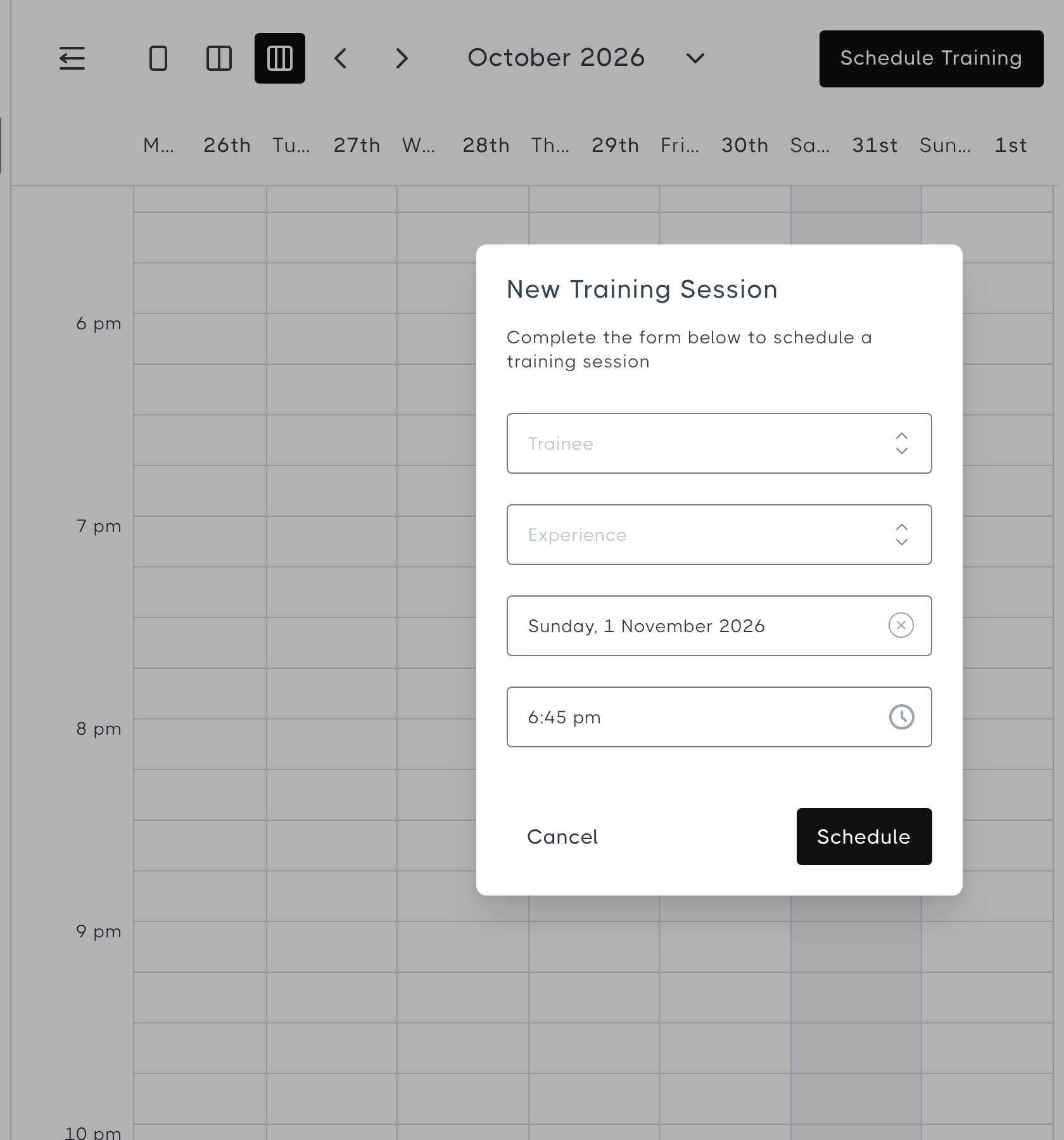
- Select the time slot you want on the calendar. The date and time are filled in for you, so you only need to choose the trainee and the experience they need to complete.
- Drag a trainee's name from the list on the left onto the time slot you want. With this method you only need to choose the experience they need to complete.
Training can only be scheduled for a future date and time. If you choose a time that has already passed, the Portal will ask you to pick a time in the future.
Once you select Schedule, the trainee will be sent an email (if they have an email address on their account) telling them which course they need to complete, the date and time, and their unique access code.
How to cancel scheduled training
To cancel a training session, select the session on the calendar, select Remove and confirm.
Training Schedule FAQ
Q: Do all trainees need to be scheduled before they can use the VR headsets?
A: No. The Training Schedule is not a prerequisite, and trainees can complete training at any time. It is an organisational tool.
Q: If I schedule someone for training, does that mean nobody else can train at that time?
A: No. If you have multiple headsets, you can schedule multiple people in the same time slot. The schedule is purely for administrative assistance and does not limit headset access.
Q: Can I change the length of a booking?
A: Not currently. Each training booking is 1 hour long.