Exporting data to CSV
UpdatingThe screenshots.Portal can export a number of different tables to a CSV file, which you can open in Excel or another spreadsheet program.
You can export the following tables:
- Training Insights (session data)
- Trainees
- Training Programs
- Divisions
How to export data
On the page you want to export, select Export CSV at the top-right of the table. The CSV file will download to your device.
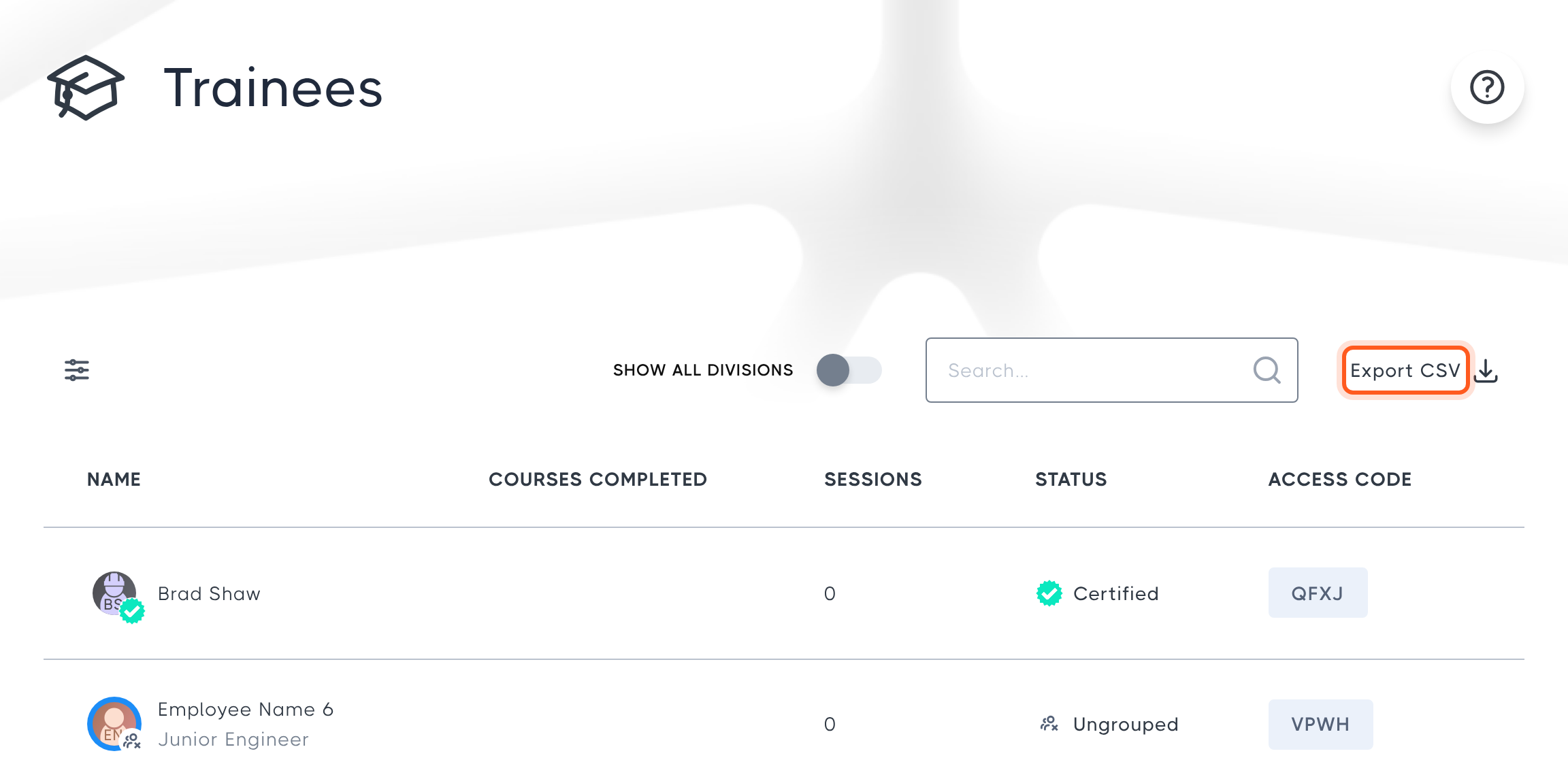
Any filters you have applied to the table also apply to the export. If you want a complete export of all data, clear any filters first.
How to export session data from a date range
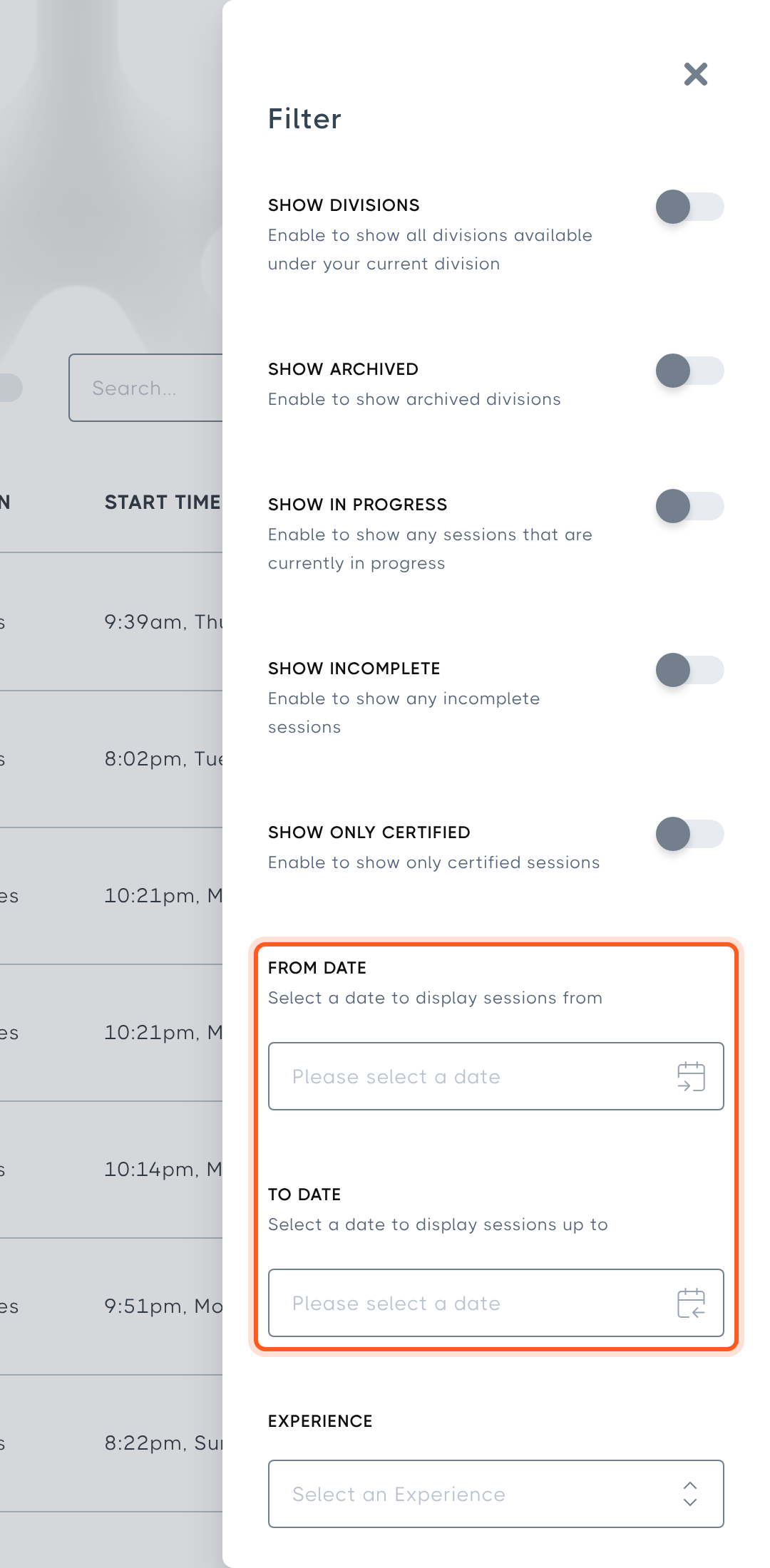
To export only the sessions from a particular date range, use the filters. Go to Training Insights, select the filter icon, then enter a From Date and To Date. Close the filter panel and select Export CSV.