
Setting up your headset
TheUpdating Devices page under Admin lets you add and edit the VR headsets licensed to your organisation. Registering a headset here gives it access to the Next World course library.
You need administrator access in your organisation to add a device. If you can't add a device, email support@nextworldxr.com with the Device ID and we can register it for you.
How to add a new device
Go to Admin > Devices to see a list of your registered headsets and the number of licences available to your organisation. Select the orange + button in the bottom-right corner to add a new device.
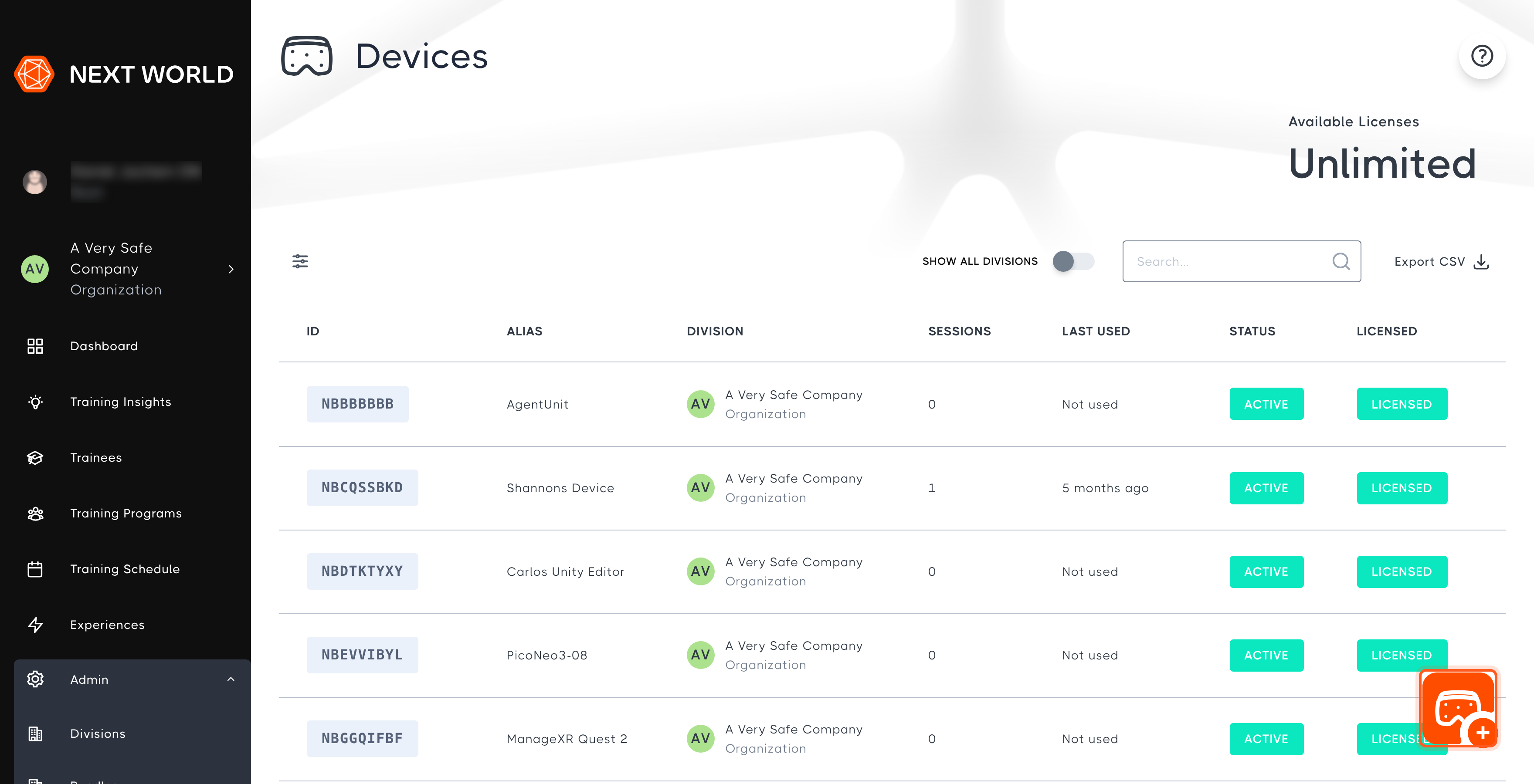
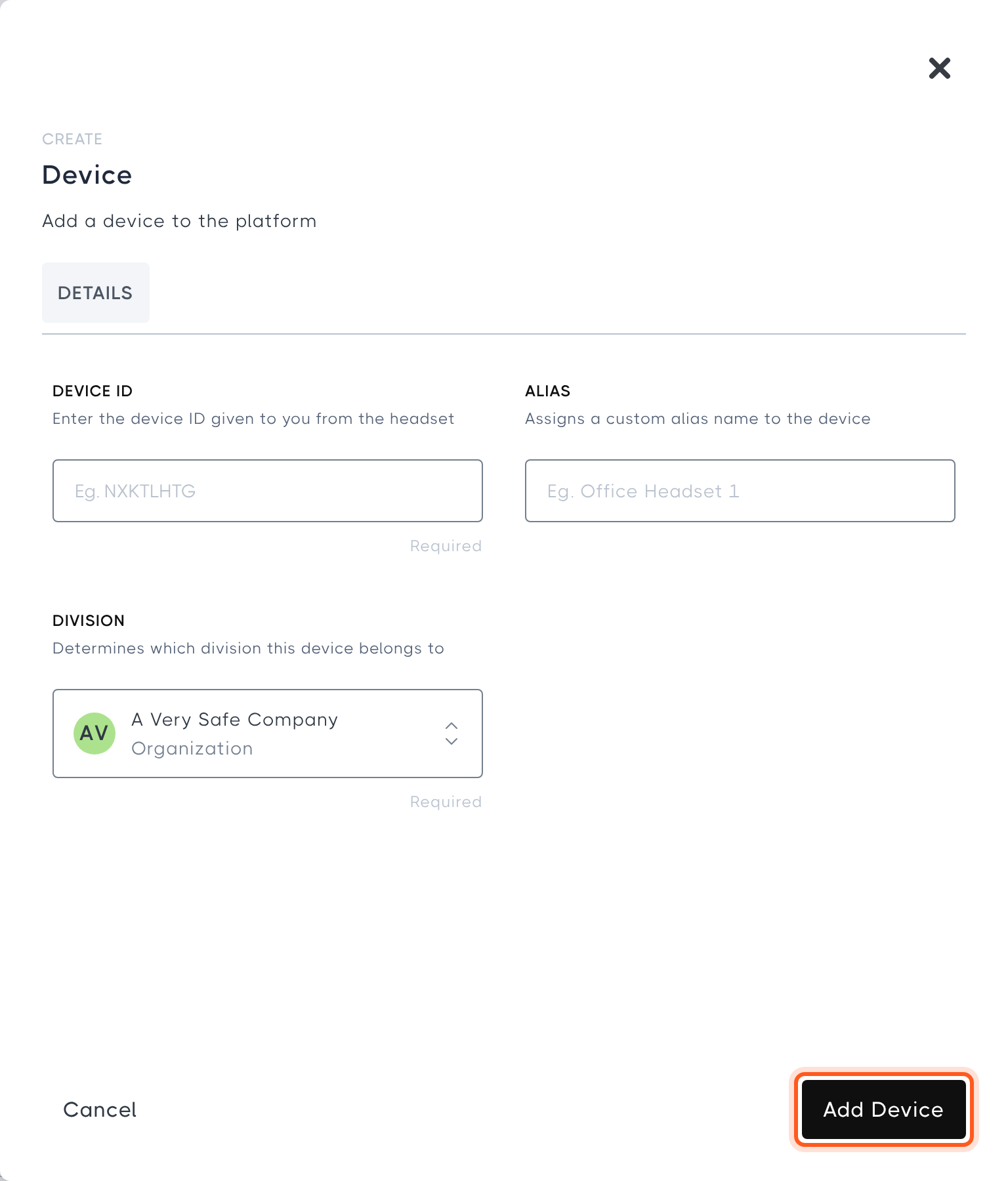
Start by entering the headset's unique ID in the Device ID field. To find it, put on the headset and open the Next World app. The Device ID will be displayed.

You can also add an Alias as a name for the device. This isn't required, but it is recommended so you can tell your headsets apart. Lastly, choose the Division the device belongs to, then select Add Devicescreenshots...
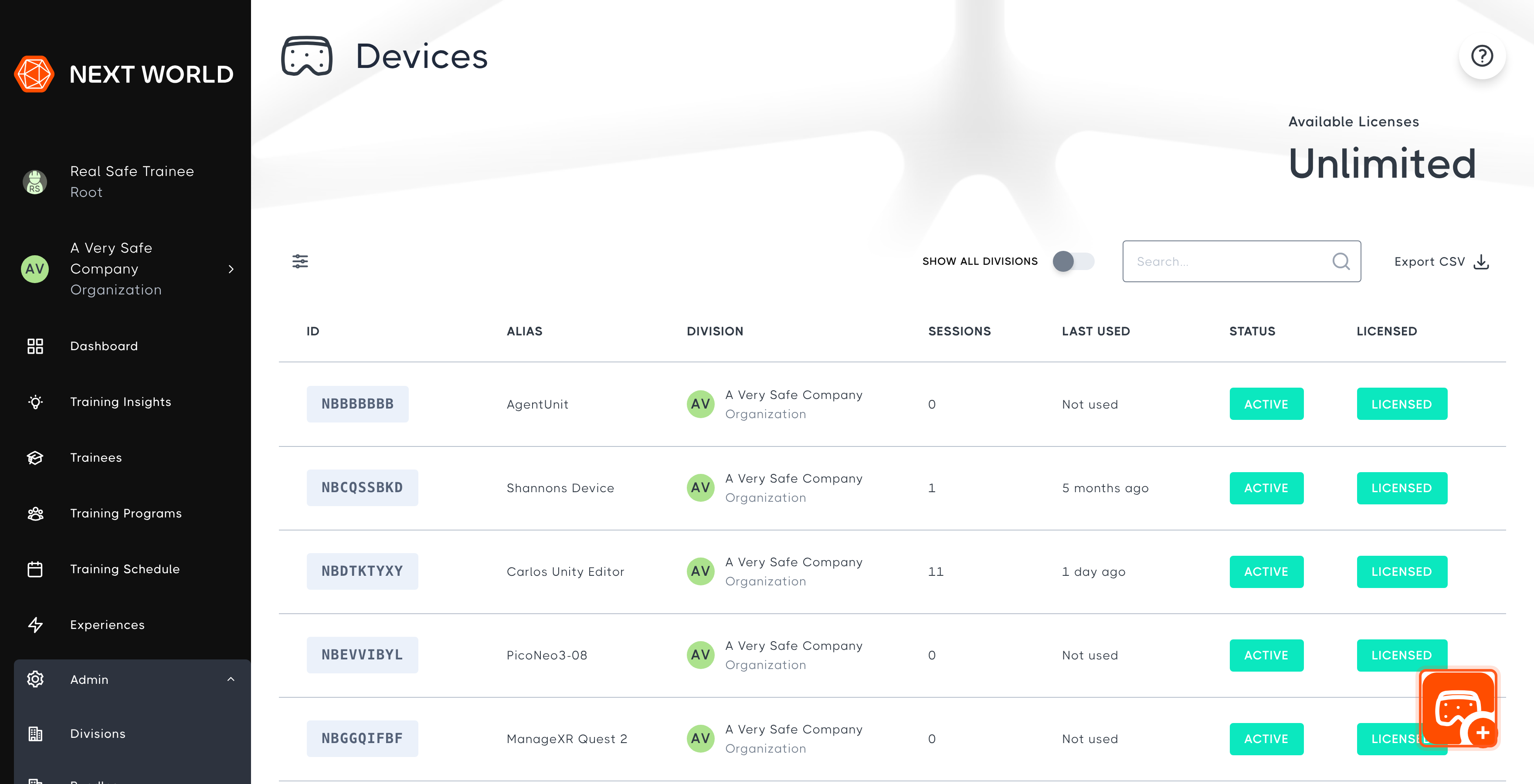
Once done, you will be able to access the Next World courses from that headset.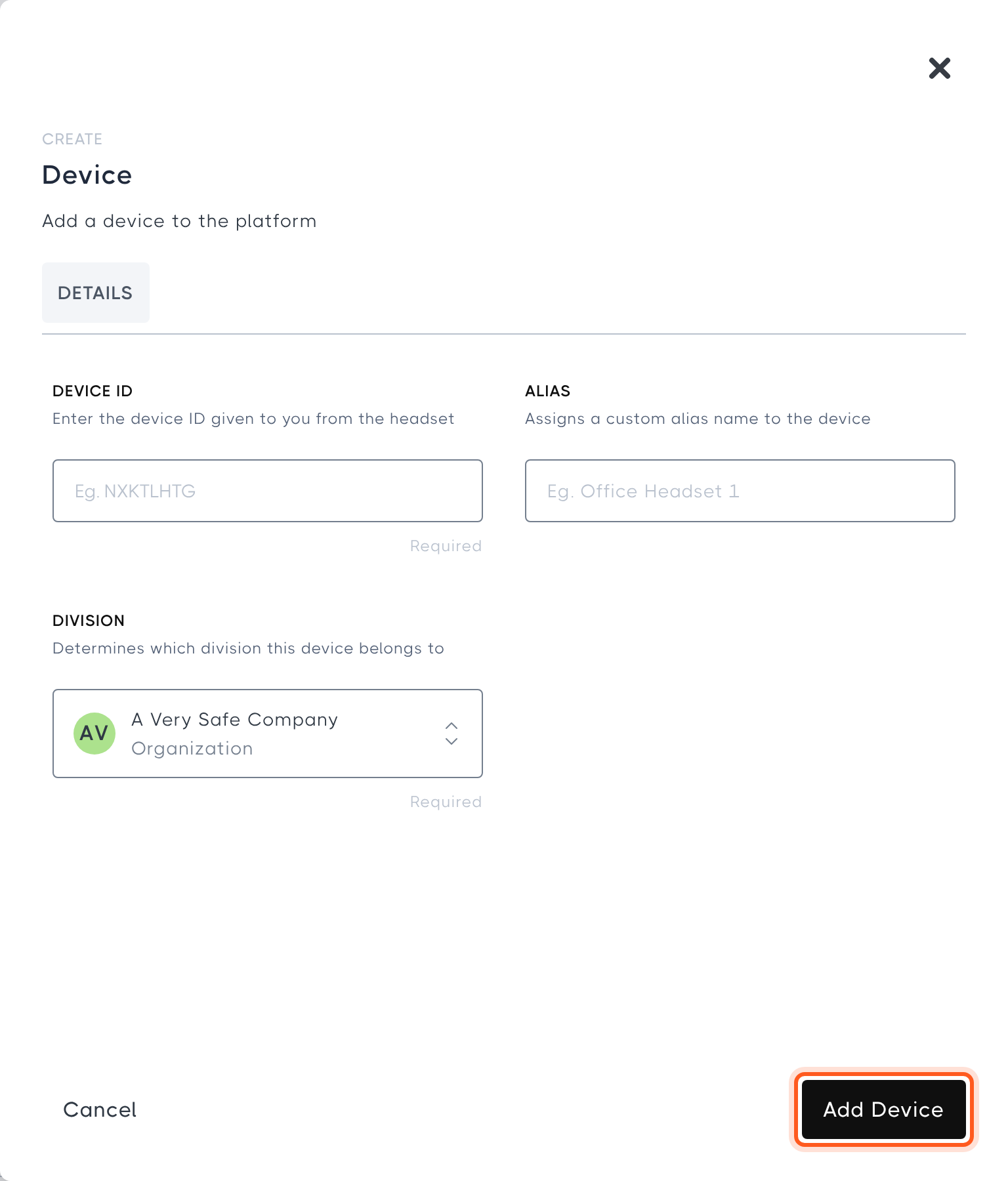
The headset needs to be connected to the internet to download this new information from the Portal.
How to edit or remove a device
Go to Admin > Devices and select the device you want to edit. From here you can change the device's alias and division, and see when it was last used, how many sessions it has completed, and which Hub version and headset model it reported. Select Update to save your changes.
To remove the device, select Archive.
Archiving a device stops it from accessing the course library. A device's licence can only be reassigned to another headset 7 days after it was assigned.
FAQ
Q: I registered my device but it is not updating on the headset.A: Make sure the headset is connected to a stable internet connection so it can download the new information.