# Preparing a Meta VR Device For Usage With Next World Software
This article provides the steps to set up your Meta VR device before installing Next World's software on to the headset. Next World currently support Meta Quest 2, Meta Quest 3 and Meta Quest 3S.
In the current state of Next World supporting Meta headsets, you must enable developer mode for the Meta device from within the Meta Horizon mobile app on your mobile phone. Before you can put your device in developer mode, you must belong to (or have created) a developer organization on the [Meta Quest Developer Dashboard](https://developers.meta.com/horizon/manage/).
To create a new organization, go to the [Create New Organization](https://developers.meta.com/horizon/manage/organizations/create/) page of the Meta Quest Developer Dashboard and fill in the appropriate information.
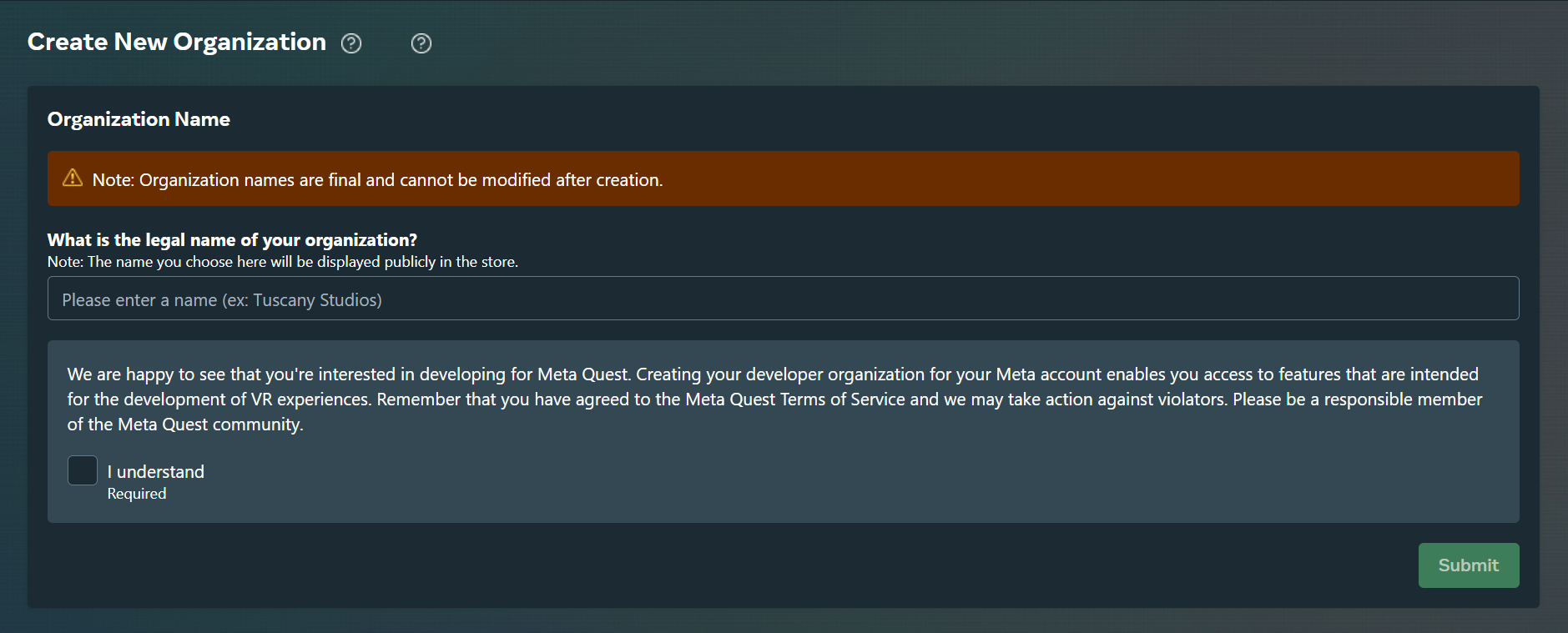
Next, go to the [verification tab](https://developers.meta.com/horizon/manage/verify/) of the Meta Quest Developer Dashboard. If prompted, login with your Meta Developer account.
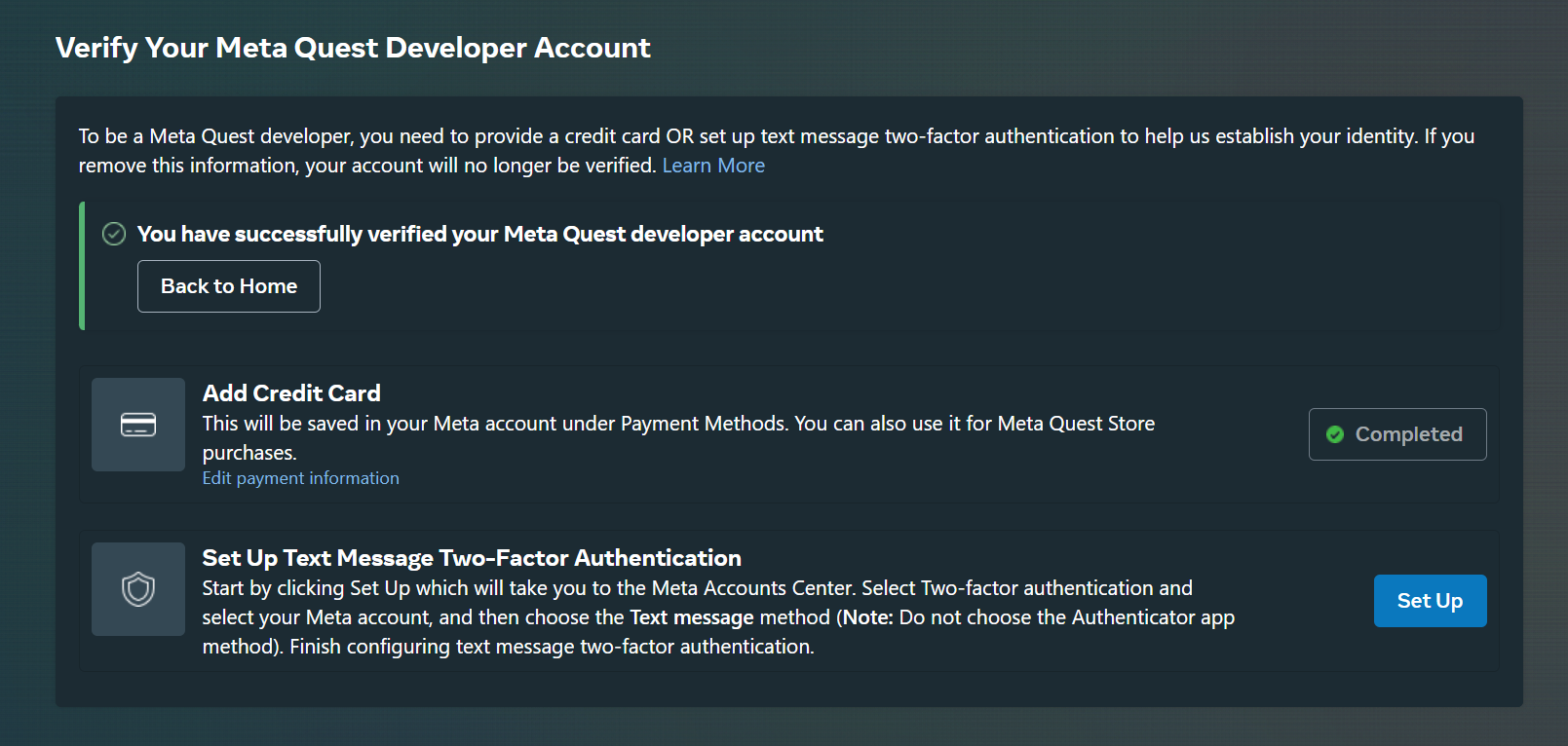
Verify your account with one of the two following options:
- Confirm your mobile number to set up SMS two-factor verification
OR
- Add a payment method to your account (no payment will be made, this is purely for verification purposes).
**Enable Developer Mode**
Once you have set up the Meta developer organization, follow these steps to put your device in developer mode:
1. First, download the Meta Horizon mobile app from your mobile device's app store, it is available for both Android and iOS.
2. Login to your newly created developer account on the app.
*If your mobile device has the Meta Horizon app installed already, you have likely created a personal Meta account and set up your Meta device inside the app under this personal account. If this is the case,* *you will need to remove the device from your personal Meta account before continuing. After removing the device, log out of your personal account before logging into the newly created Meta developer account.*
There are two different steps depending on if your device has completed the initial set up phase or not.
a. If you have not yet completed the setup of your Meta device, as part of the setup it will ask you to connect your device to your Meta Horizon mobile app. At this stage it gives you a pairing code, displaying some numbers you must enter on the app to connect the device. The app may auto-detect there is a device waiting to be linked in which case you do not need to enter the pairing code, but if this is not the case, you will need to add a new device, following the instructions, starting with selecting your Meta device type as shown in the images below.
b. If the device has already completed set up, you likely had to remove the device from your personal Meta account. After doing this, you will need to add the device to your developer Meta account. Open the Meta Horizon app (and ensure you are logged into the developer Meta account), follow the steps shown in the images below to add your device.


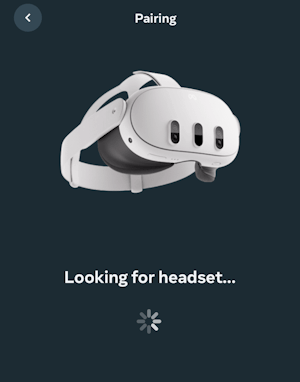

1. If the Meta Horizon app did not auto-complete the device setup and you see the above pairing code screen, you can view your pairing code from the Meta device's settings. Put on your headset and go to **Settings** > **General > About** and under the **Device** section you will see your 5-digit Pairing code. Enter this code into the mobile app and continue with the setup. The below images show how you may access the pairing code in the settings.
[](https://docs.nwxr.app/uploads/images/gallery/2025-04/pairing-code-1-1.png)[](https://docs.nwxr.app/uploads/images/gallery/2025-04/pairing-code-2-1.png)[](https://docs.nwxr.app/uploads/images/gallery/2025-04/pairing-code-3-1.png)
2. Once your device has been successfully set up and added to the app, select the headset in the app, then select **Headset Settings** > **Developer Mode** and switch on **Developer Mode**
[](https://docs.nwxr.app/uploads/images/gallery/2025-04/hzrhorizon-1.jpg)
[](https://docs.nwxr.app/uploads/images/gallery/2025-04/IyMhorizon-2.jpg)
[](https://docs.nwxr.app/uploads/images/gallery/2025-04/Rz2horizon-3.jpg)
[](https://docs.nwxr.app/uploads/images/gallery/2025-04/KCxhorizon-4.jpg)
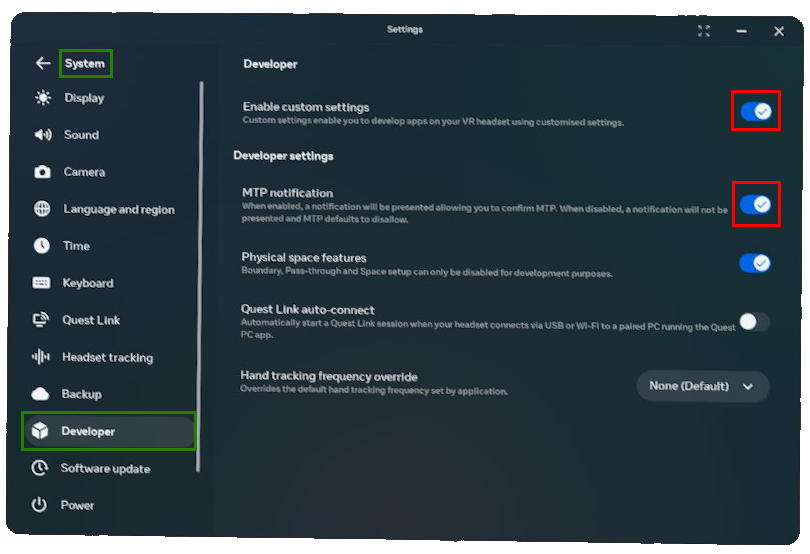
3. Connect the headset to the computer using a USB-C cable and put on the headset. In the headset, go to **Settings** > **System** > **Developer**, and turn on **Enable custom settings** and **MTP Notification**.
4. When prompted to allow USB debugging, select **Always allow from this computer** as shown below and then press **OK**
[](https://docs.nwxr.app/uploads/images/gallery/2025-04/pairing-code-4.png)Once all the above steps are completed, your device is now set up and is ready to install the Next World software onto the headset. Please follow the instructions from the below link to continue with the installation of Next World's software onto your Meta headset: [How to Install Next World Software on to a New Headset](https://nwxr.app/support/setting-up-next-world-and-software-installation/how-to-install-next-world-software-on-to-a-new-headset "How to Install Next World Software on to a New Headset")