Organising your trainees into Training Programs
Training programs (formerly known as 'training cohorts') let you create training setups for groups of people across your organisation who have different training requirements, so that everyone's training stays up to date and relevant.
Each program is made up of a list of experiences (courses), a training frequency (how often those courses need to be completed), and its members. Any member added as a trainee of the program needs to complete all of the courses in it for their training status to be "Certified", and needs to keep that training up to date by repeating it at the set frequency (for example, every 6 months).
For example, your warehouse pickers may need to complete courses such as Hand Safety, Manual Handling and Working Around Forklifts, so you could create a dedicated "Warehouse Training" program for them. Your office staff may only need courses relevant to their job (such as Office Hazards and Slips, Trips and Falls), so you could create an "Admin" program just for them. And if you want everyone in your organisation trained in using fire extinguishers, you could create a program for that and include everyone.
Training programs are how the Platform keeps track of whose training is current, overdue or expired. Training status and expiry dates depend on them, so it is important that all of your members are set up in a program.
Setting up a training program
To view your current training programs or create a new one, select Training Programs in the left-hand menu. You will see a summary of all of your organisation's programs, including their experiences, training frequency, and number of managers and trainees.
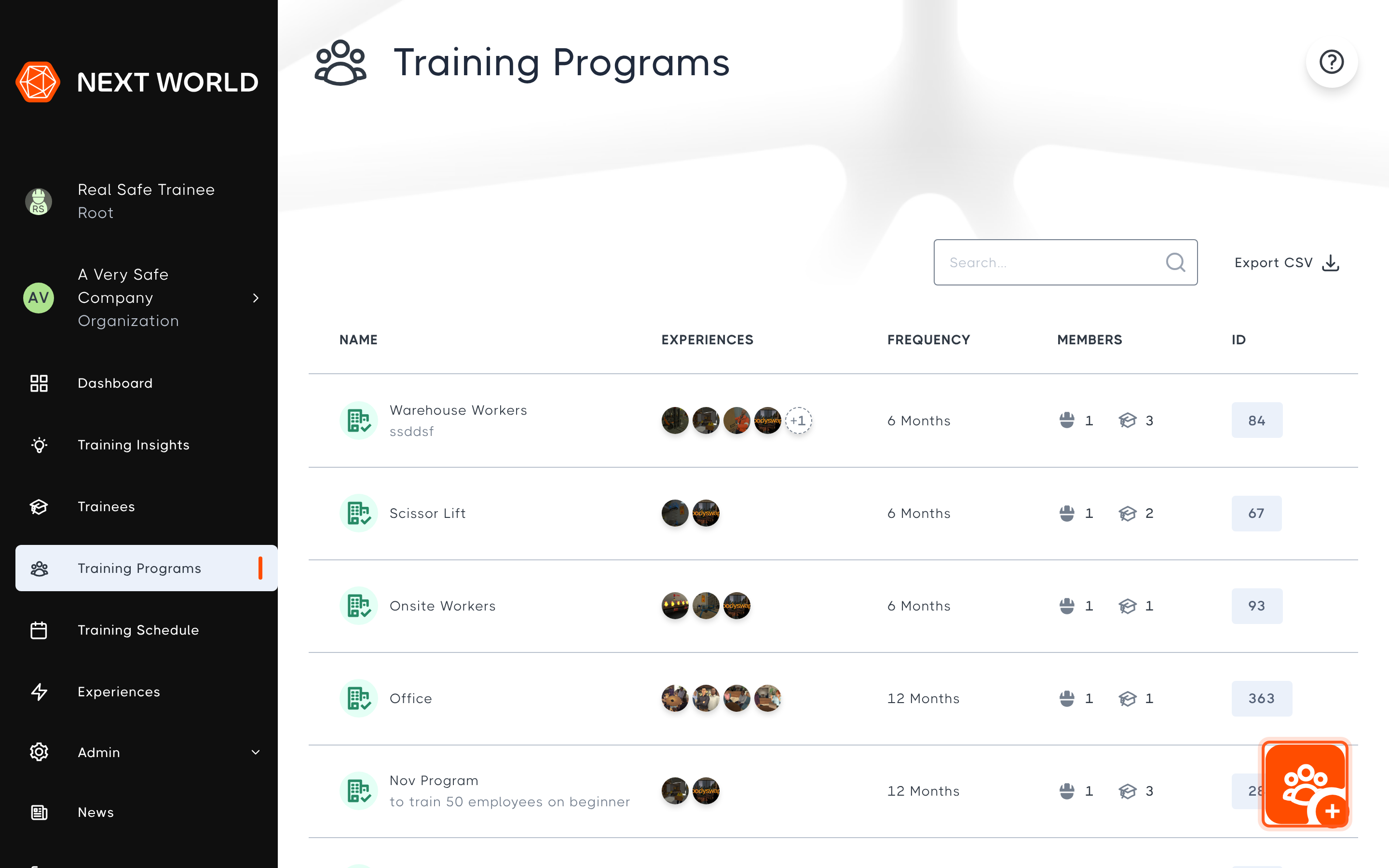
To create a new program, select the orange + button in the bottom-right corner. You will be guided through four steps:
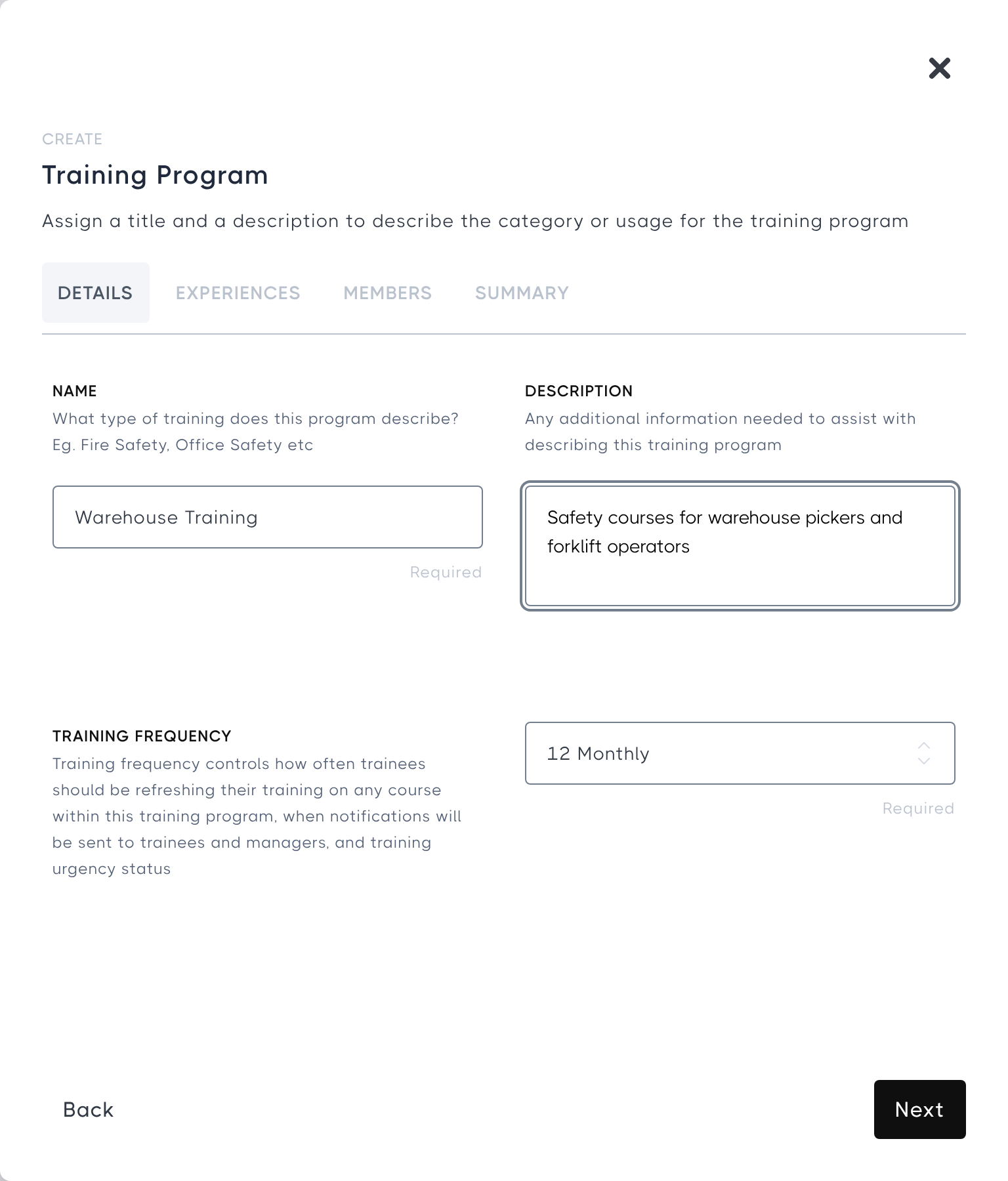
1. Details
- Name: what the program is for, for example Fire Safety or Office Safety
- Description (optional)
- Training Frequency: how often trainees need to refresh their training on the courses in this program. This also controls when reminder notifications are sent to trainees and managers.
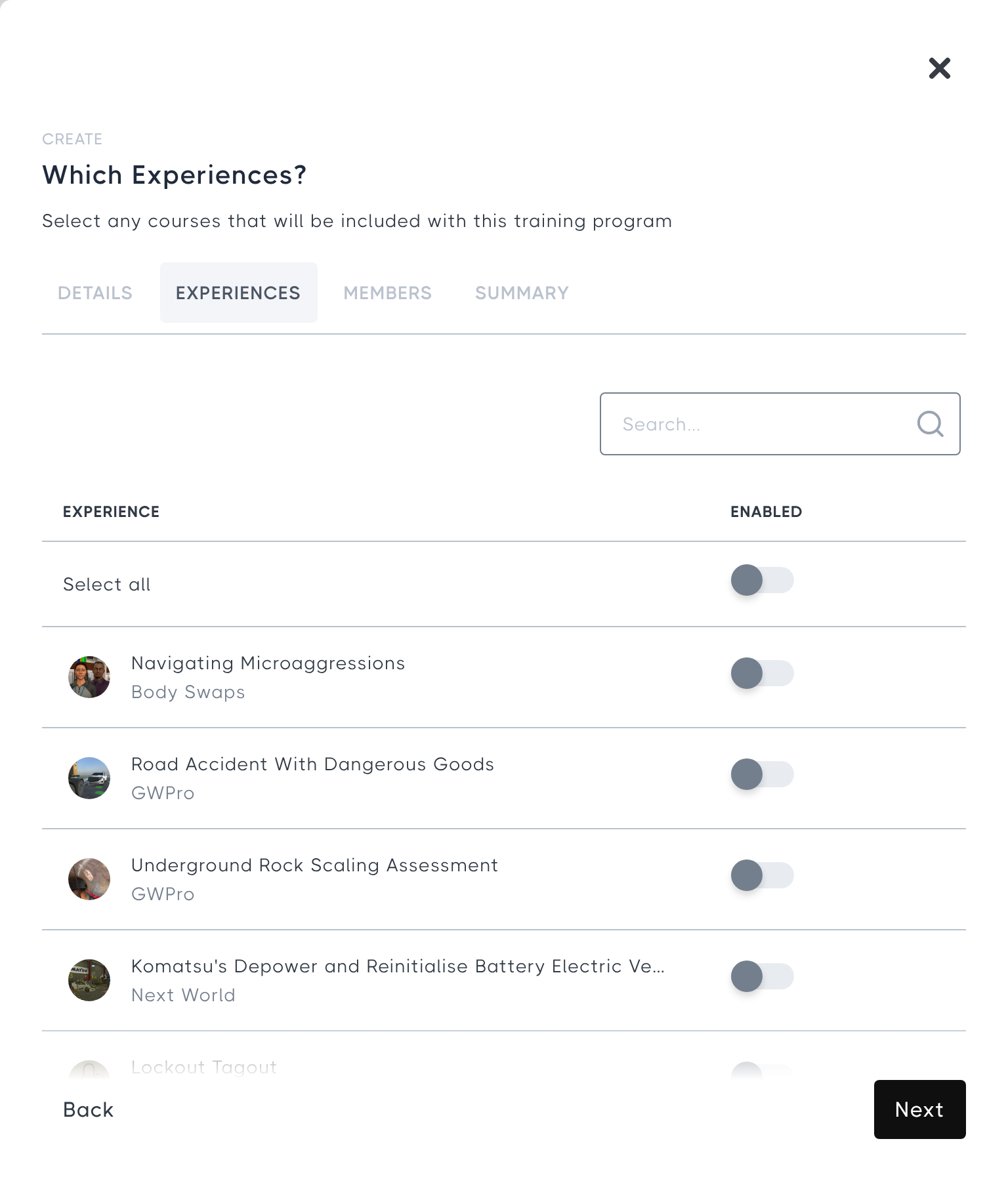
2. Experiences
Switch on each experience your trainees will need to complete. You can search the list, or use Select all to include every experience.
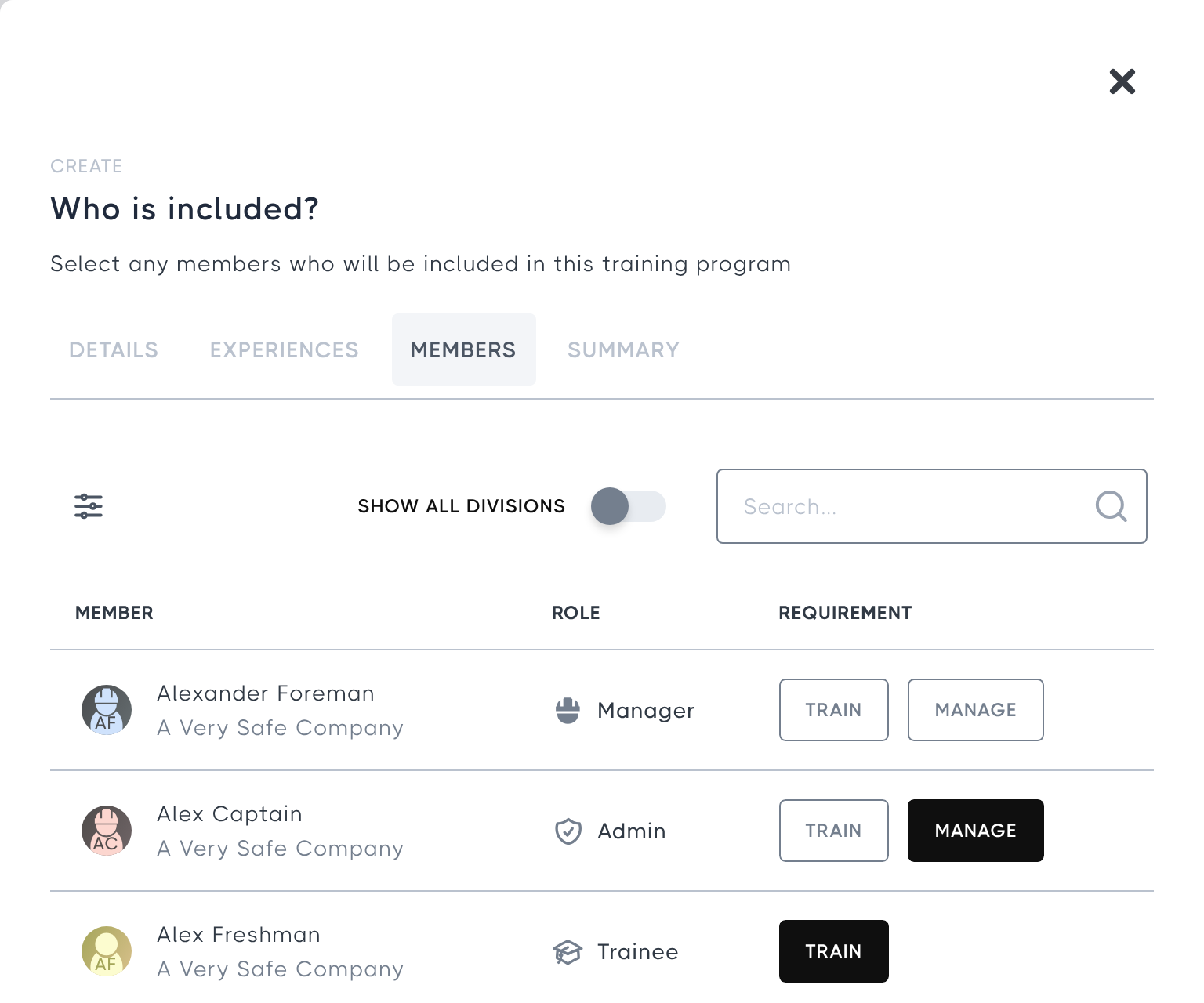
3. Members
Select TRAIN next to each member who will be a trainee in the program, and select MANAGE next to at least one person who will manage it. Only members with the Manager or Admin role can manage a program. Turn on Show All Divisions to include members from your subdivisions.
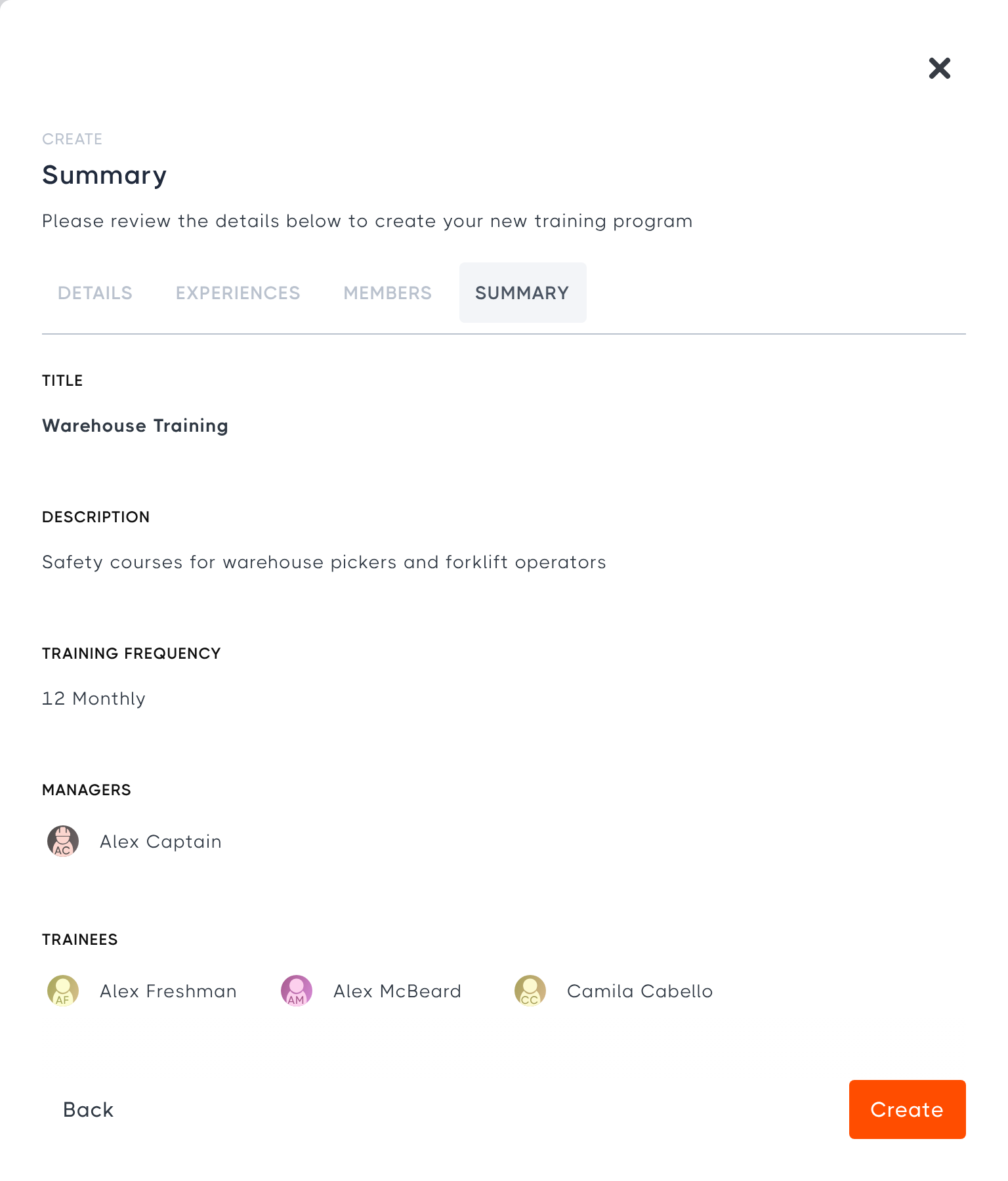
4. Summary
Review the details you've entered, then select Create to finish.
Editing and removing programs
To edit a program, select it on the Training Programs page. You can change its details, experiences and members using the Details, Experiences and Members tabs, then select Update to save.
To delete a program, select Remove at the bottom of the Details tab.
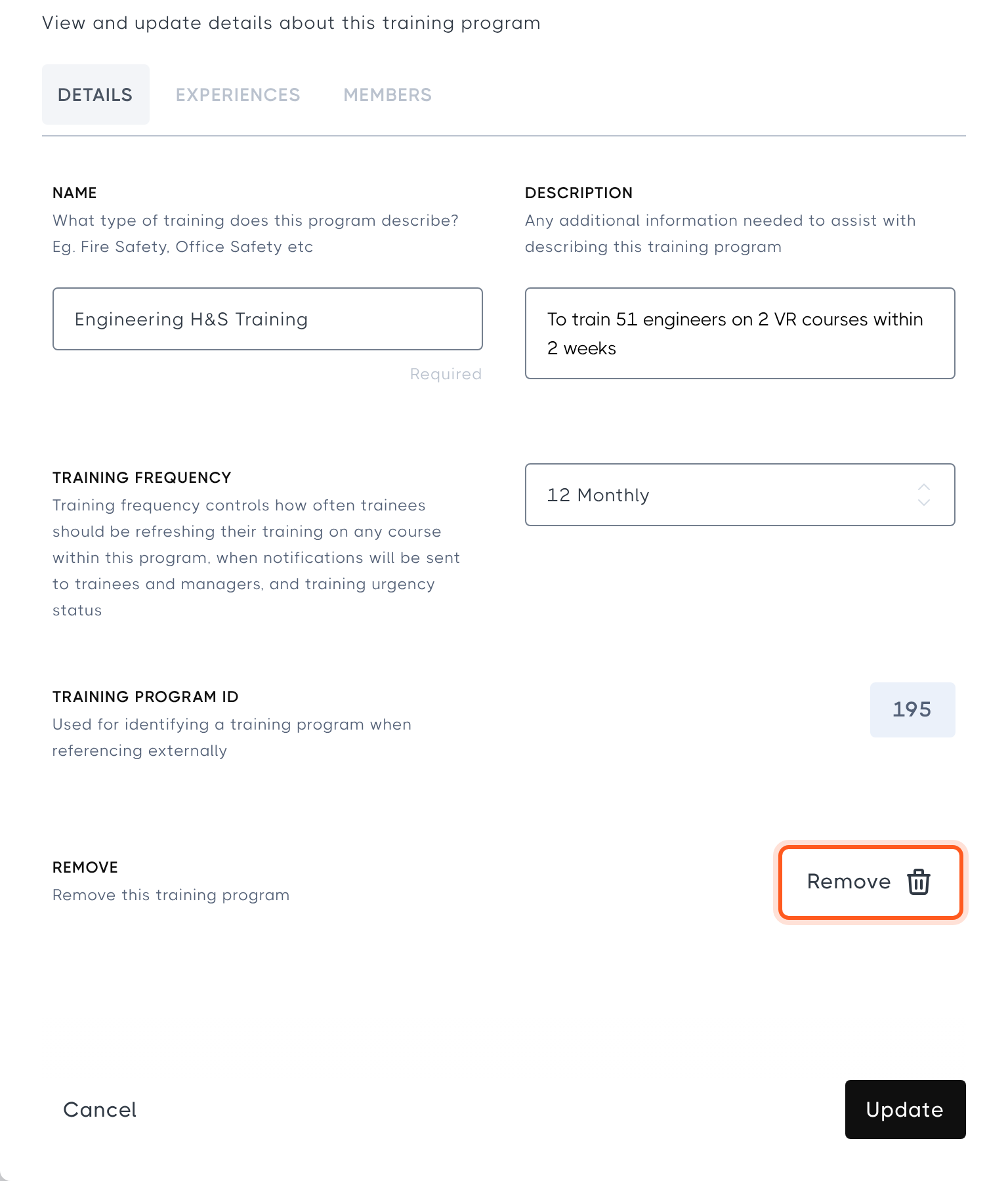
Removing a training program affects the training status of every member in it.
Adding members to an existing program
You can add members to a program from the program's Members tab, or from the member's own profile. To do this from their profile, select the member on the Trainees page or under Admin > Members, then open the Training Programs tab. Select TRAIN next to each program you want to add them to, then select Update to save.
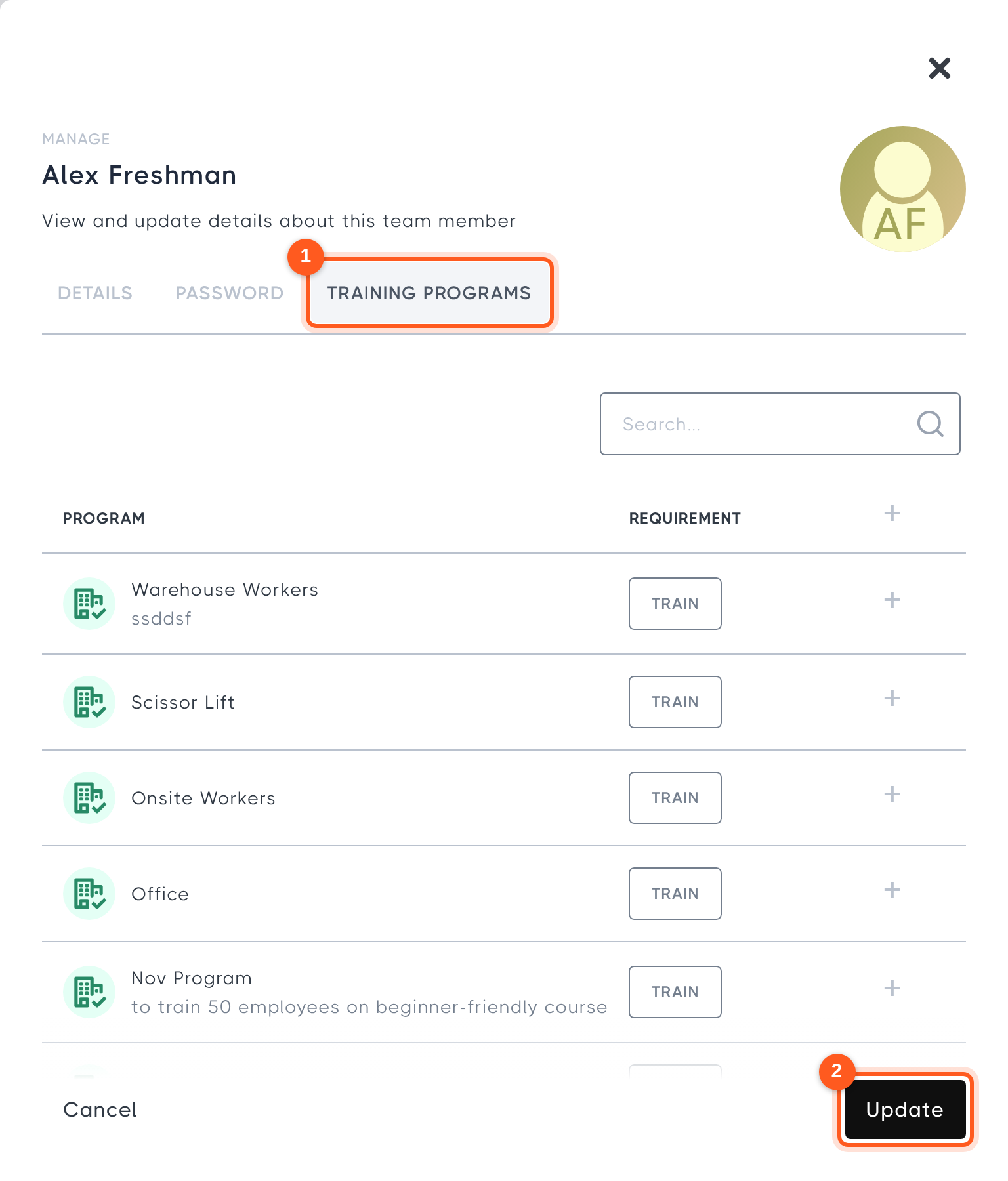
You can manage your own programs the same way by selecting your name at the top of the left-hand menu.