# How to Install Next World Software on to a New Headset
To get your headset started with Next World, you'll need to run installation from a Windows or Mac PC and register your device with Next World. This article can run you through those steps.
#### 1. Download the Next World Manager
The Next World Manager is a Windows and Mac application that can administer your device or get it set up.
**To grab the manager, head to:**[ http://app.nextworldenterprises.com/](http://app.nextworldenterprises.com/)
From that website, you'll be able to download the Next World Manager for Windows or Mac.
For **Windows** computers, simply open the Next World Manager application and go to step 2.
For **Mac** computers, it may show a message as seen below:
[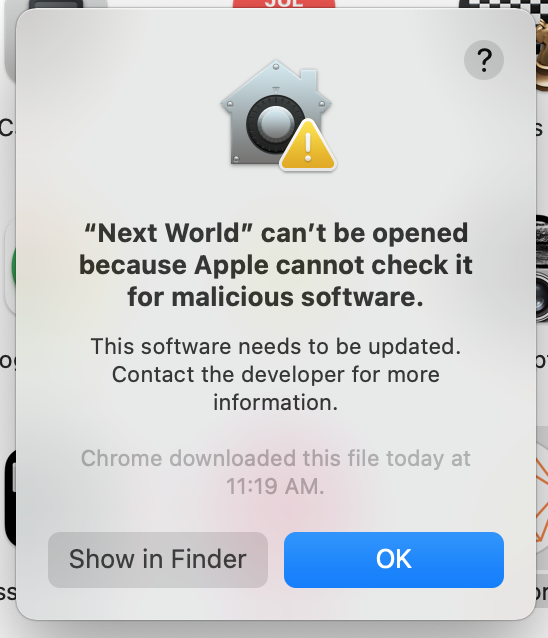](https://docs.nwxr.app/uploads/images/gallery/2025-11/1.png)
OR
[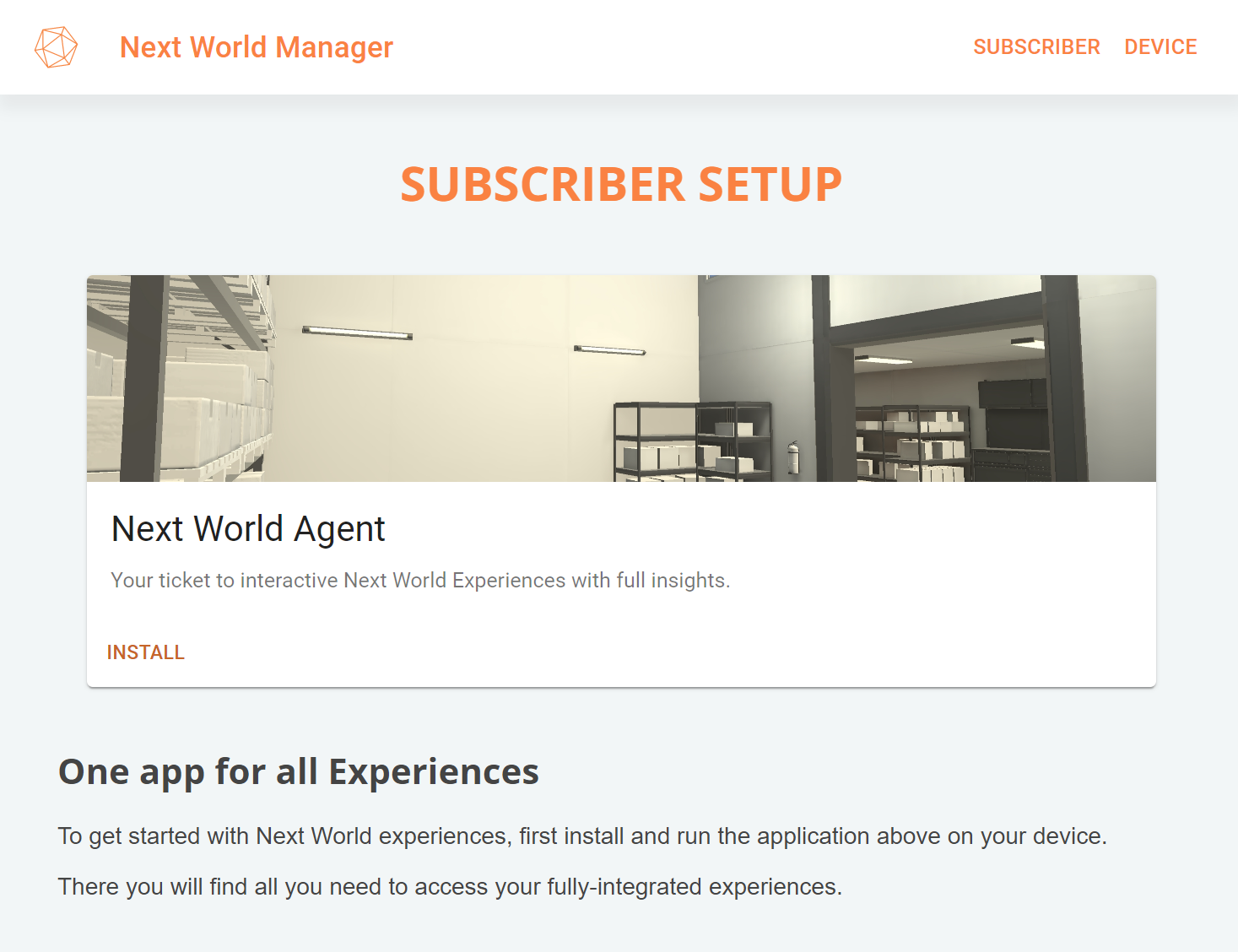](https://docs.nwxr.app/uploads/images/gallery/2025-11/4.png)
If the Next World application successfully installed on your device, your device will restart within 10 seconds, and you will now have the Agent application available on your headset. At this stage you may disconnect your headset from your computer.
---
***If you have just set up a Meta Quest device and are not using Meta Quest for Business, the Next World app is available in the Unknown Sources category in the Library on your device. Open the Library application on your Meta device and you should see a filter dropdown in the top bar which has the current selected option as "All Apps". You will need to click on this and select "Unknown Sources" from the dropdown menu, you should then be able to see the "Next World" application.***
***[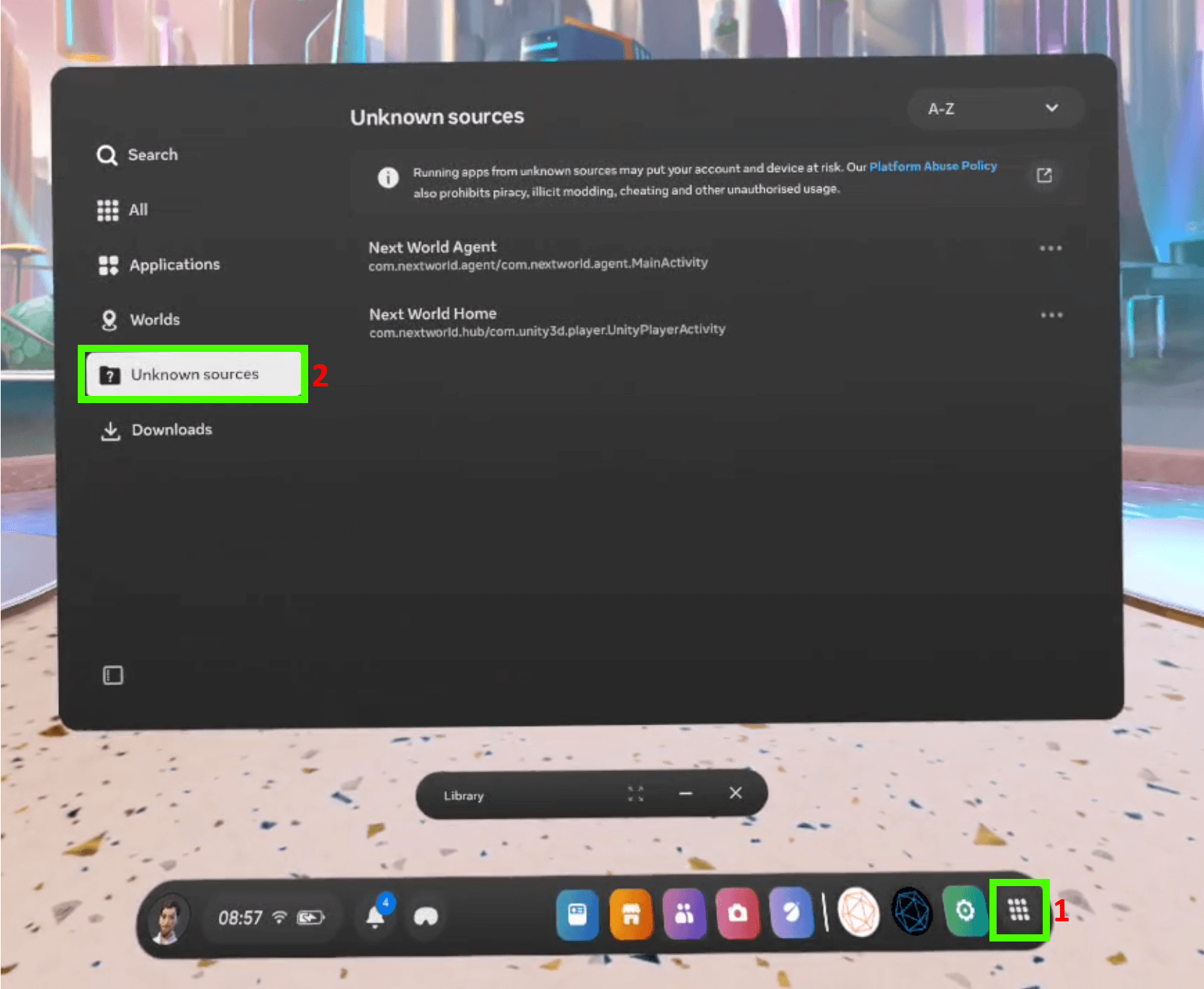](https://docs.nwxr.app/uploads/images/gallery/2025-07/unknown-sources-1.png)***
---
If you are not already subscribed to Next World's VR training solution, your devices will be unregistered and therefore will display as being in "*Demo Mode"*. You will only have access to one of our experiences as part of Demo Mode. In order to experience the full VR Training solution Next World has to offer, you will need to contact Next World to discuss a subscription.
#### 3. Registering Your Headset With an Active Subscription
Once subscribed to Next World's VR Training solution, you will need to register your headset in order to upgrade your device from Demo Mode to our full solution, allowing access to our full VR Library. The 9-character code shown in your headset will need to be added to the Next World Portal (our LMS). If you are unsure of how to do this, you'll need to send your 9-character code shown in your headset to your Next World representative or contact . Your Next World rep or support agent will add your device to the registry to get you started.
*An example of the 9-character code is pictured below:*
[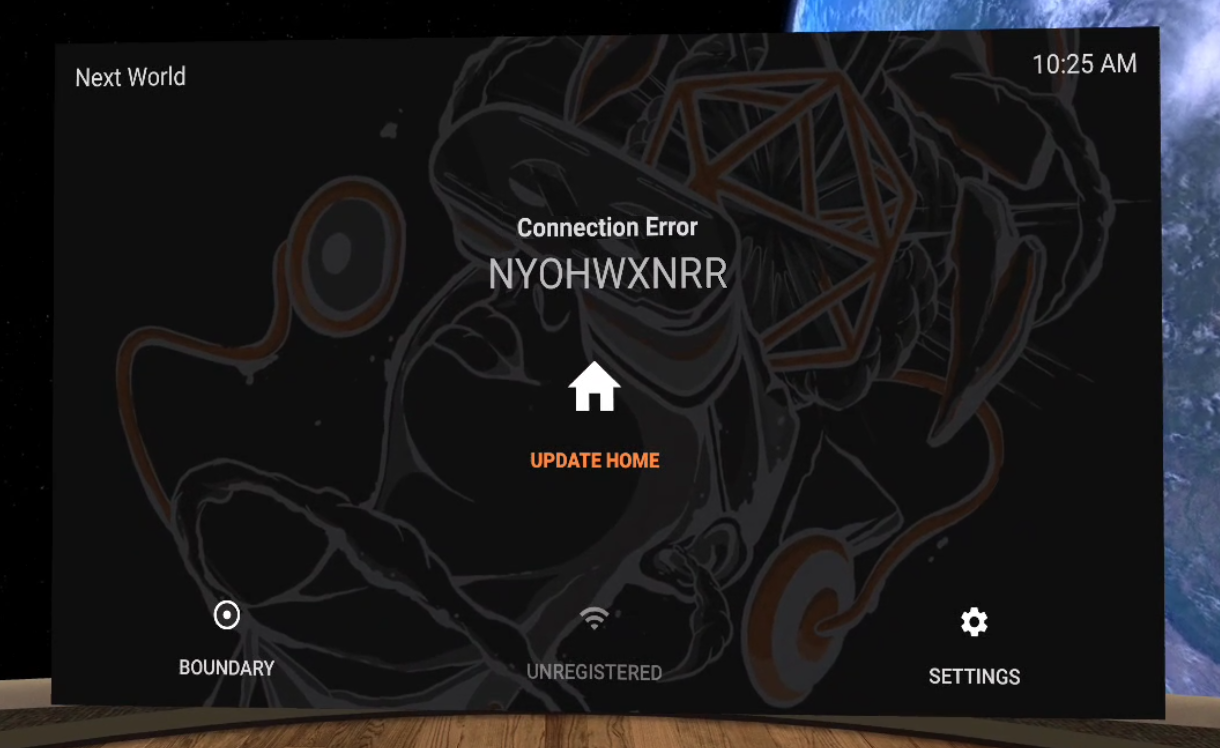](https://docs.nwxr.app/uploads/images/gallery/2023-12/image.png)
Once you or your Next World rep have registered the device on the Next World Portal, you may move on to the next step.
#### Using the VR Device
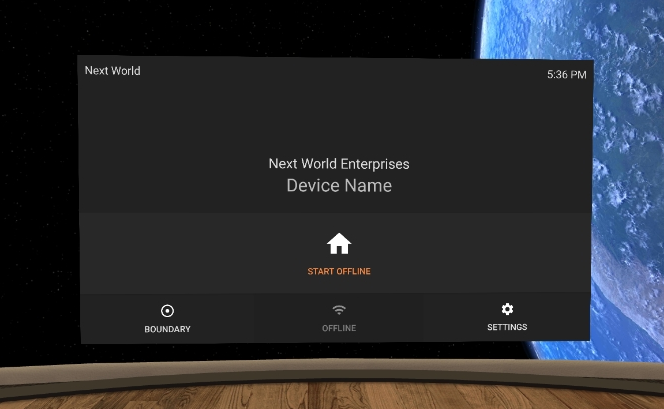
You should be greeted with a screen showing your device ID and company name if the device is registered. If the device is not registered, see the above instructions.
[](https://docs.nwxr.app/uploads/images/gallery/2023-04/YqRimage.png)
Open the menu by selecting the **Start** button with a house icon from the Agent dashboard. If there is an update pending, the home button will read **Update.** If that happens, follow the update and, once complete, the button will say Start.
[](https://docs.nwxr.app/uploads/images/gallery/2024-11/login-screen.png)
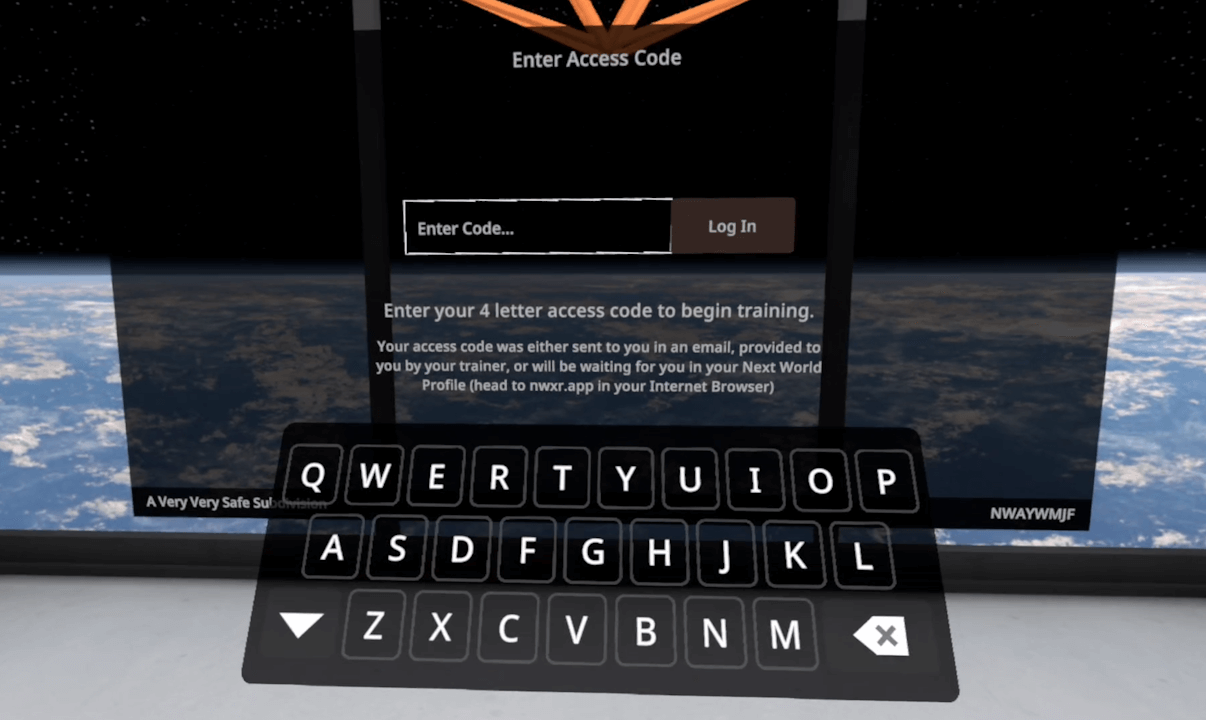
Go through the tutorial/set-up process, and when you reach the screen to log in, enter your 4-character login code. If you do not know your code, you can find it in the Next World Portal, or contact your Next World representative and they will let you know your code.
Next, select an experience from the list. If the experience isn't installed and your device is currently connected to the internet it will download and install automatically. If it has already been downloaded and installed, the experience will load and begin.
[](https://docs.nwxr.app/uploads/images/gallery/2024-11/experience-screen.png)
You're device is now up and running and you may start training on it!