# Next World Support

# The Portal, Training Management and Insights

Information and support articles on how to manage trainees, training and read insights from the Next World Portal.

# How to change or reset your password

<span data-identifyelement="471" dir="ltr">Forgotten your password? This article shows two methods to change your password.  
  
</span>

#### <span data-identifyelement="471" dir="ltr">Resetting your password from the login screen</span>

<span data-identifyelement="471" dir="ltr">From the Login Screen, select **Forgot Password?** in the bottom right-hand corner of the Login box.  
  
</span>[![image.png](https://docs.nwxr.app/uploads/images/gallery/2023-04/scaled-1680-/PiTimage.png)](https://docs.nwxr.app/uploads/images/gallery/2023-04/PiTimage.png)  
<span data-identifyelement="473" dir="ltr">  
You will be redirected to the Password Reset Request Form. </span><span data-identifyelement="475" dir="ltr">Enter the email for your account and s</span><span data-identifyelement="477" dir="ltr">elect **Submit**.  
  
</span>[![password_reset.png](https://docs.nwxr.app/uploads/images/gallery/2023-05/password-reset.png)](https://s3-ap-southeast-2.amazonaws.com/aus-cdn.freshdesk.com/data/helpdesk/attachments/production/51043233178/original/0aJ3pUOSVdj4s6NWKt4zyRAkAVrUDo_eIg.png?1646873450)  
  
<span data-identifyelement="479" dir="ltr">You will receive an email with instructions on how to reset your password.</span>

#### <span data-identifyelement="471" dir="ltr">  
Resetting a password from the Portal</span>  


<span data-identifyelement="488" dir="ltr">You can also reset your password or a member in you organization's password from within the portal.</span>

<span data-identifyelement="488" dir="ltr">To reset your own password, click on your name at the top of the navigation bar to open your profile &gt; click on the **Password** tab &gt; select **Request Password Reset**.</span>

[![ezgif.com-video-to-gif (6).gif](https://docs.nwxr.app/uploads/images/gallery/2023-04/ezgif-com-video-to-gif-6.gif)](https://docs.nwxr.app/uploads/images/gallery/2023-04/ezgif-com-video-to-gif-6.gif)  
  
To reset the password of another member, go to **Admin** &gt; **Members** &gt; select the desired member &gt; click on the **Password** tab &gt; s<span data-identifyelement="488" dir="ltr">elect **Request Password Reset**.</span>

[![ezgif.com-video-to-gif (8).gif](https://docs.nwxr.app/uploads/images/gallery/2023-04/ezgif-com-video-to-gif-8.gif)](https://docs.nwxr.app/uploads/images/gallery/2023-04/ezgif-com-video-to-gif-8.gif)

Once you select <span data-identifyelement="488" dir="ltr">**Request Password Reset**, an email will be sent to the user with instructions on how to reset their password.</span>

# How to schedule or roster using the Training Schedule

The training schedule allows you to easily book a dedicated time for your trainees to complete their required courses, while also being able to see the current status of their training.

#### How to schedule training

Click on **Training Schedule** in the left navigation bar to bring up the scheduler.

On the left panel you will see a list of users in your organization who you can book in for training. You can use the search bar to look up a particular user by name, or you can use the filter button to the left of the search bar to sort them further by what experience they need to complete, training programme, training status or division.

This makes it easy for you to see all users who have outdating training, for example, and book in their refresher training in one go.

[![ezgif.com-video-to-gif (3).gif](https://docs.nwxr.app/uploads/images/gallery/2023-04/ezgif-com-video-to-gif-3.gif)](https://docs.nwxr.app/uploads/images/gallery/2023-04/ezgif-com-video-to-gif-3.gif)

<p class="callout info">**<span style="text-decoration: underline;">Please note:</span>** Users **must** be in at least one programme before they can be scheduled with this feature. You can add a user to a programme from here by clicking on their **Name** &gt; **Manage Programmes**.</p>

You can book in a trainee for training by 3 different methods:

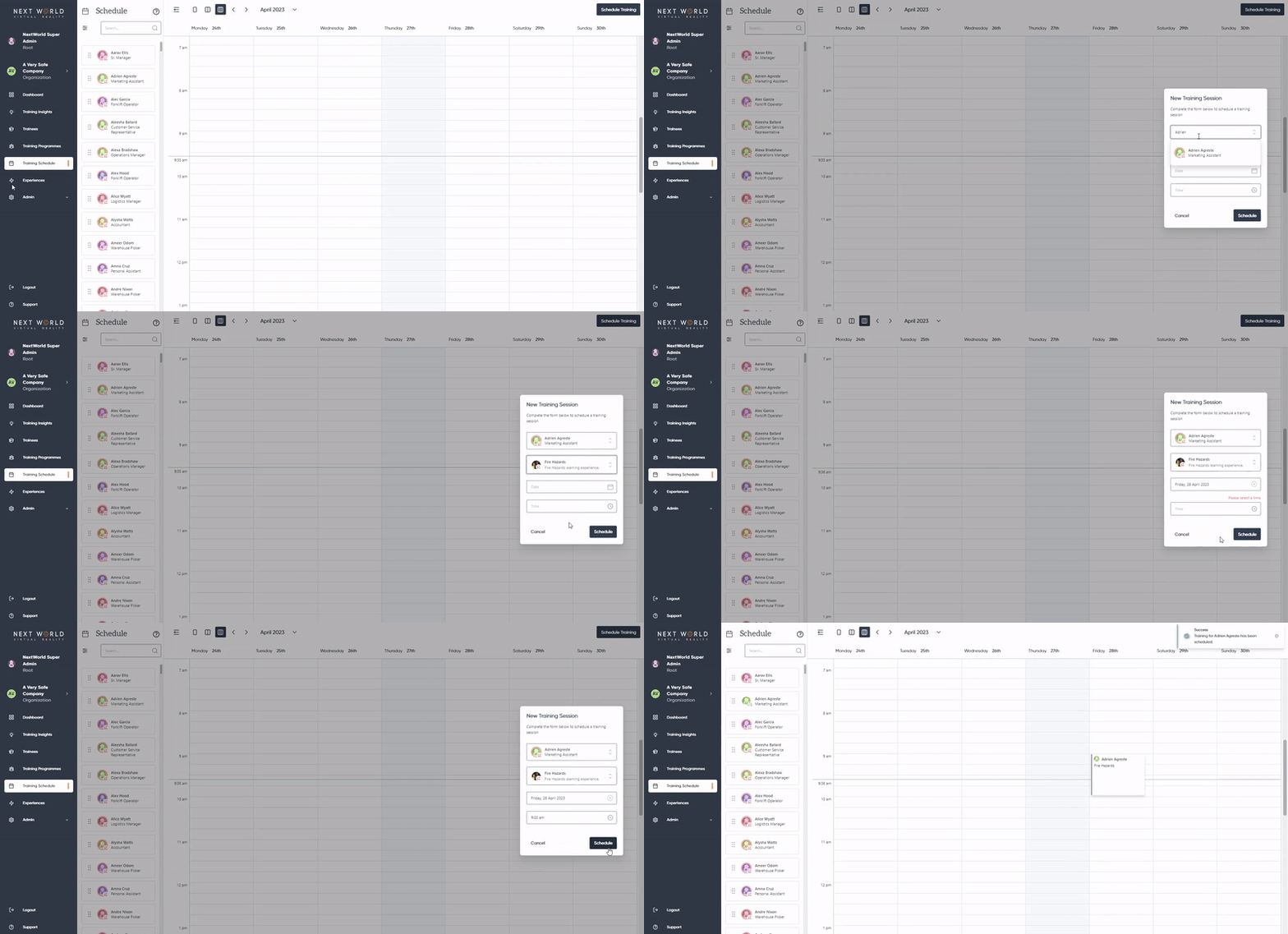
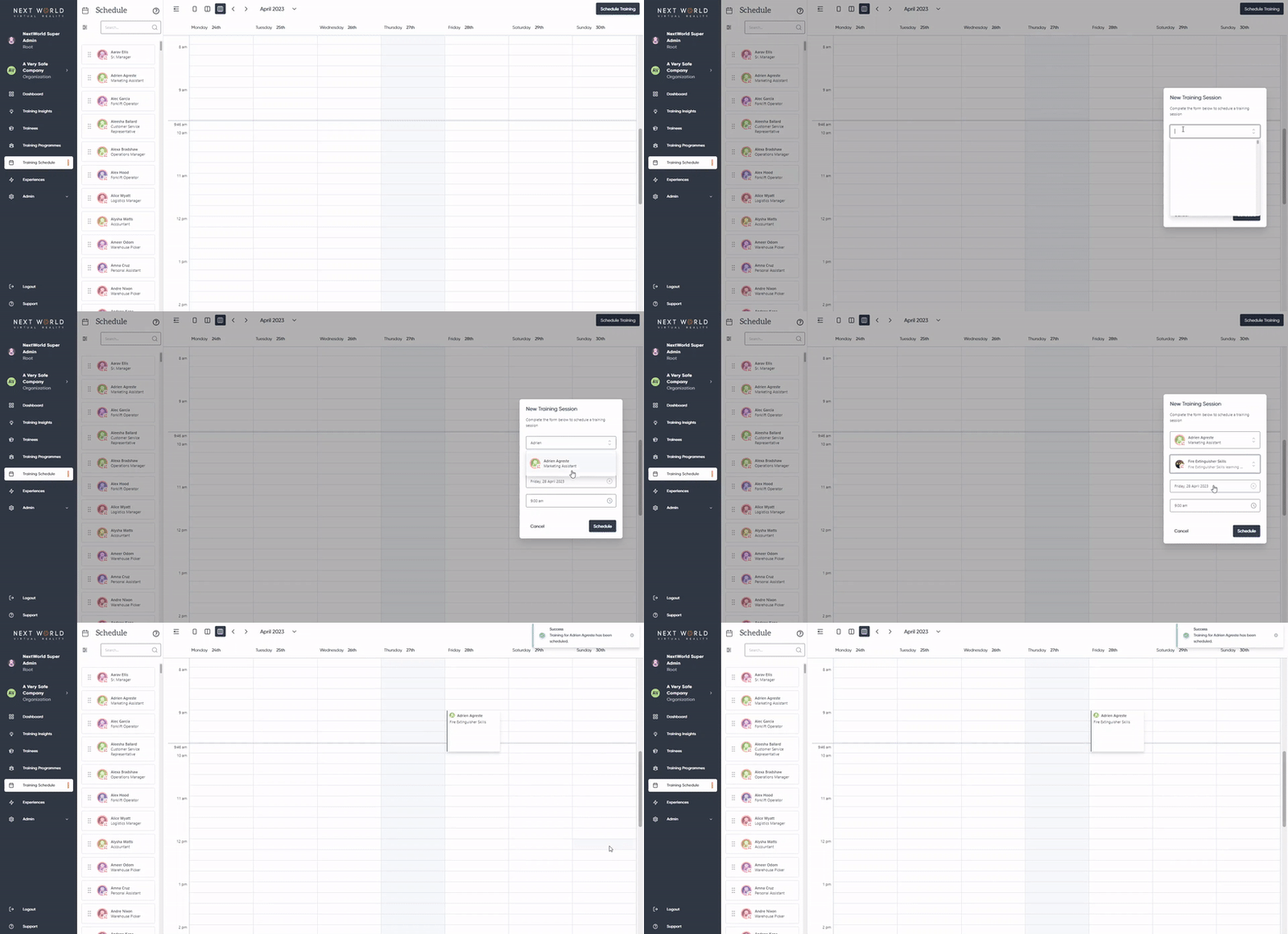
- Click on the **Schedule Training** button in the top right-hand corner &gt; fill out the required information &gt; confirm by selecting **Schedule**.  
    [![ezgif.com-video-to-gif.gif](https://docs.nwxr.app/uploads/images/gallery/2023-04/ezgif-com-video-to-gif.gif)](https://docs.nwxr.app/uploads/images/gallery/2023-04/ezgif-com-video-to-gif.gif)
- Click on the desired time slot on the calendar view. This will pre-fill the time and date of the training for you, so you only need to enter the trainee's name and experience they need to complete.  
    [![ezgif.com-video-to-gif (1).gif](https://docs.nwxr.app/uploads/images/gallery/2023-04/ezgif-com-video-to-gif-1.gif)](https://docs.nwxr.app/uploads/images/gallery/2023-04/ezgif-com-video-to-gif-1.gif)
- Drag the name of the trainee into the desired time slot on the calendar view. Using this method, you will only need to select which experience they need to complete.[![ezgif.com-video-to-gif (2).gif](https://docs.nwxr.app/uploads/images/gallery/2023-04/ezgif-com-video-to-gif-2.gif)](https://docs.nwxr.app/uploads/images/gallery/2023-04/ezgif-com-video-to-gif-2.gif)
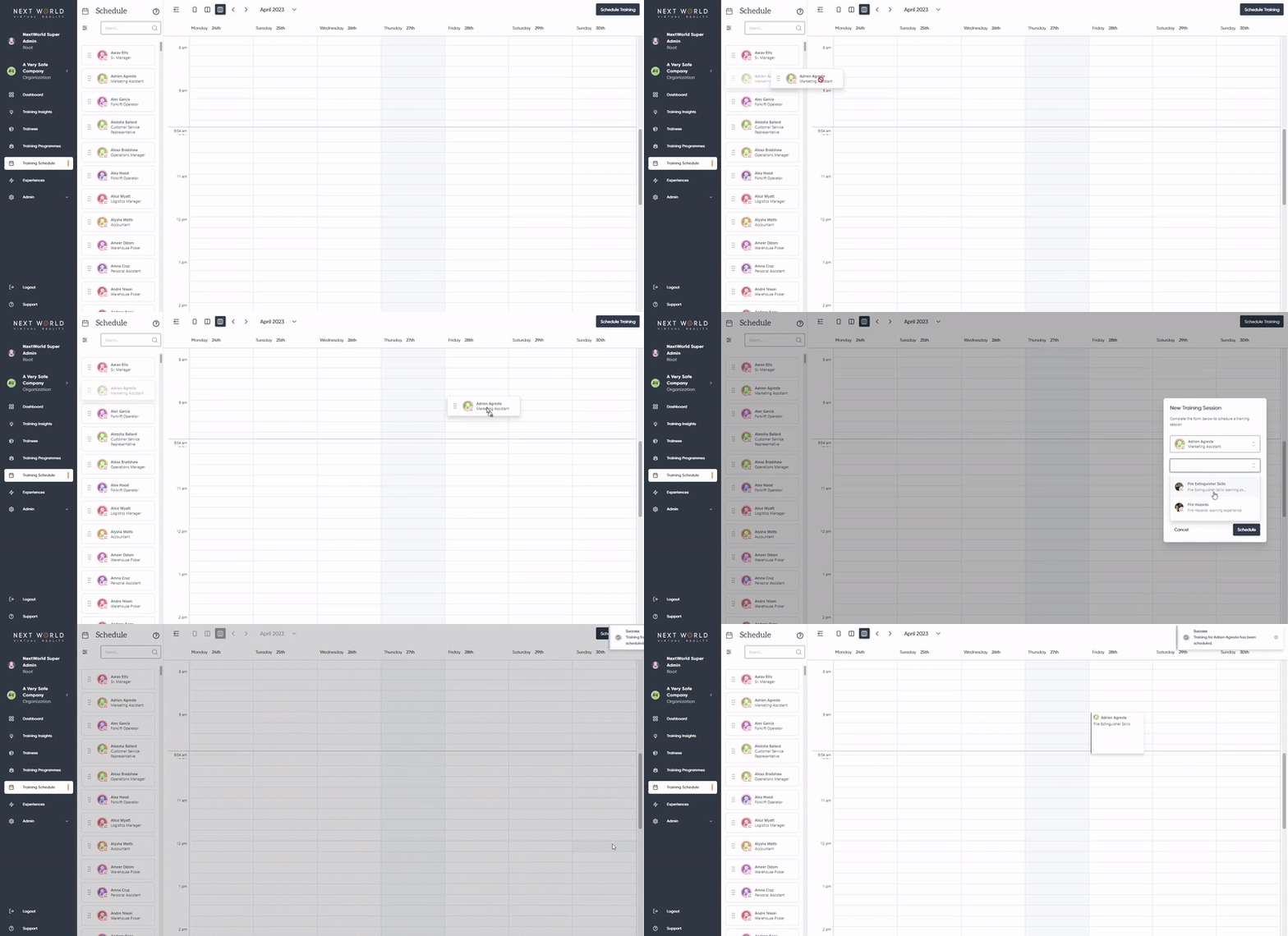
Once you have hit **Schedule**, the user will be sent an email (if the have an email address attached to their account) informing them of what course they need to complete, the date and time, and their unique 4-digit access code.

#### How to cancel scheduled training

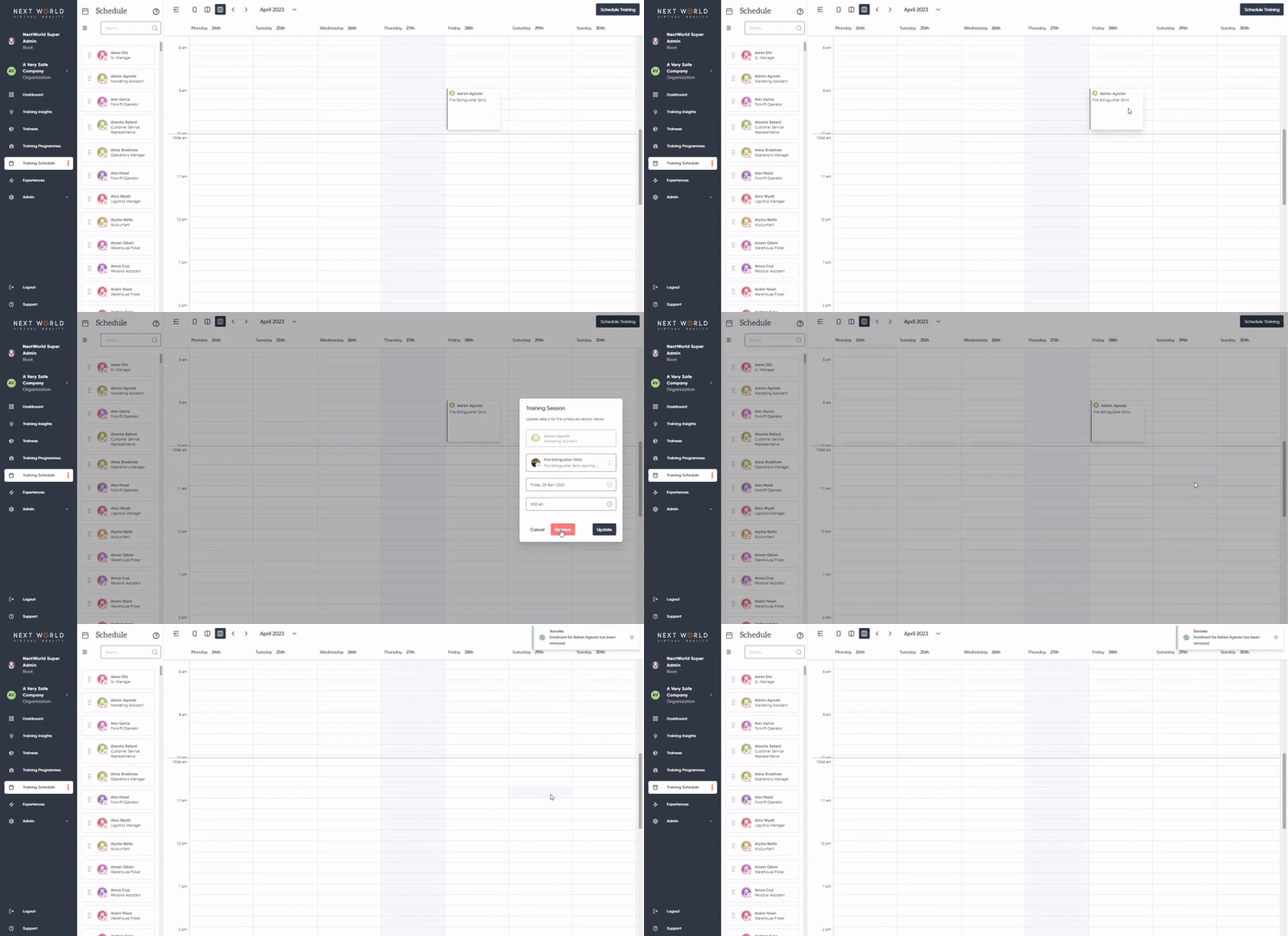
To cancel a training session, simply click on the **Training Appointment** &gt; select **Remove** &gt; and **Confirm**.

[![ezgif.com-video-to-gif (4).gif](https://docs.nwxr.app/uploads/images/gallery/2023-04/ezgif-com-video-to-gif-4.gif)](https://docs.nwxr.app/uploads/images/gallery/2023-04/ezgif-com-video-to-gif-4.gif)

####   
Training Schedule FAQ  


**Q:** Do all users need to be scheduled for training before they can use the VR headsets?  
**A:** No, not at all. The training schedule is not a prerequisite, and users can complete training at any time. It is an organisational tool.

**Q:** If I schedule someone in for training, does that mean nobody else can do it at that time?  
**A:** If you have multiple headsets, you can schedule multiple people on the same timeslot. The scheduling tool is purely for administrative assistance and does not limit headset access.

**Q:** Can I change the duration of the booking?  
**A:** Not currently. The default training timeslot is 1 hour.

# Organising your trainees into Training Programmes

Training programmes (formerly known as 'training cohorts') allow you to create unique training setups for users across your organisation that have different training requirements to ensure that all of their training is up to date and relevant.

Each programme is comprised of a list of courses, a frequency that those courses need to be completed, and included members. Any member added as a trainee of that programme will need to complete all of the courses within it for their training status to be "certified", and keep that training up to date by repeating it at the set frequency (for example, every 6 months).

For example, you may have warehouse pickers that need to complete an array of courses such as **Hand Safety, Manual Handling** and **Working Around Forklifts**, so you can create a dedicated "Warehouse Training" programme for them. However, you may also have office staff that only need to complete courses pertinent to their job (such as **Office Hazards** and **Slips, Trips and Falls**) - so you could create an 'Admin' programme just for them. And you might want *every* member of your organisation to be trained in using fire extinguishers, so you could create a programme for that purpose and include everyone.

Training status and expiry dates are dependent on training programmes, so it is important that your users are set up correctly.

<p class="callout info">Training programmes are how the platform keeps track of who's training is current, overdue or expired, so it is important that all of your members are set up in a programme</p>

####   
Setting up Training Programmes

To view your current training programmes or create a new one, select **Training Programmes** from the left navigation bar. It will show you a summary of all your organisation's programmes and their details.

[![image.png](https://docs.nwxr.app/uploads/images/gallery/2023-04/scaled-1680-/A1iimage.png)](https://docs.nwxr.app/uploads/images/gallery/2023-04/A1iimage.png)
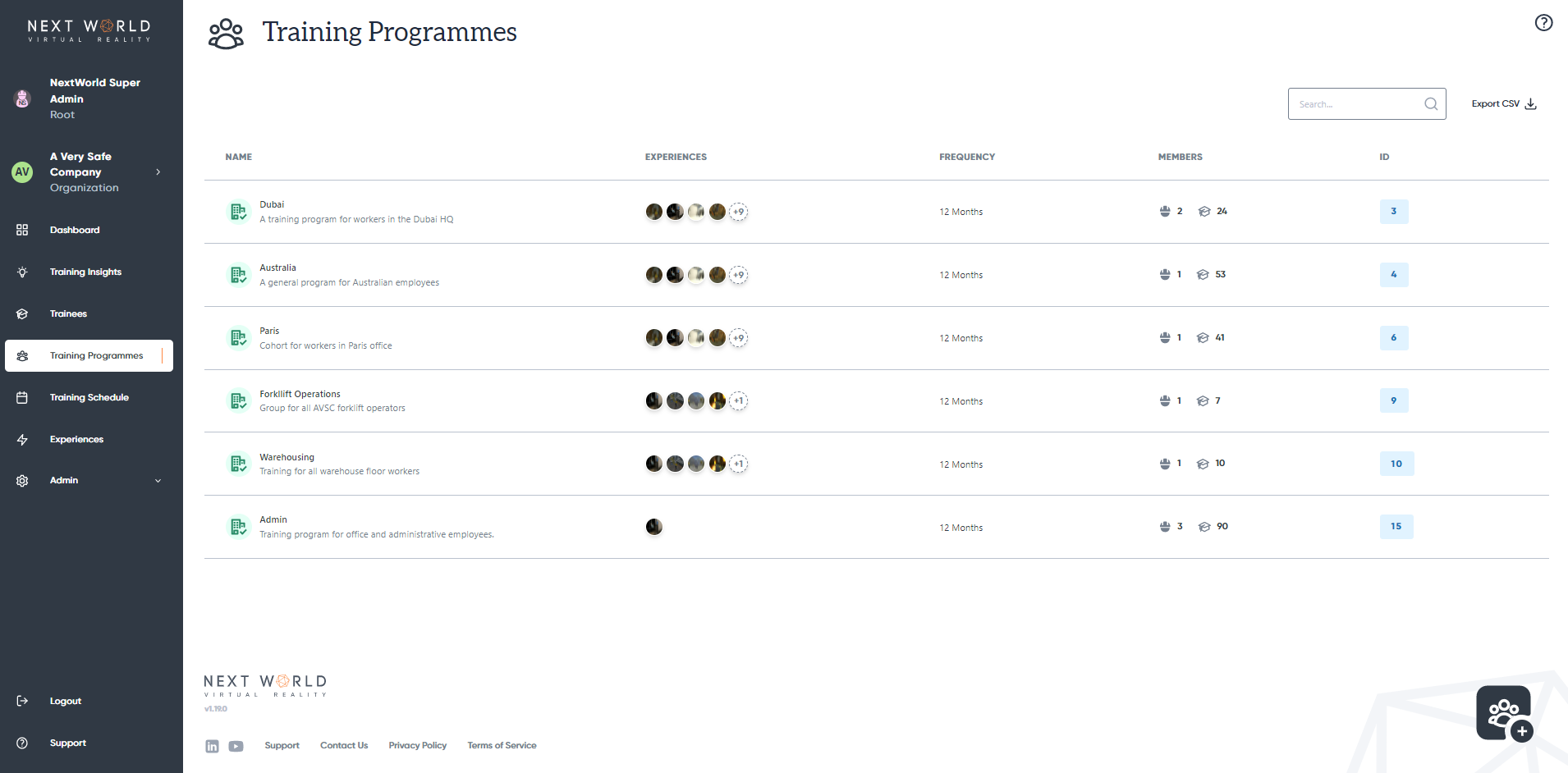
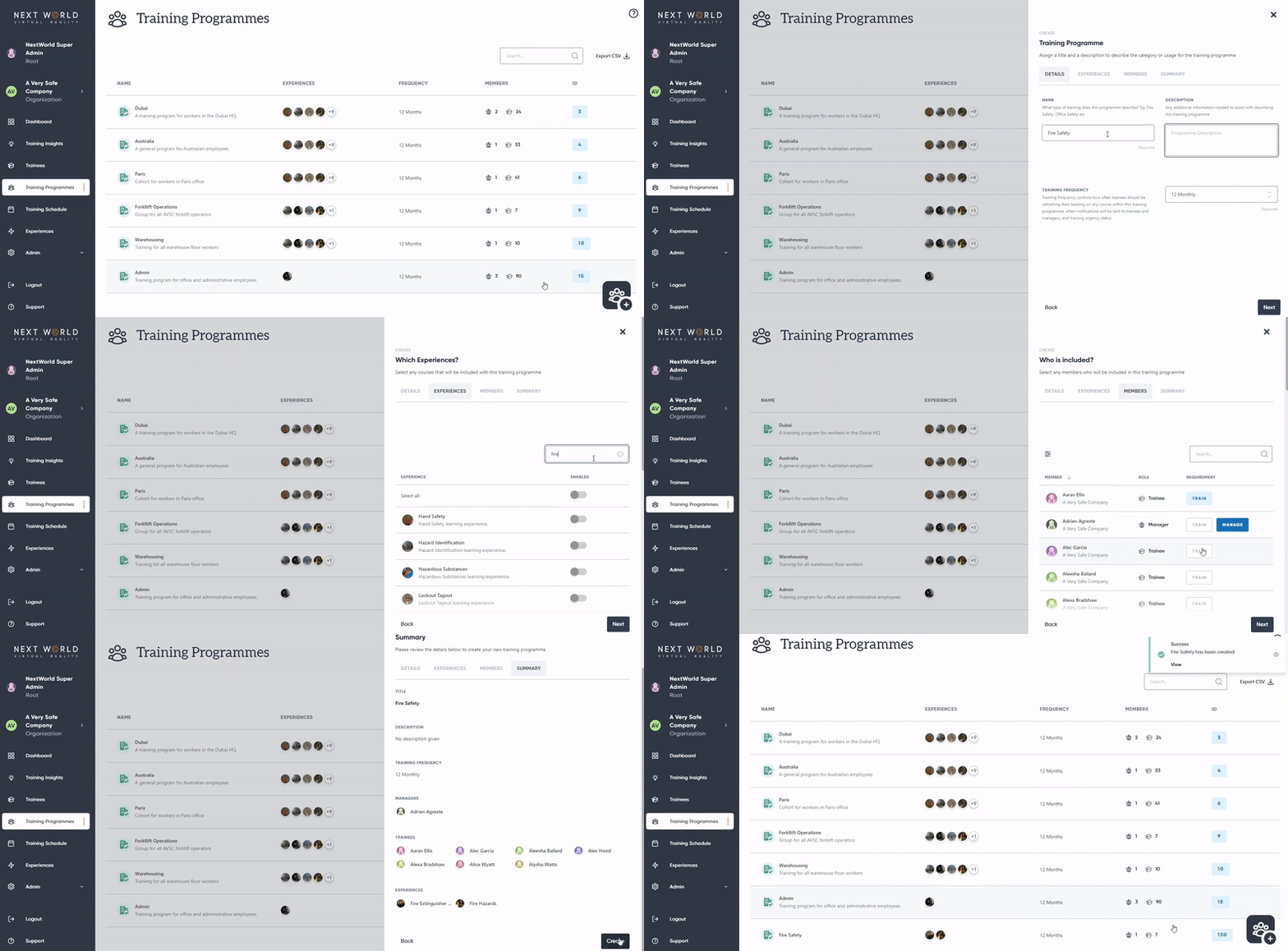
To create a new programme, select the **Create New** icon on bottom-right to be guided through the set-up wizard. You will need to walk through the following steps:

1. **Enter Details**
    - Programme Name
    - Programme Description (optional)
    - Training Frequency (how often your trainees will be required to complete the experiences)
2. **Select Experiences**
    - Select which experiences are included in this programme (what your trainees will be required to complete)
3. **Define Members**
    - Select which members will be trainees in the programme by selecting their requirement as **Train**
    - Select at least one owner of the programme by marking their requirement as **Manage**
4. **Confirm Summary**
    - Review the details you've entered, and then select **Create** to finish

[![ezgif.com-video-to-gif (9).gif](https://docs.nwxr.app/uploads/images/gallery/2023-04/ezgif-com-video-to-gif-9.gif)](https://docs.nwxr.app/uploads/images/gallery/2023-04/ezgif-com-video-to-gif-9.gif)
####   
Editing and deleting programmes

You can edit the details of a programme by selecting it in the **Training Programmes** Section. From there you can edit the details, included experiences and members.

To delete a programme, select **Archive** under the **Details** tab.

<p class="callout warning">Archiving a training programme is permanent and cannot be undone. It will affect the training status of any member within it</p>

####   
Adding additional users to the programme

You can also add members to an existing programme from the **Manage Member** pop-out. You can access this by selecting the member's name under **Trainees** or **Admin** &gt; **Members**, and then selecting the **Training Programmes** tab. This will show you a list of existing programmes, and you can easily add the user to any of them. By clicking on the expand icon (**+**), you can expand the details to see what courses are included in that particular programme. When done, select **Update** to save.

Similarly, you can manage your own programmes by selecting your name at the top of the navigation bar and following the same steps.

[![ezgif.com-video-to-gif (11).gif](https://docs.nwxr.app/uploads/images/gallery/2023-04/ezgif-com-video-to-gif-11.gif)](https://docs.nwxr.app/uploads/images/gallery/2023-04/ezgif-com-video-to-gif-11.gif)
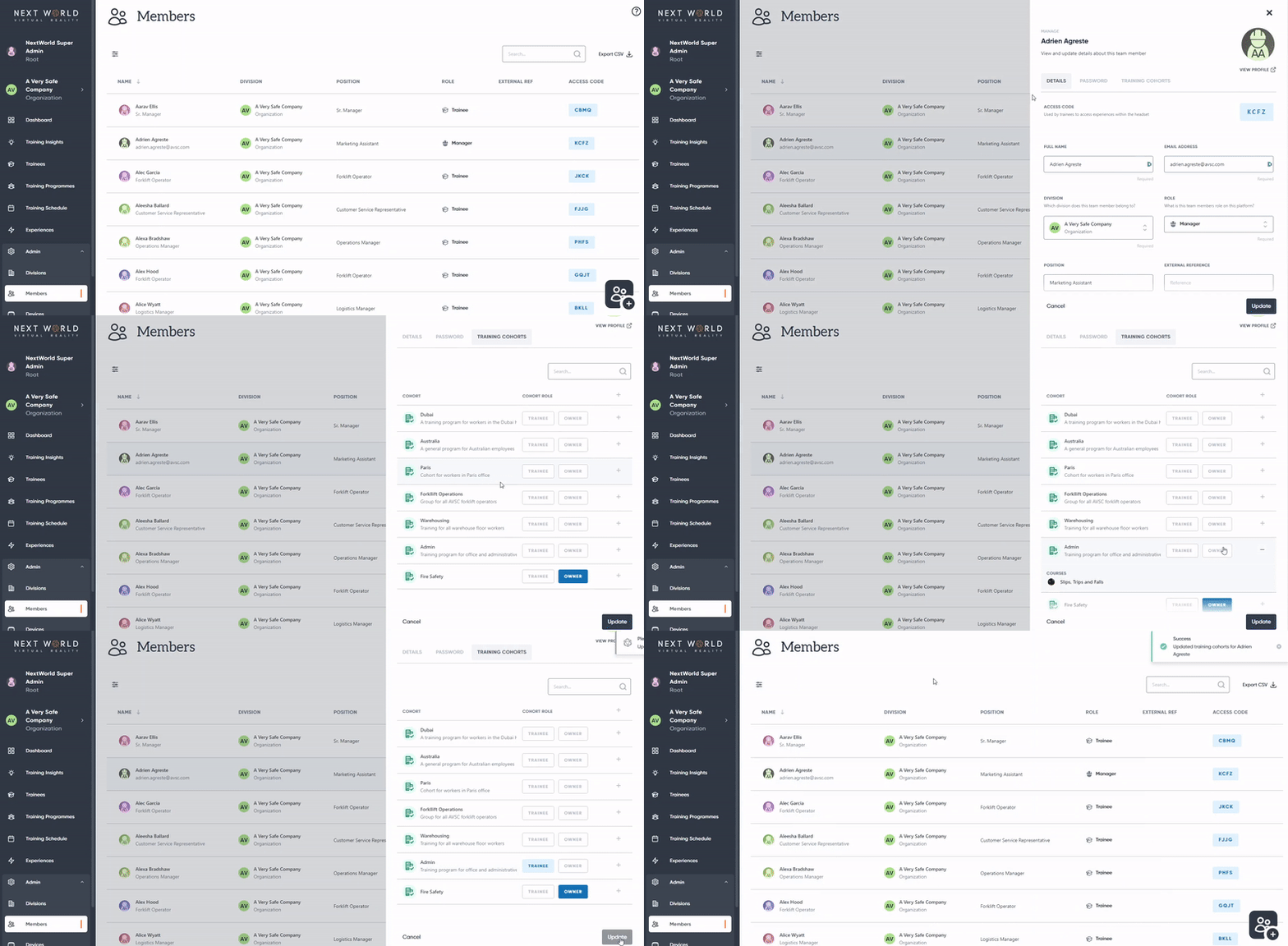
<p class="callout info">Any place that requires a member to be a part of a programme (such as the scheduler, for example) will also give you the option of to manage a user's programme details if they are not part of one yet</p>

####   

# Exporting data to CSV

The portal has the ability to export a number of different datasets to a CSV file for your convenience.

You can export the following data tables:

- Session Data
- Trainees
- Training Programmes
- Divisions
- Members
- Devices

#### How to export data

On the page you want to export the table from, simply click the **Export CSV** button in the top-right of the page. This will begin the download of the CSV to your device.

[![ezgif.com-video-to-gif (13).gif](https://docs.nwxr.app/uploads/images/gallery/2023-05/ezgif-com-video-to-gif-13.gif)](https://docs.nwxr.app/uploads/images/gallery/2023-05/ezgif-com-video-to-gif-13.gif)
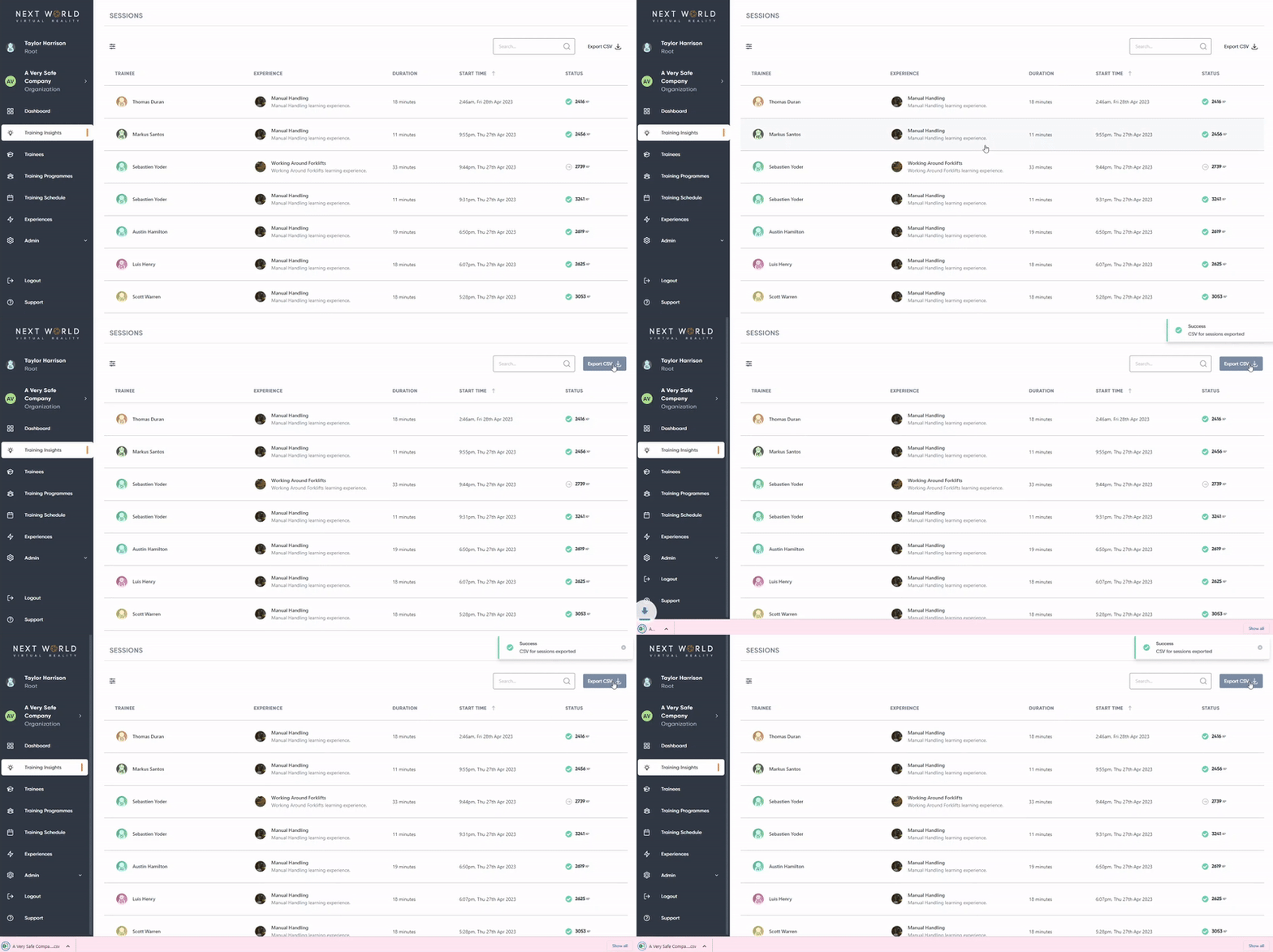
<p class="callout info">Any filters you have applied to the table will apply to the exported data. If you want a complete export of all data, be sure to clear any filters first.</p>

####   
How to export session data from a date range

If you only want to export the session results from a specified date range, you can do that with the help of filtering. Go to **Training Insights** &gt; click on the **Filter Icon** &gt; select the desire date range by entering a **From Date** and **To Date** &gt; click **Export to CSV**.

This method can be applied to any other page with exporting functionality. For example, if you want to export a list of all Trainees that are overdue for training, you can do so from the Trainees page by applying the Training Status filter of **Overdue**.

# Managing the members of your division

The division management page gives you the ability to add or edit the members of your organisation, allowing for more granular team and member management.

#### How to add a member

To add a new member to your organisation, go to **Admin** &gt; **Members** and select the **Create New** icon on the bottom-right. From there, you can fill out the following details:

- **Name** = enter the employee's full name
- **Email (optional for trainees)** = allows for the member to be sent notifications by email
- **Division** = select which division the user will be a part of
- **Role** = designates the role of the user on the portal
- **Position (optional)**
- **External Reference (optional)**

When you're done, select **Add member** to save them to your organization. This will generate a unique 4 digit access code for them to access training on the VR headsets. If they have an email address, they will also be emailed instructions to set up a password for the platform.

<p class="callout info">**Manager** or **Admin** members require an email address, as they will need to access the platform</p>

#### How to bulk add members

You can also bulk add members by selecting **Import Multiple Members** where you can add multiple members at once or import from a CSV file.

#### How to delete a member

To delete a member, navigate to **Admin** &gt; **Members** &gt; select member &gt; press **Archive**

<p class="callout warning">Archiving a member is permanent and cannot be undone. You will lose all of their training data and they will not be able to access training with the same access code. </p>

<p class="callout danger">Multiple members cannot have the same email address, even after being archived. If you intend to create a new user with the same email address after archiving an old record, make sure to remove the attached email address first, otherwise you will not be able to use that email again.</p>

#### FAQ

**Q: What is an External Reference?**  
A: An external reference is a field where you can add your own reference IDs to a user, for example an employee number or site ID.

**Q: Where do notifications go if a user doesn't have an associated email address?**  
A: Any notifications will be forwarded to the manager(s) of any training programmes that user is a part of.

# Setting up your headset

The device management page under the **Admin** tab allows you to add and edit the VR Headsets licenced to your organisation. Registering your device here allows access to the Next World course library within the headset.

<p class="callout info">To add a new device, you must have administrative privileges within your organization. If you cannot add a device, please contact **<support@nextworldxr.com>** with the Device ID and we can register it for you.</p>

####   
How to add a new device

Navigate to **Admin** &gt; **Devices** to show you a list of existing devices. Click on the **Create New** icon in the bottom-right to add a new device.

Start by inputting the device's unique ID into the **Device ID** field. You can find the device's unique ID by putting on the headset, it will display the unique ID.

[![](https://s3-ap-southeast-2.amazonaws.com/aus-cdn.freshdesk.com/data/helpdesk/attachments/production/51043206415/original/ussHL0CBqgn5HI9Bs3AMX4LIqr1eukgsvw.png?1646867683)](https://s3-ap-southeast-2.amazonaws.com/aus-cdn.freshdesk.com/data/helpdesk/attachments/production/51043206415/original/ussHL0CBqgn5HI9Bs3AMX4LIqr1eukgsvw.png?1646867683)

You can also add an **Alias** as a name for your device. This is not required, but recommended for your future reference. Lastly, choose the company/division you wish to assign this device to. Select **Add Device** to confirm and add your device.

[![ezgif.com-video-to-gif (14).gif](https://docs.nwxr.app/uploads/images/gallery/2023-05/ezgif-com-video-to-gif-14.gif)](https://docs.nwxr.app/uploads/images/gallery/2023-05/ezgif-com-video-to-gif-14.gif)

Once done, you will be able to access the Next World software from your device.

<p class="callout info">Since you have added new information to the platform, your headset will need to be connected to the internet to synchronise this data.</p>

####   
How to edit or remove a device

Navigate to **Admin** &gt; **Devices** to show a list of existing devices. Click on the device you would like to edit. From here, you can change the device's alias and division.

To remove the device, select **Archive.**

<p class="callout warning">Archiving a device is permanent and cannot be undone. This will result in your being unable to access the course library from that device ID. </p>

####   
FAQ

**Q. I registered my device but it is not updating on the headset**  
A. Make sure your device is connected to a stable internet connection so the new data can synchronise.

# Managing your company or organisation's structure

The division management page gives you the ability to add and edit divisions, subsidiaries or sub-companies within your organisation, allowing for more granular team and member management.

#### How to add a new division

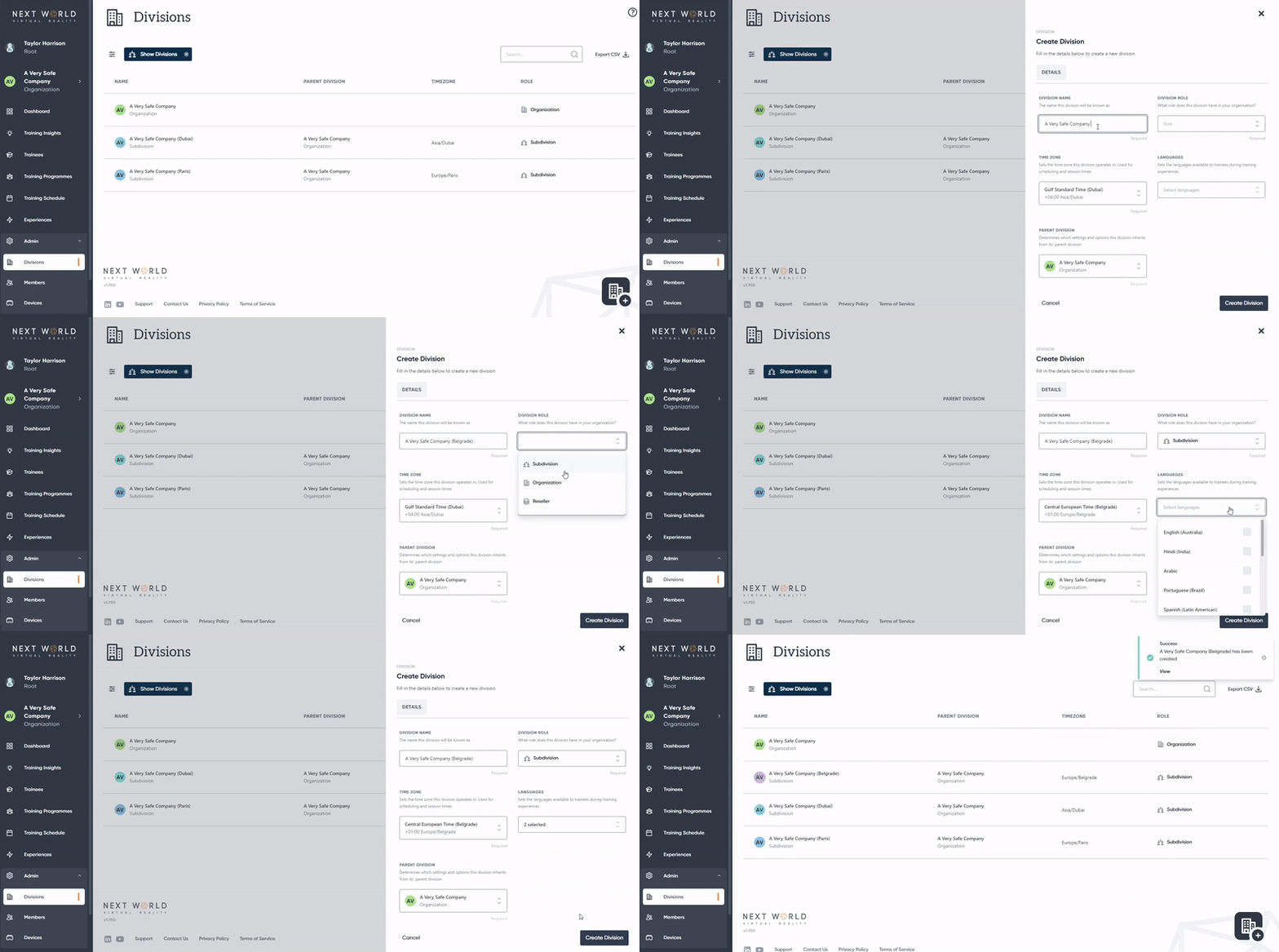
Open **Divisions** under the **Admin** section, then select the **Create New** icon to add a new division. From there, give the division a name, select it's role, and confirm which division or organisation will be its parent. The new division will inherit the settings and options from its parent, including training programmes and course bundles.

You can also set the division's time zone and select what languages its users will have access to.

Once done, select **Create Division**.

[![ezgif.com-video-to-gif (15).gif](https://docs.nwxr.app/uploads/images/gallery/2023-05/ezgif-com-video-to-gif-15.gif)](https://docs.nwxr.app/uploads/images/gallery/2023-05/ezgif-com-video-to-gif-15.gif)
#### How to add a edit or delete a division

Go to **Admin** &gt; **Division** &gt; select the division you want to edit. From here you can edit the divisions name, role, timezone, languages and parent. You can also view which courses are available to the division from the **Experiences** tab, and edit these courses from **Bundles**.

To delete the division, select **Archive** from the **Details** tab

<p class="callout danger">Archiving a division is permanent and will affect any users and devices registered under that division. Please be sure to move any existing entries before archiving a division.</p>

# Finding training insights and data

One of the most valuable aspects of VR safety training is the ability to collect a user's training session data and then analyse that data to draw conclusions, giving us a much more in-depth insight into their learning. From the **Training Insights** page, you are able to review the results of your users when they complete a course.

#### How to access training insights

You can access these sessions by clicking on the **Training Insights** tab on the left navigation bar. This will bring up a list of all the training sessions completed by users in your organisation.

By default, session will be sorted by most recent sessions first, however you can use the search bar to search for a particular member, or use the filter icon to filter by date range or experience. You can also choose to see members of the organisation's divisions, in-progress training or incomplete sessions.

[![ezgif.com-video-to-gif (12).gif](https://docs.nwxr.app/uploads/images/gallery/2023-04/ezgif-com-video-to-gif-12.gif)](https://docs.nwxr.app/uploads/images/gallery/2023-04/ezgif-com-video-to-gif-12.gif)
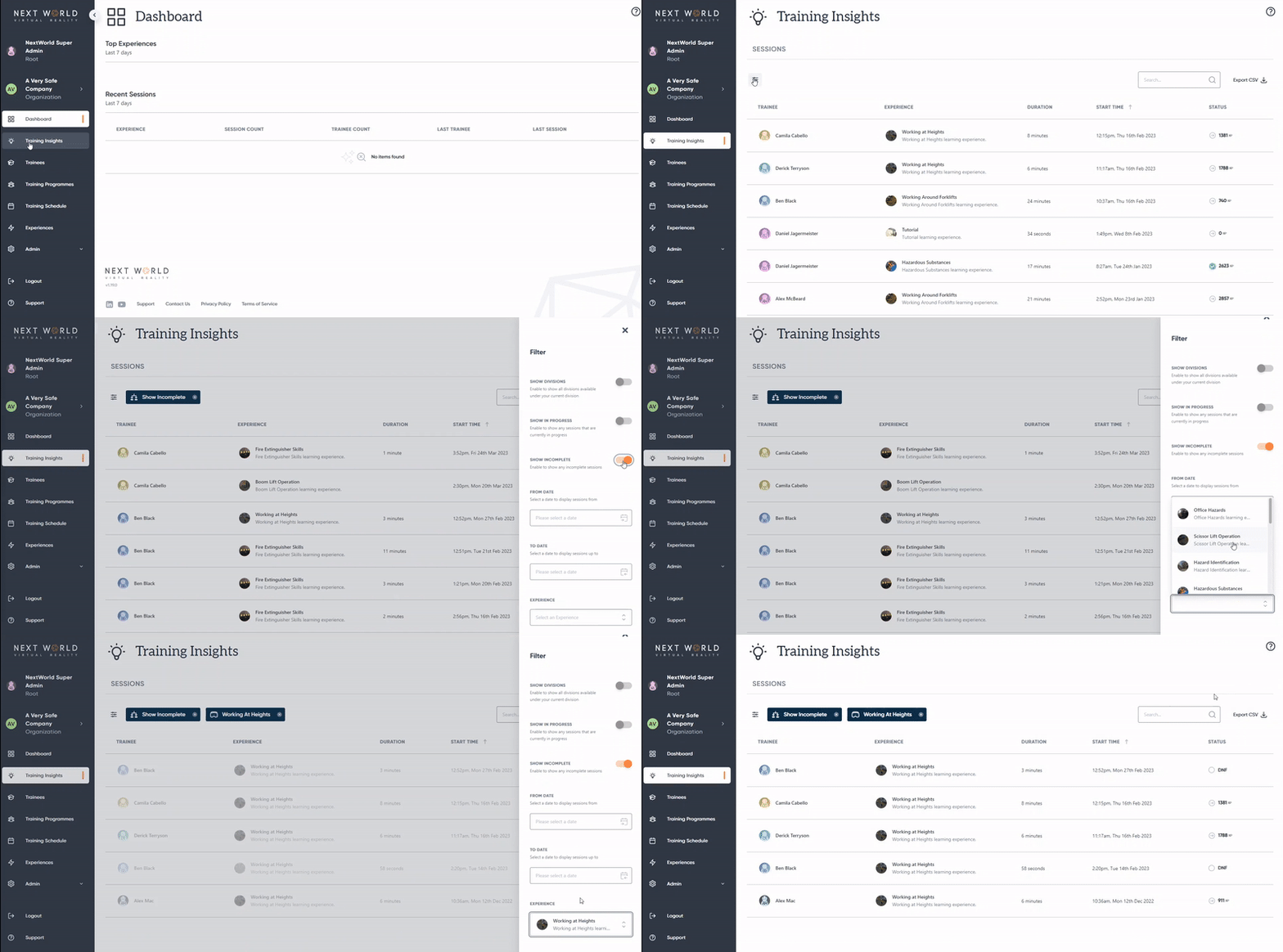
From here, you can click on a session to view its results.

[![ezgif.com-video-to-gif (20).gif](https://docs.nwxr.app/uploads/images/gallery/2023-05/ezgif-com-video-to-gif-20.gif)](https://docs.nwxr.app/uploads/images/gallery/2023-05/ezgif-com-video-to-gif-20.gif)
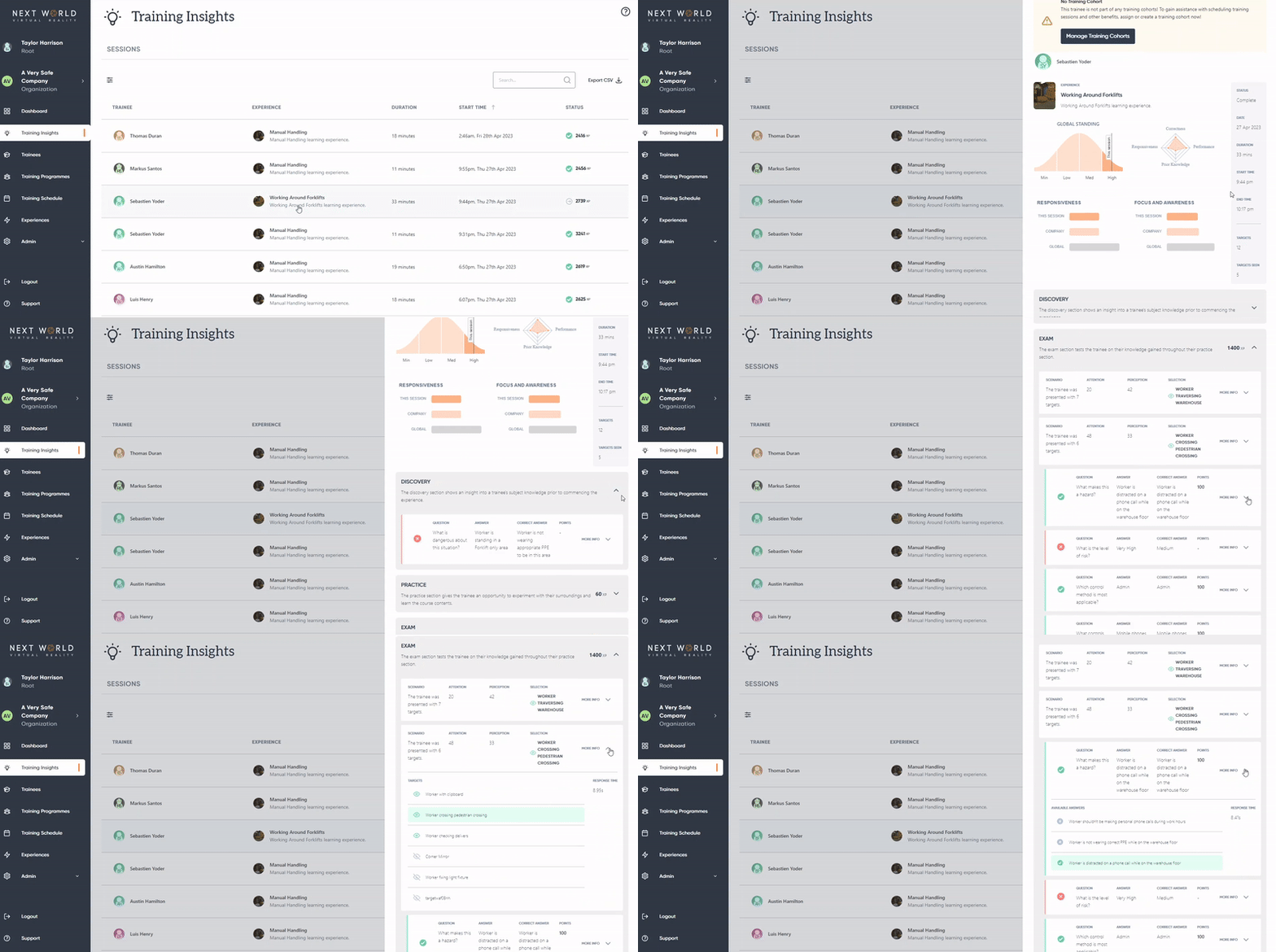
These session results will give you an in-depth look at how the user performed during the course, as well as how they benchmarked against others in your organisation and globally.

# How to find trainees who require training (expired or untrained)

To see who needs training, head to the trainees page and use the training status filters.

#### The Trainees Page

[![expired trainees.gif](https://docs.nwxr.app/uploads/images/gallery/2023-05/expired-trainees.gif)](https://docs.nwxr.app/uploads/images/gallery/2023-05/expired-trainees.gif)
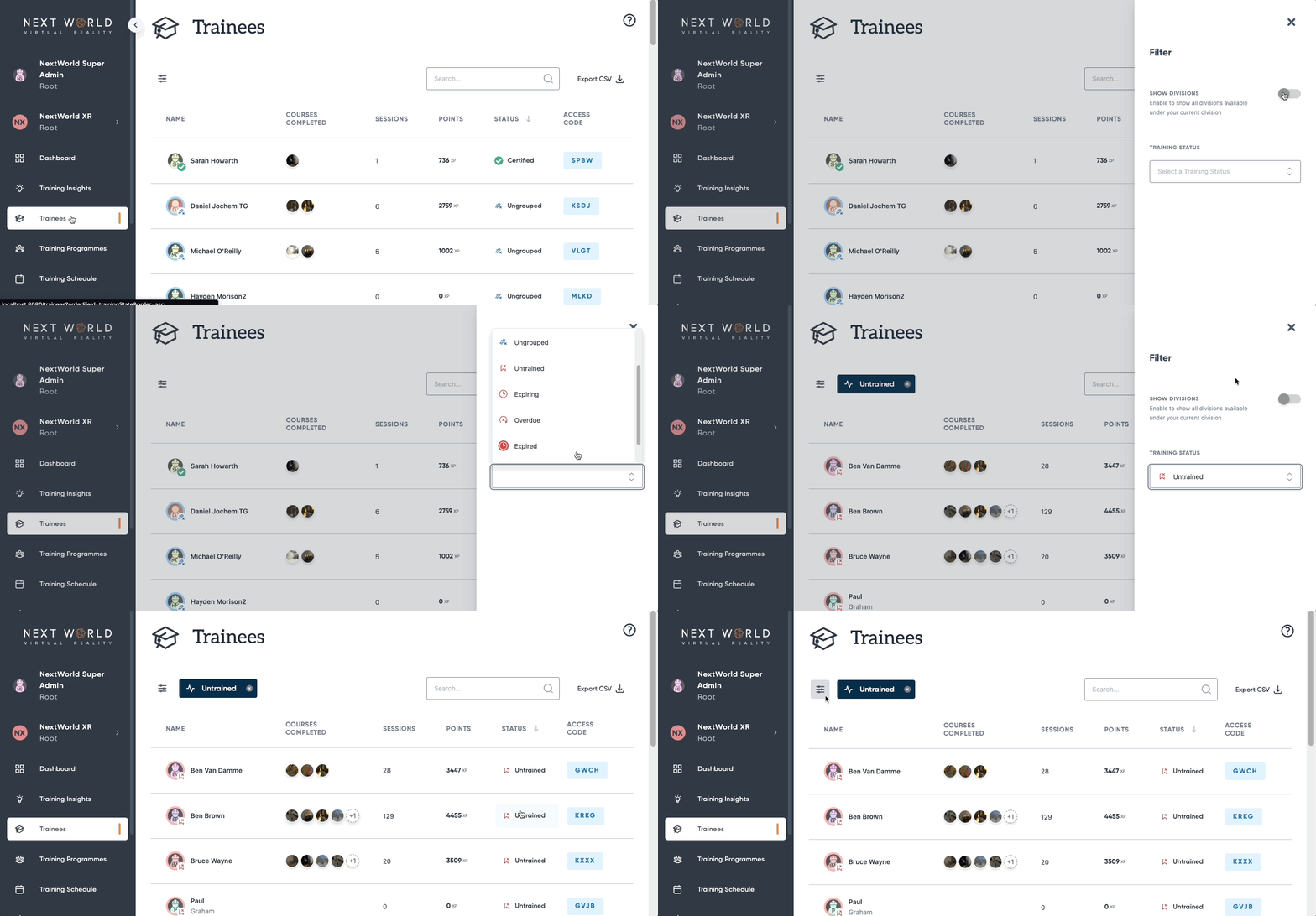
The trainees page displays all of your division's trainees, along with their training status.

####   
Filter and Sort by Status

In order to find out who has expired training, you can open the filters draw and select the expired status.

If you click the **STATUS** header, you can sort your trainees by training level, clicking a second time will invert the order.

# How to access the Next World Platform Portal

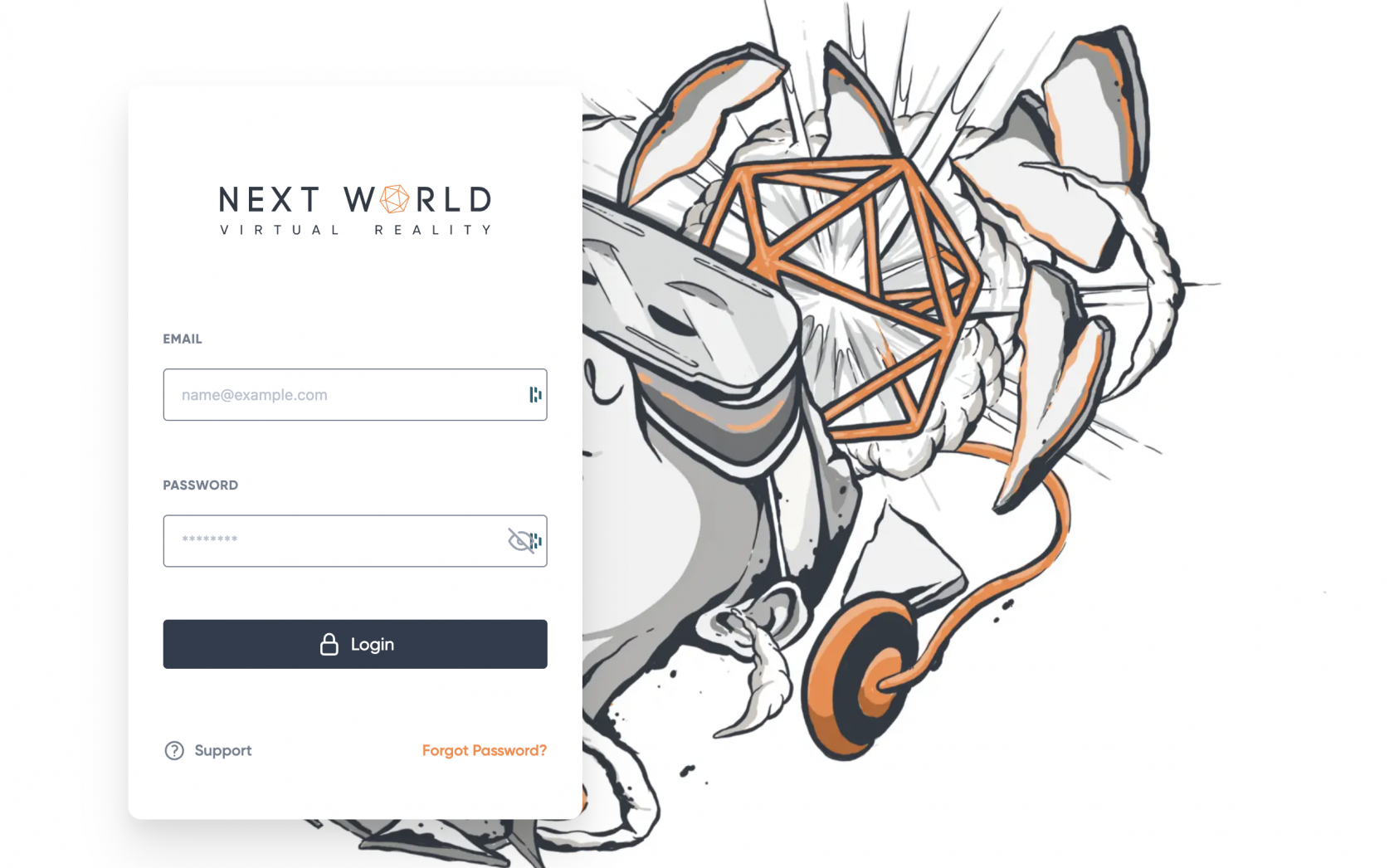
To access the Portal, point your browser to http://nwxr.app, then using the login screen, enter your username and password. These details will have been provided by Next World or your organisation's administrator.

[![image.png](https://docs.nwxr.app/uploads/images/gallery/2023-05/scaled-1680-/image.png)](https://docs.nwxr.app/uploads/images/gallery/2023-05/image.png)
#### Create An Account

If your organisation is new to Next World, you'll need to contact us to create an account. More information is available here. If you're part of an existing organisation, you should contact your manager or administrator in order to gain access. If you believe you have an account but don't know what the password is, you can try [resetting your password.](https://docs.nwxr.app/books/next-world-support/page/how-to-change-or-reset-your-password "How to change or reset your password")

####   
Forgotten Password

If you've forgotten your password, you can use the password reset link. More information is available [here](https://docs.nwxr.app/books/next-world-support/page/how-to-change-or-reset-your-password).

# How to view information from other divisions and subsidiaries

Larger companies are often split into divisions. The Portal has features to allow you to switch between them, or view information from them all at once.

#### Changing divisions

You can change divisions by selecting your division from the top-right corner of the dashboard.

[![image.png](https://docs.nwxr.app/uploads/images/gallery/2023-05/scaled-1680-/22rimage.png)](https://docs.nwxr.app/uploads/images/gallery/2023-05/22rimage.png)From there, you'll be given a list of divisions to change to. Find the division you want to assume the point-of-view of and select it.
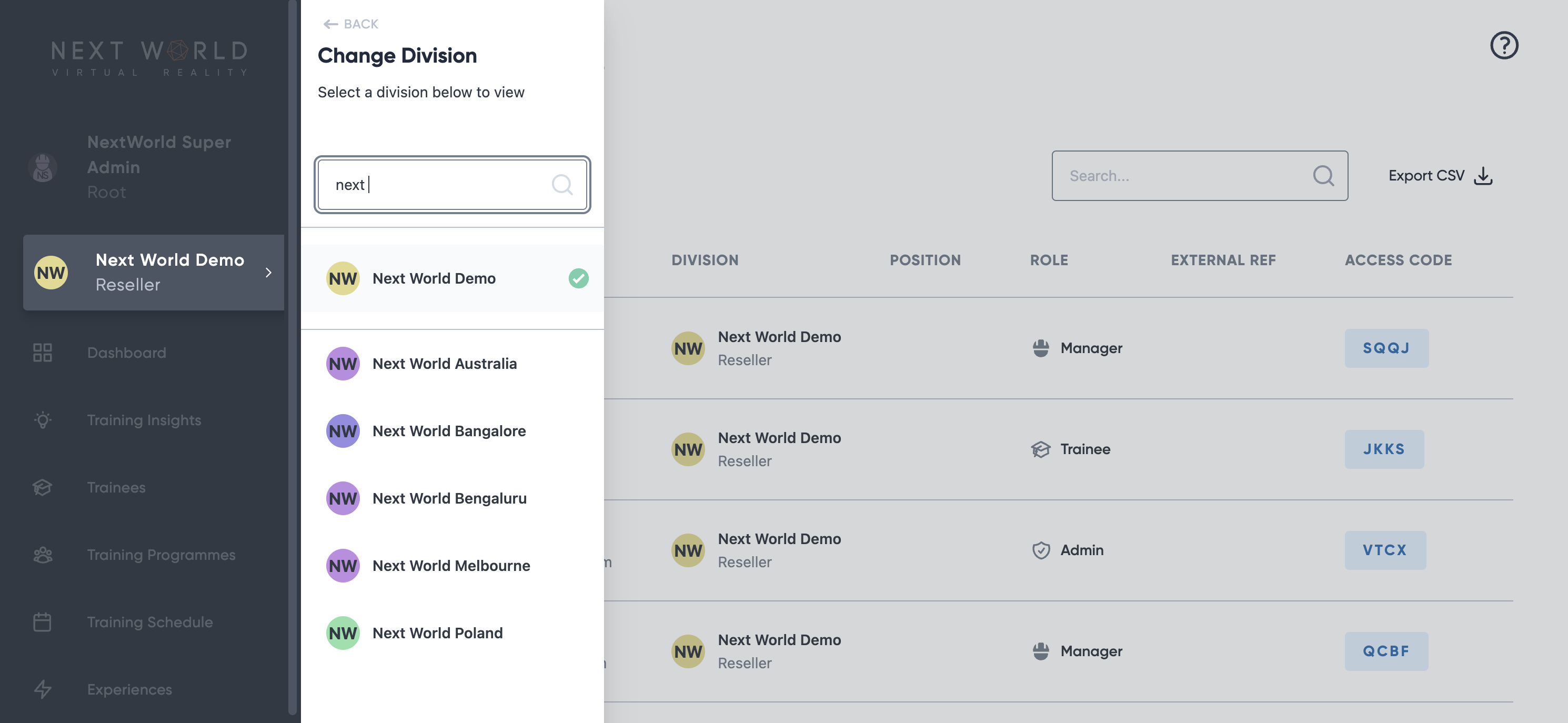
When you're done, simply follow the procedure again, but this time click the parent division (your organisation). Alternatively, you can log out and log back in to go back to your organisation.

####   
Viewing information from multiple divisions

Throughout the Portal, many pages allow you to view information from subdivisions and subsidiaries. This can be useful if you'd like to see all information from your company in one place.

1. 1. Change divisions to the top level company
    2. Select the **Include Subdivisions** filter from the filters menu.

# Using filters in the Platform Portal to control tables

Filters are useful when looking for particular subsets of information through the Portal.

#### Applying Filters

Most pages, including **Training Insights**, **Trainees**, **Schedule** and the **Admin pages**, allow for filtering of data.

In order to access filters, click the [![1jYimage.png](https://docs.nwxr.app/uploads/images/gallery/2023-05/scaled-1680-/1jyimage.png)](https://docs.nwxr.app/uploads/images/gallery/2023-05/1jyimage.png) icon[ ](https://docs.nwxr.app/uploads/images/gallery/2023-05/1jyimage.png)at the the top-left of any table. It should display next to any filters that are active.

[![image.png](https://docs.nwxr.app/uploads/images/gallery/2023-05/scaled-1680-/8hTimage.png)](https://docs.nwxr.app/uploads/images/gallery/2023-05/8hTimage.png)  
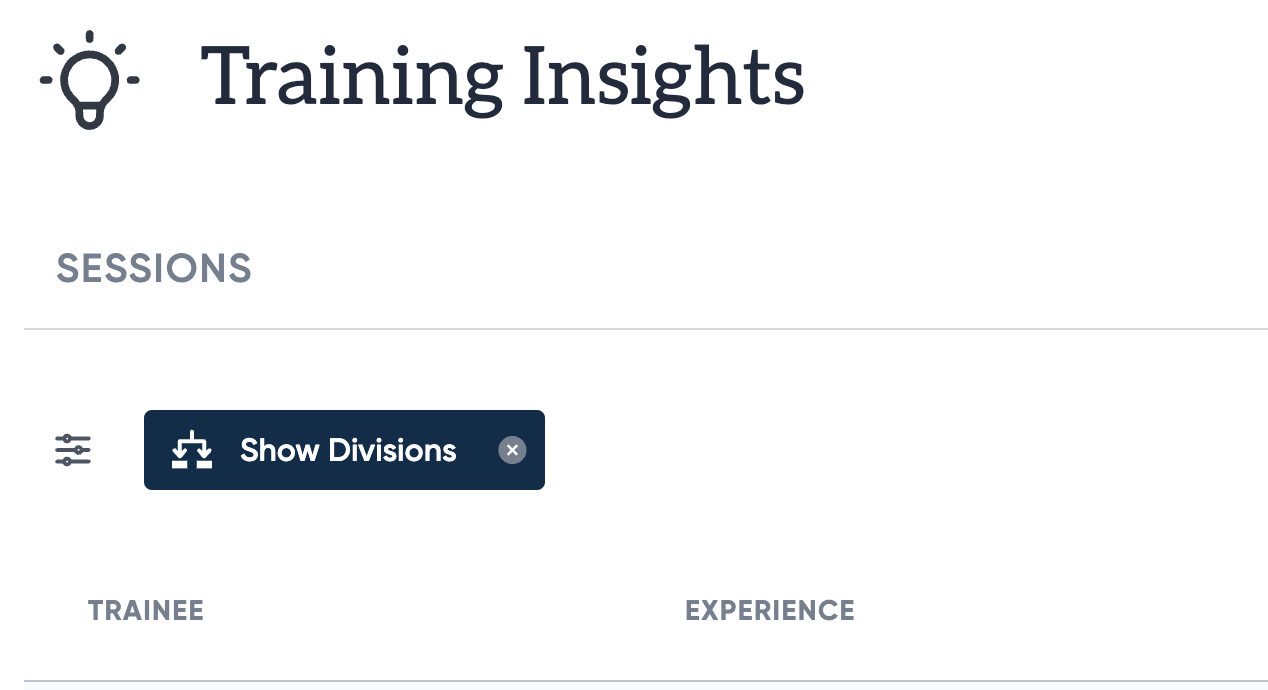
  
In the picture above, the **Show Divisions filter is active, indicating that the table below is showing data from all subdivisions within the organisation.

# Training States: How to tell what stage an employee's training is at

After assigning trainees to one or more Training Programmes, their overall training status will now be displayed as an icon on their avatar. There are many states, each denoting a stage on a trainees journey from being added to the platform, to achieving their completion certificate.

Individual training states for each course assigned to a trainee through their Training Programme, are also available for viewing on the trainee's profile page.

[![image.png](https://docs.nwxr.app/uploads/images/gallery/2023-05/scaled-1680-/67Kimage.png)](https://docs.nwxr.app/uploads/images/gallery/2023-05/67Kimage.png)

See below for a detailed breakdown of each training status and what they mean:

#### **Ungrouped**

![](https://s3-ap-southeast-2.amazonaws.com/aus-cdn.freshdesk.com/data/helpdesk/attachments/production/51082397656/original/XotD7Bg6idQnXvjNuo2xEPcAEAvlLFdyUw.png?1670891548)  
This is the first stage status for a new trainee.

The ungrouped status displays when a trainee is not currently a member of any Training Cohorts. In order to schedule training for a trainee, or view their current training state for a course, they must be added to a Training Cohort.

#### **Untrained**

**![](https://s3-ap-southeast-2.amazonaws.com/aus-cdn.freshdesk.com/data/helpdesk/attachments/production/51082398957/original/pYjutYeM-BNjlrwsG-gwlyofciuhAzuuSQ.png?1670891771)** The Untrained status displays when any course this trainee has been assigned to has not yet been attempted by the trainee, or has not yet been scheduled for the trainee.

#### **Scheduled**

![](https://s3-ap-southeast-2.amazonaws.com/aus-cdn.freshdesk.com/data/helpdesk/attachments/production/51082399923/original/Qo-79eMhD13JB48AD6iENidA5bD8rV4dwQ.png?1670891944)  
The Scheduled status displays when a trainee has been scheduled for a session of a particular course within their Training Cohort.

#### **Overdue**

![](https://s3-ap-southeast-2.amazonaws.com/aus-cdn.freshdesk.com/data/helpdesk/attachments/production/51082410821/original/3o5XdBXvifpCvu0OY6jOHHK-ypQnfjzruw.png?1670893927)  
The Overdue status displays when a trainee has been scheduled for a session, but has not completed a session within a reasonable timeframe of their scheduled time and date.

#### **Expiring**

**![](https://s3-ap-southeast-2.amazonaws.com/aus-cdn.freshdesk.com/data/helpdesk/attachments/production/51082407558/original/IM9GmK5he3F9mA5_0zOXcgyNa_aieQSEAg.png?1670893389)** The Expiring status displays when a trainee has previously successfully completed a course, but their completion date is nearing the expiry date set by the corresponding Training Cohorts' **Training Frequency.** See the **Expired** status below for an overview on how Training Frequency affects a trainees' Training Statuses.

#### **Expired**

![](https://s3-ap-southeast-2.amazonaws.com/aus-cdn.freshdesk.com/data/helpdesk/attachments/production/51082410561/original/RV58Ywoi8RvdxA4onRrioGkrZZB97H5Diw.png?1670893878)  
The Expired status displays when a trainee has previously successfully completed a course, but their completion date falls outside the allocated **Training Frequency** period specified in their Training Cohort.

For example, if a trainee has access to the Fire Hazards course through a Training Cohort they are a member of, and that Training Cohort has a **Training Frequency** set to **6 months** - If this trainee successfully completes a Fire Hazards session on **January 1st**, but does not complete another session before **July 1st**, their training state will be set to **Expired** and their "training priority" will be considered very high.

<p class="callout info">**Note:** <span dir="ltr">If a trainee is a member of multiple Training Cohorts that each have the same courses, but have different Training Frequencies, the shortest Training Frequency will be used to calculate the trainees Training State.  
</span></p>

#### **Unsuccessful**

![](https://s3-ap-southeast-2.amazonaws.com/aus-cdn.freshdesk.com/data/helpdesk/attachments/production/51082410675/original/KFR4HpghTL6zic0YPqWuqXCctfiehckI2g.png?1670893903)  
The unsuccessful status displays when a trainee has attempted a scheduled session, but has been unsuccessful in completing the course with a passing score.

#### **Certified**

![](https://s3-ap-southeast-2.amazonaws.com/aus-cdn.freshdesk.com/data/helpdesk/attachments/production/51082410370/original/ugNo1PtlV9f9jpTl3JVKsd-SRwrRNY9PEg.png?1670893850)  
The Certified status displays when a trainee has successfully completed a course, and is still within the specified **Training Frequency** set by the assigning Training Cohort.

# Headsets, VR and Training

Information on how to undertake training in a Next World headset or using Next World software.

# Accessing Virtual Reality training modules

This article will explain how to access your desired training module once you are in the headset.

If the headset has not been setup yet, [take a look at this article on setting up a headset.](https://docs.nwxr.app/books/next-world-support/page/setting-up-a-vr-device-for-the-next-world-environment "Set up a brand new headset")

#### Make sure you ready for training

Putting on a headset and powering it on, will take you immediately to Next World Home. Here you will be greeted by E.L.I.O.T!

[![Screenshot_com.NextWorld.NextWorldMenu_2023.04.27-15.26.23.065_724_modified.jpeg](https://docs.nwxr.app/uploads/images/gallery/2023-04/scaled-1680-/screenshot-com-nextworld-nextworldmenu-2023-04-27-15-26-23-065-724-modified.jpeg)](https://docs.nwxr.app/uploads/images/gallery/2023-04/screenshot-com-nextworld-nextworldmenu-2023-04-27-15-26-23-065-724-modified.jpeg)
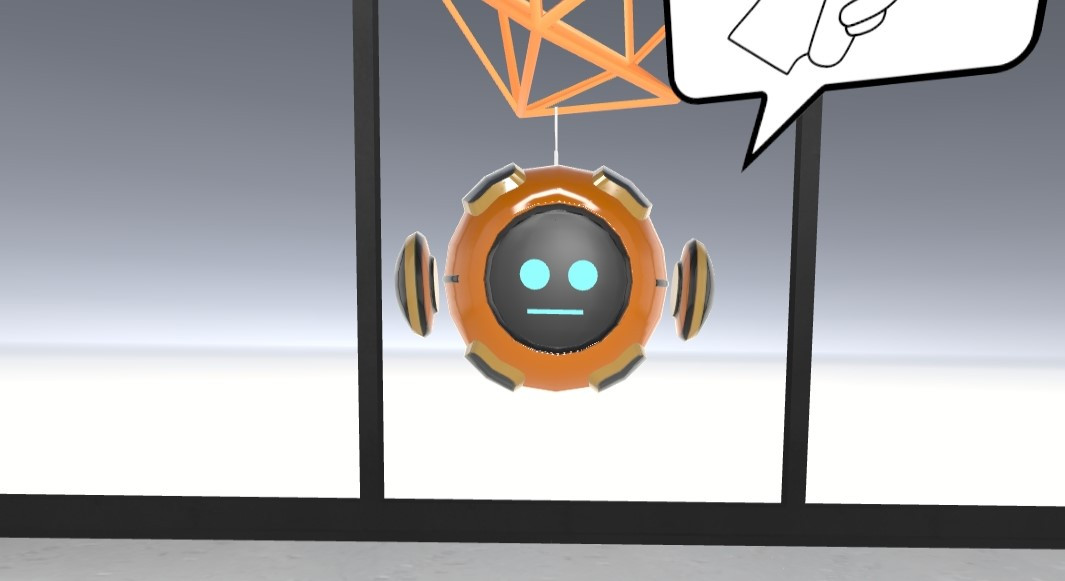
E.L.I.O.T will check to see that your controllers are activated, in the correct hands, and are functioning correctly. If anything is wrong, E.L.I.O.T will assist you in fixing the issue.

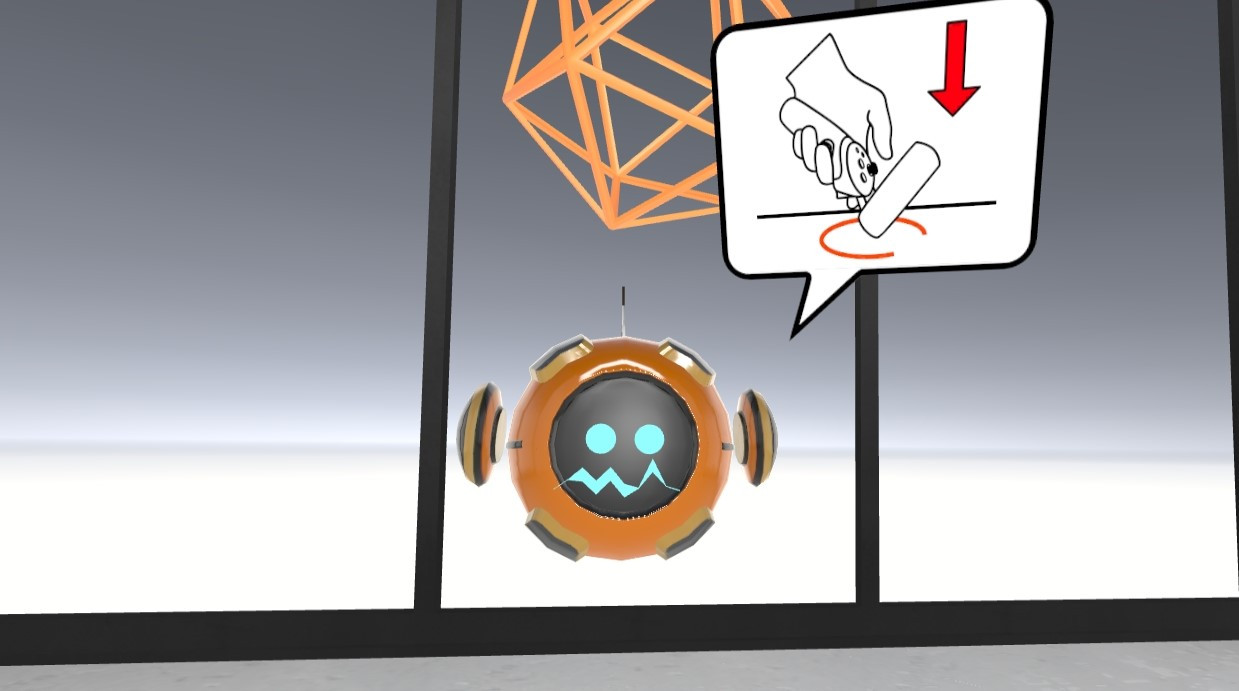
if you are currently seated, E.L.I.O.T may also ask you to check where the floor is. You'll be instructed to hold your controller to the ground to get an accurate reading.

[![Screenshot_com.NextWorld.NextWorldMenu_2023.04.27-15.26.47.570_565_modfiied.jpeg](https://docs.nwxr.app/uploads/images/gallery/2023-04/scaled-1680-/screenshot-com-nextworld-nextworldmenu-2023-04-27-15-26-47-570-565-modfiied.jpeg)](https://docs.nwxr.app/uploads/images/gallery/2023-04/screenshot-com-nextworld-nextworldmenu-2023-04-27-15-26-47-570-565-modfiied.jpeg)
#### Login with your access code

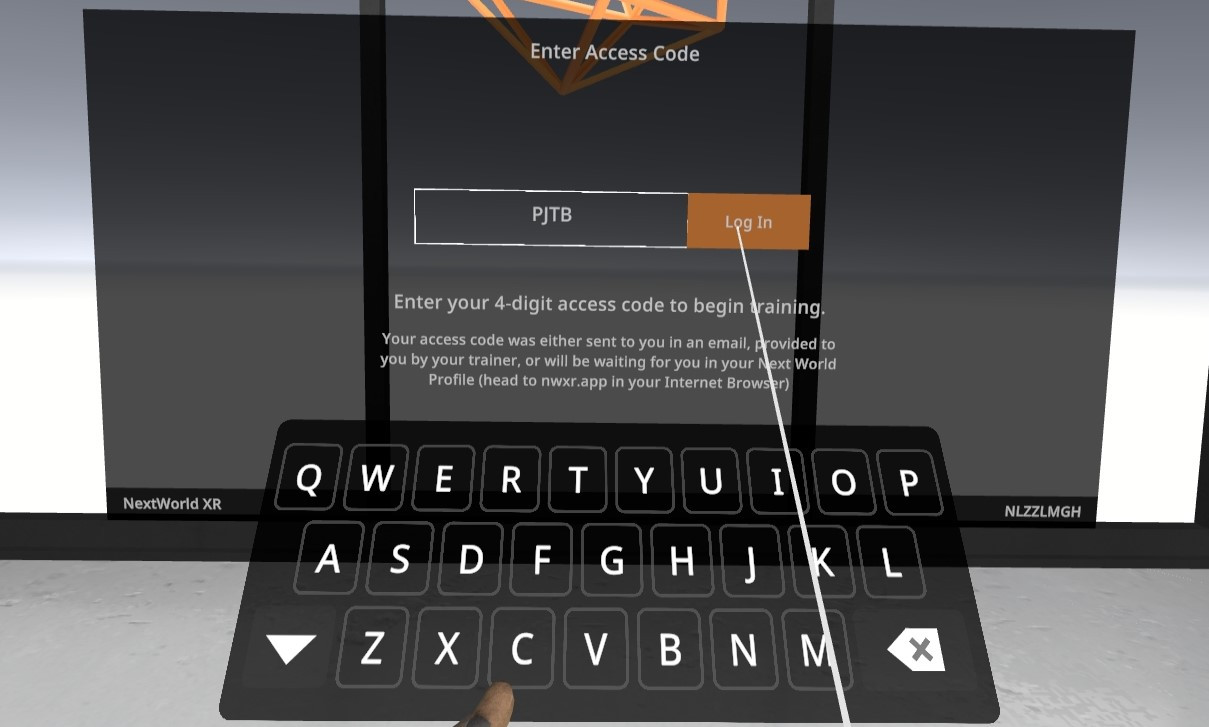
Once E.L.I.O.T is happy with your setup, you'll be asked to enter your login code. This is the unique 4-character code that represents you for your training. You will have received a code when scheduled for training. If you do not know your code, please talk to your trainer.

[![Screenshot_com.NextWorld.NextWorldMenu_2023.04.27-15.24.53.181_761_cropped.jpeg](https://docs.nwxr.app/uploads/images/gallery/2023-04/scaled-1680-/screenshot-com-nextworld-nextworldmenu-2023-04-27-15-24-53-181-761-cropped.jpeg)](https://docs.nwxr.app/uploads/images/gallery/2023-04/screenshot-com-nextworld-nextworldmenu-2023-04-27-15-24-53-181-761-cropped.jpeg)Enter your code, then click 'Log in'.
####   
Pick the correct experience

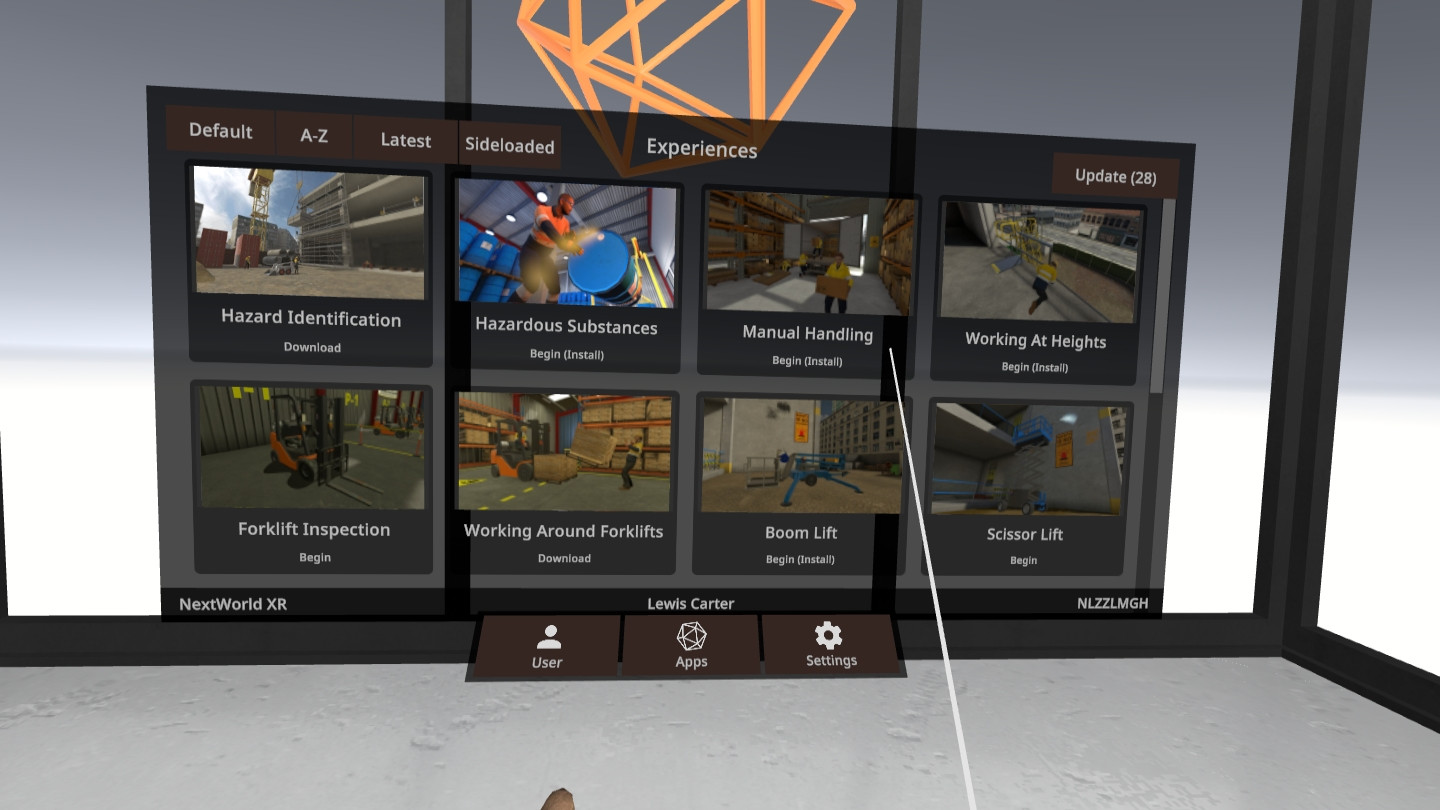
You'll be faced with a selection of all the experiences available to you. Use the scroll bar or the joystick on the controller to look through the list, and when you find the experience you are looking for, click on it.

[![Screenshot_com.NextWorld.NextWorldMenu_2023.04.27-15.25.48.711_634.jpeg](https://docs.nwxr.app/uploads/images/gallery/2023-04/scaled-1680-/screenshot-com-nextworld-nextworldmenu-2023-04-27-15-25-48-711-634.jpeg)](https://docs.nwxr.app/uploads/images/gallery/2023-04/screenshot-com-nextworld-nextworldmenu-2023-04-27-15-25-48-711-634.jpeg)This will launch the experience. Enjoy the training!
# How to administer your trainees on device

Sometimes you have trainees who don't know their access code. This article will explain how to allow those trainees to still access the training experiences with insights.

#### Use the headset as normal

Have the trainee follow the steps [described in this article](https://docs.nwxr.app/books/next-world-support/page/accessing-virtual-reality-training-modules "Access training modules") when first wearing the headset.

#### Enter the Trainer's code

When they have reached the access code page, have them enter your own training code. This access code signifies that you - as a trainer - are logging in.

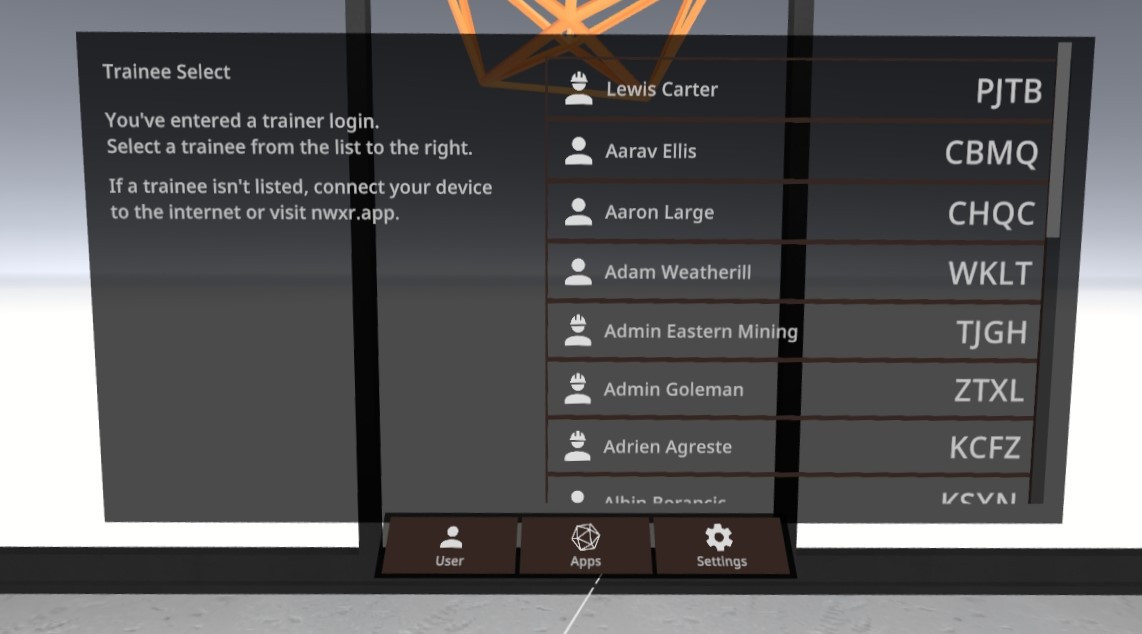
#### Select the correct person from the list of Trainees

There will be a list of all your trainees to select from. Use the joystick or scrollbar to scroll through the list and find the correct person and select it.

[![Screenshot_com.NextWorld.NextWorldMenu_2023.04.27-15.51.51.647_157_cropped.jpeg](https://docs.nwxr.app/uploads/images/gallery/2023-04/scaled-1680-/HmIscreenshot-com-nextworld-nextworldmenu-2023-04-27-15-51-51-647-157-cropped.jpeg)](https://docs.nwxr.app/uploads/images/gallery/2023-04/HmIscreenshot-com-nextworld-nextworldmenu-2023-04-27-15-51-51-647-157-cropped.jpeg)When they find their own name, make sure they take note of their code, then select their name to move on.
# How to share/screencast your VR view to a screen

Screencasting allows a trainer to view what's going on in a VR headset while a trainee is using it.

<iframe allowfullscreen="allowfullscreen" height="314" src="https://www.youtube.com/embed/j_CDqe2uqO8" width="560"></iframe>

####   
Accessing screencasting

After turning on the headset and setting the player boundary, press the Pico button on your hand controller to bring up the Pico menu. From there, select the screencasting icon, which will display several options depending on whether you have internet access or not. Let's explore each of these options.

#### Casting to a phone or tablet

The first option is Cast to TV, which can be used with any device that has access to the Android Play Store. To use this option, download the *Cast for Pico* app from the Play Store on your phone, tablet, or TV, and then connect to the device from your headset by selecting "Connect" after opening the app. This option requires both the headset and the device you are casting to be connected to the same internet network.

#### Casting to an Internet Browser

The next option is Cast to Browser, which allows you to cast to any device that can open a Chromium-based browser, such as Chrome, Edge, or Brave. However, this option will not work for Safari or Firefox. After selecting this option, copy the IP address displayed on the screen into your internet browser. Again, both the headset and the device you are casting to must be connected to the same internet network.

#### Casting using Miracast

The final option we will cover is Miracasting, which is an option that does not require an internet connection. Select the icon at the top-right of the screen to see a list of available devices to cast to, such as any Smart TV with Miracasting functionality, or any Windows PC or laptop with the Connect app. If you are trying to Miracast to a Windows PC or laptop, you will first need to check if the Connect app is enabled, and if not, enable it. To connect to a device from your headset, simply select the device from the screen and it will begin casting.

# How to troubleshoot connection problems

Having issues with your device not connecting? This article goes through some steps to help diagnose and solve the issue.

#### Troubleshooting Connections

From Agent, you should be able to see the connection status and the time. The connection status should show Connected and the time set to your current time.

[![image.png](https://docs.nwxr.app/uploads/images/gallery/2023-04/scaled-1680-/yQiimage.png)](https://docs.nwxr.app/uploads/images/gallery/2023-04/yQiimage.png)  
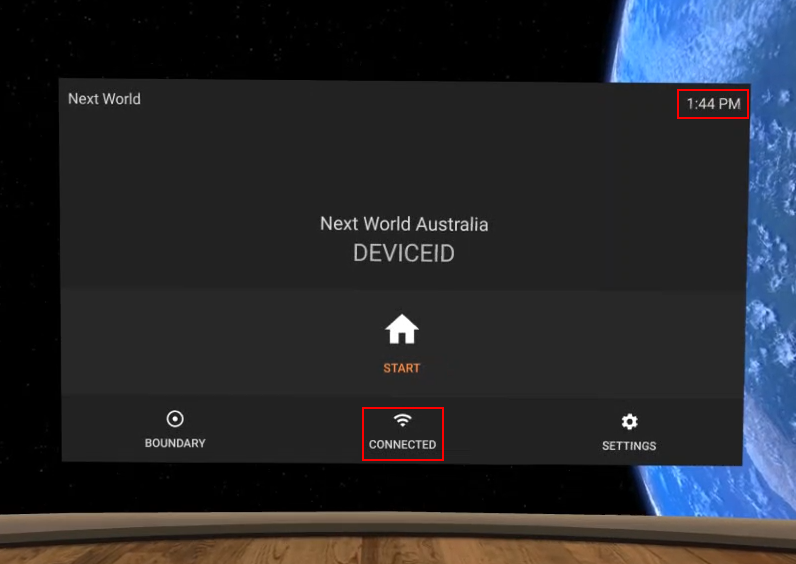
  
If your device isn't connected or your time is incorrect, click the Wi-Fi (middle) button and you'll be taken to the Pico's settings where you can set the Wi-Fi Network and time. Both will need to be correct to connect successfully.

#####   
Locating Version Information

In order to check your software versions and/or last connection time: press the Settings button as shown below.

[![image.png](https://docs.nwxr.app/uploads/images/gallery/2023-04/scaled-1680-/NHkimage.png)](https://docs.nwxr.app/uploads/images/gallery/2023-04/NHkimage.png)
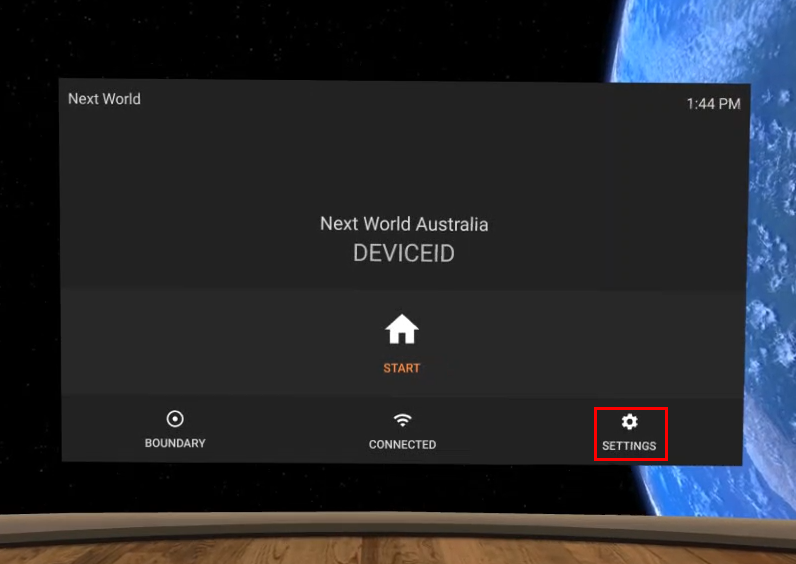
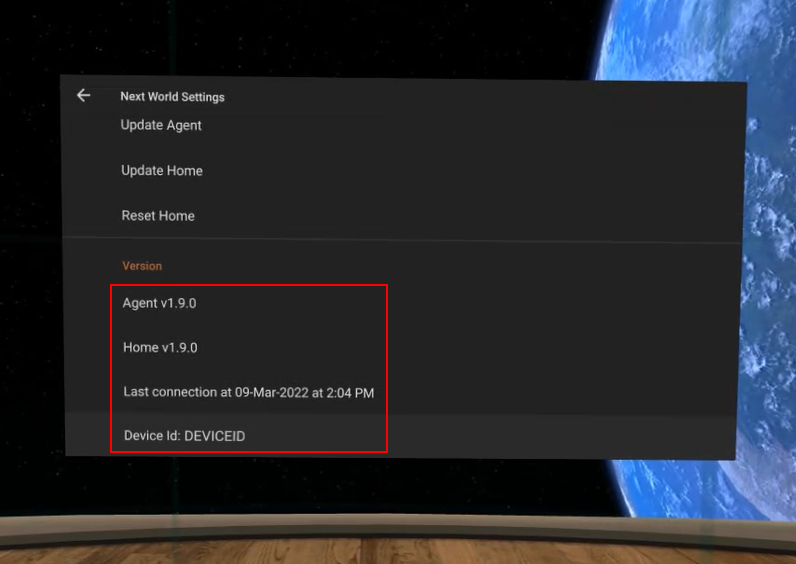
Scroll down to **Version**. You can see the last connection time here as well as the Agent and Home versions installed. This will also show you if updates are available for them.

[![image.png](https://docs.nwxr.app/uploads/images/gallery/2023-04/scaled-1680-/6Dzimage.png)](https://docs.nwxr.app/uploads/images/gallery/2023-04/6Dzimage.png)
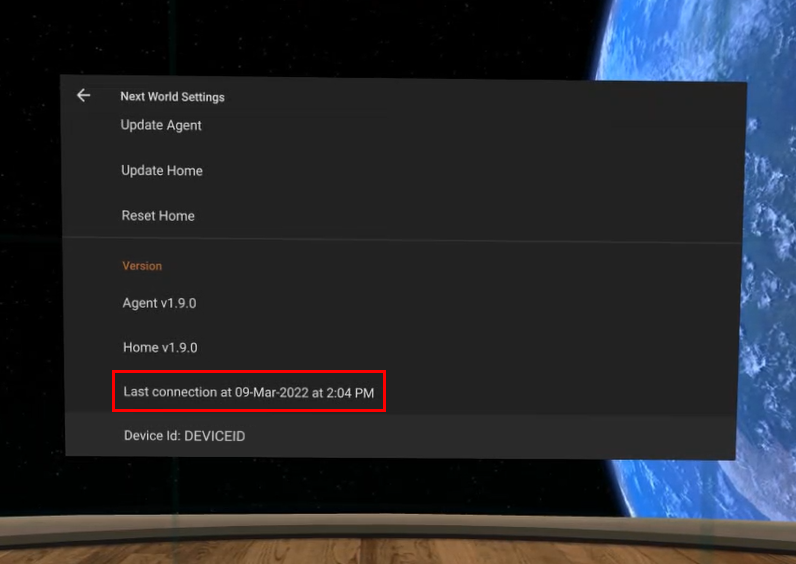
If you have been instructed to send this information to Next World Support, then you can send all the information in a single click! All you have to do is click where you see **Last connection**. You only need to click it once.

[![image.png](https://docs.nwxr.app/uploads/images/gallery/2023-04/scaled-1680-/gXdimage.png)](https://docs.nwxr.app/uploads/images/gallery/2023-04/gXdimage.png)
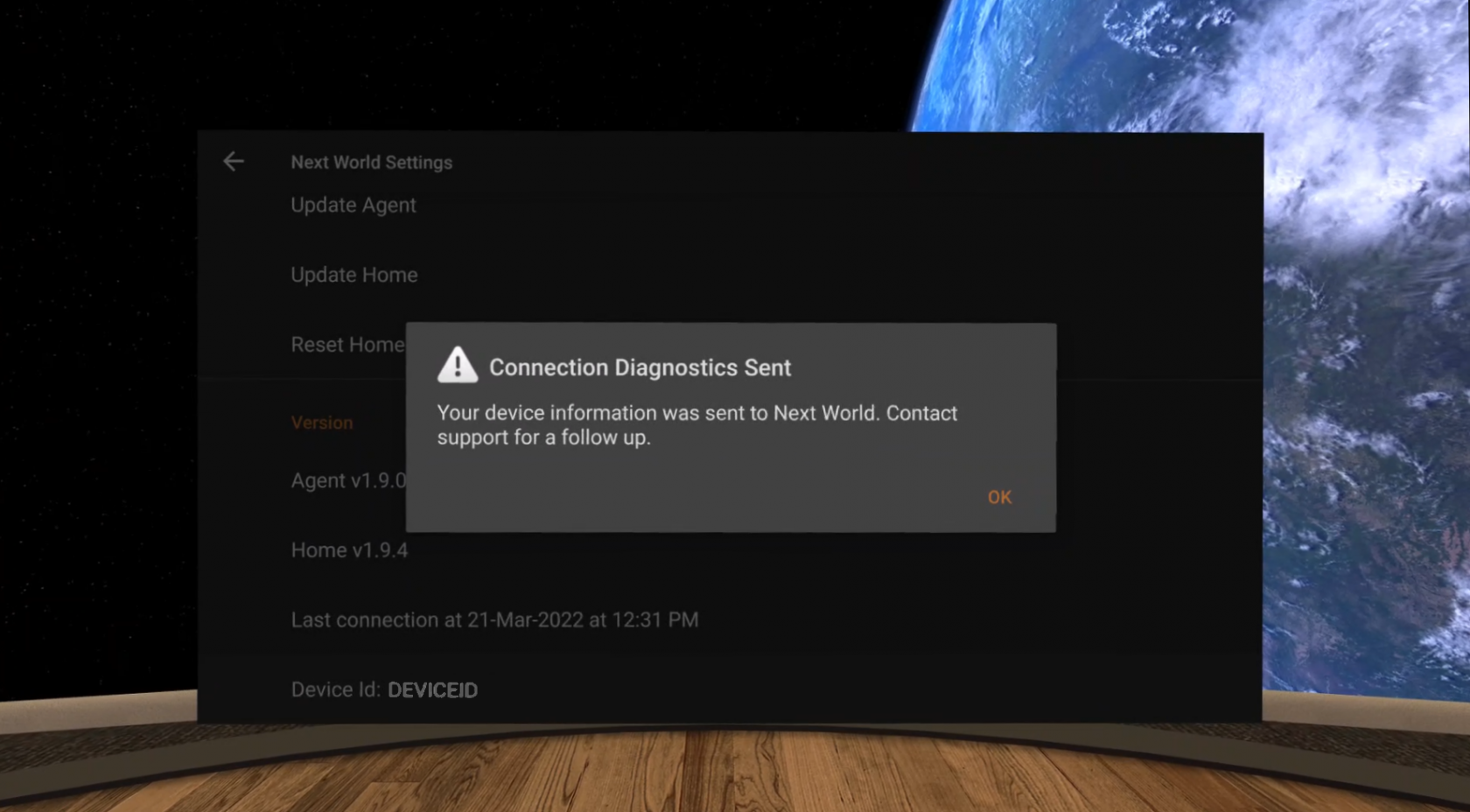
The below message will show up, which is verification that the information has been sent through to Next World Support. Contact us to get help with your connection issues.

[![image.png](https://docs.nwxr.app/uploads/images/gallery/2023-04/scaled-1680-/jVoimage.png)](https://docs.nwxr.app/uploads/images/gallery/2023-04/jVoimage.png)
# How to find insights from the training undertaken on your headset

If you or your trainees have undertaken training on a headset, you'll likely want to view insights and course reporting from within the **Next World Platform Portal**.

#### Head to the Next World Platform Portal

To access the Portal, point your browser to [http://nwxr.app](http://nwxr.app), for information [read the following article.](https://docs.nwxr.app/books/next-world-support/page/how-to-access-the-next-world-platform-portal "How to access the Next World Platform Portal")

From here, you'll want to look at the **Training Insights** page, available in the menu to the left.

[![image.png](https://docs.nwxr.app/uploads/images/gallery/2023-05/scaled-1680-/Lqpimage.png)](https://docs.nwxr.app/uploads/images/gallery/2023-05/Lqpimage.png)
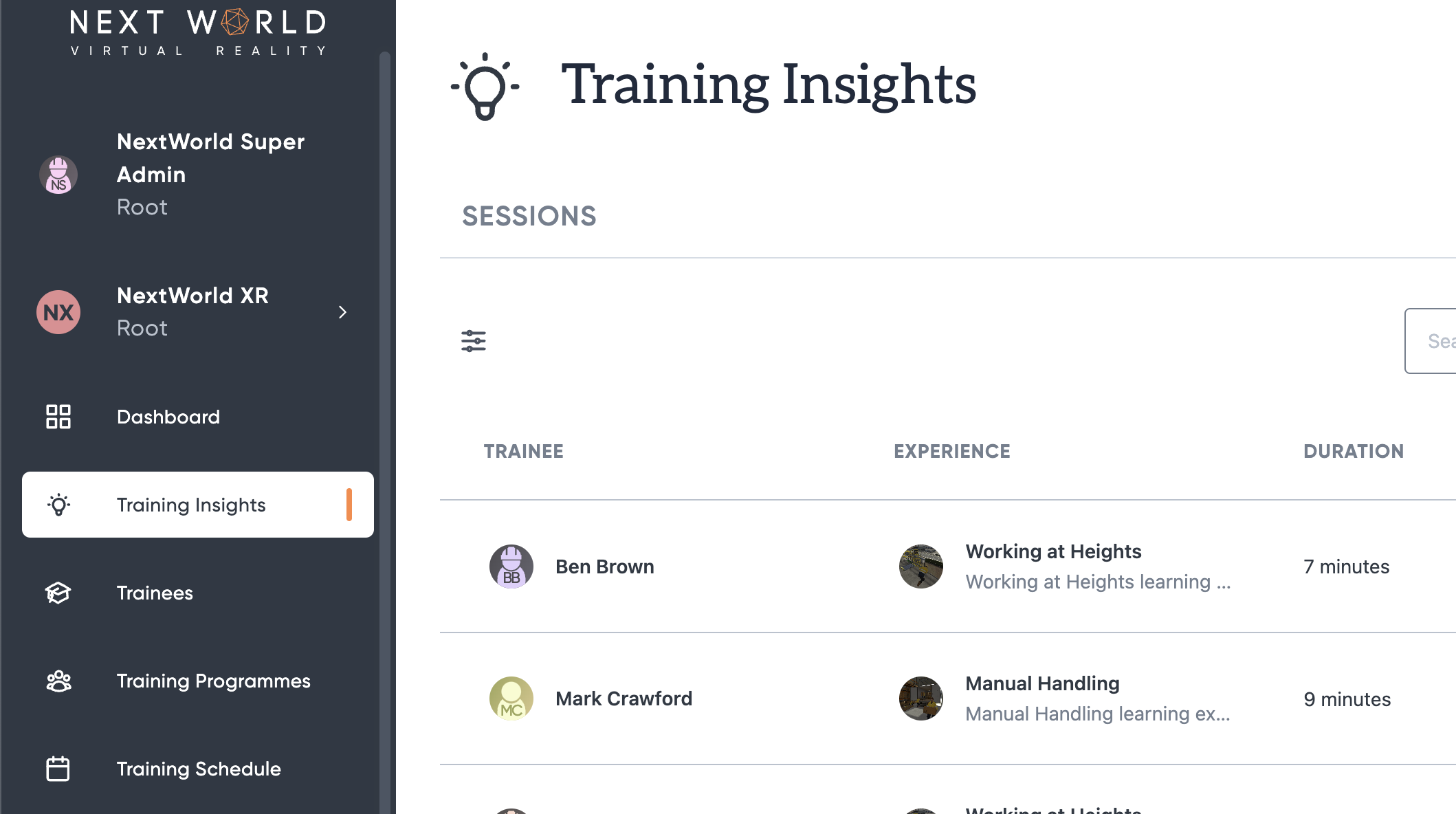
Here there's a list of recent sessions from all of the devices across your division.

Click a session in order to view training data.

[![image.png](https://docs.nwxr.app/uploads/images/gallery/2023-05/scaled-1680-/xHXimage.png)](https://docs.nwxr.app/uploads/images/gallery/2023-05/xHXimage.png)
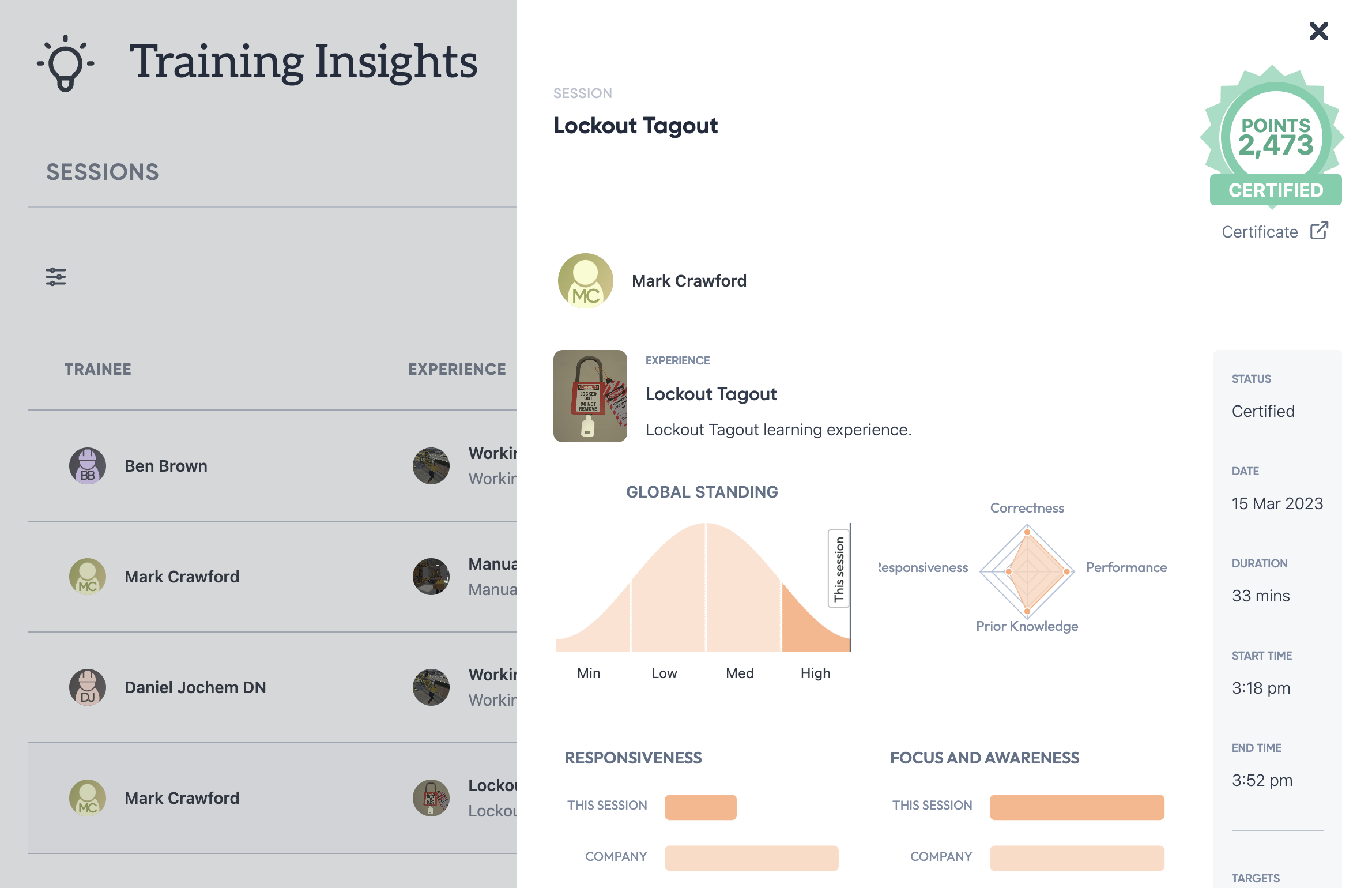
#### If you can't find your session

If you can't find your session, check subdivisions using the [filters on the sessions table.](https://docs.nwxr.app/books/next-world-support/page/using-filters-in-the-platform-portal-to-control-tables "Using filters in the Platform Portal to control tables")

# Reinstall Next World Home

Sometimes there may be issues that occur such as a corrupted download of an experience, in which case Next World Home needs to be reset. This article walks you through how to uninstall and reinstall Home.

<p class="callout info">Note: While you will not lose user or headset data, you will be required to re-download all of the experiences if you follow these steps.  
</p>

####   
Go to the Agent  


If you are logged into Next World Home, access the Home settings by clicking on the **Settings** button.

[![InkedScreenshot_com.NextWorld.NextWorldMenu_2023.04.28-09.21.18.054_802_cropped.jpg](https://docs.nwxr.app/uploads/images/gallery/2023-04/scaled-1680-/inkedscreenshot-com-nextworld-nextworldmenu-2023-04-28-09-21-18-054-802-cropped.jpg)](https://docs.nwxr.app/uploads/images/gallery/2023-04/inkedscreenshot-com-nextworld-nextworldmenu-2023-04-28-09-21-18-054-802-cropped.jpg)
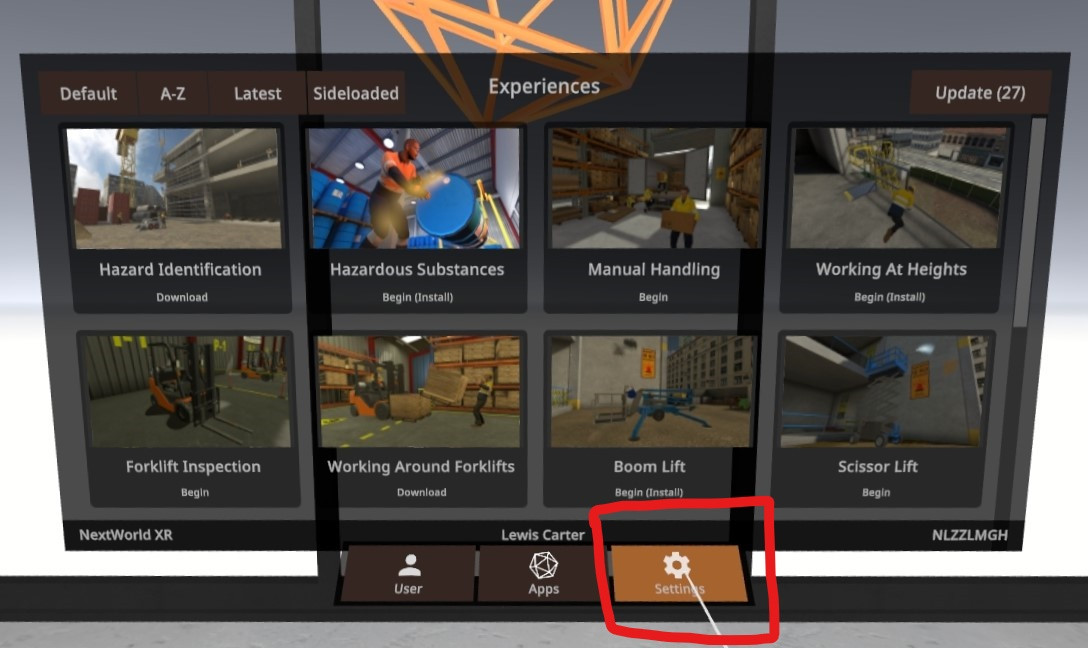
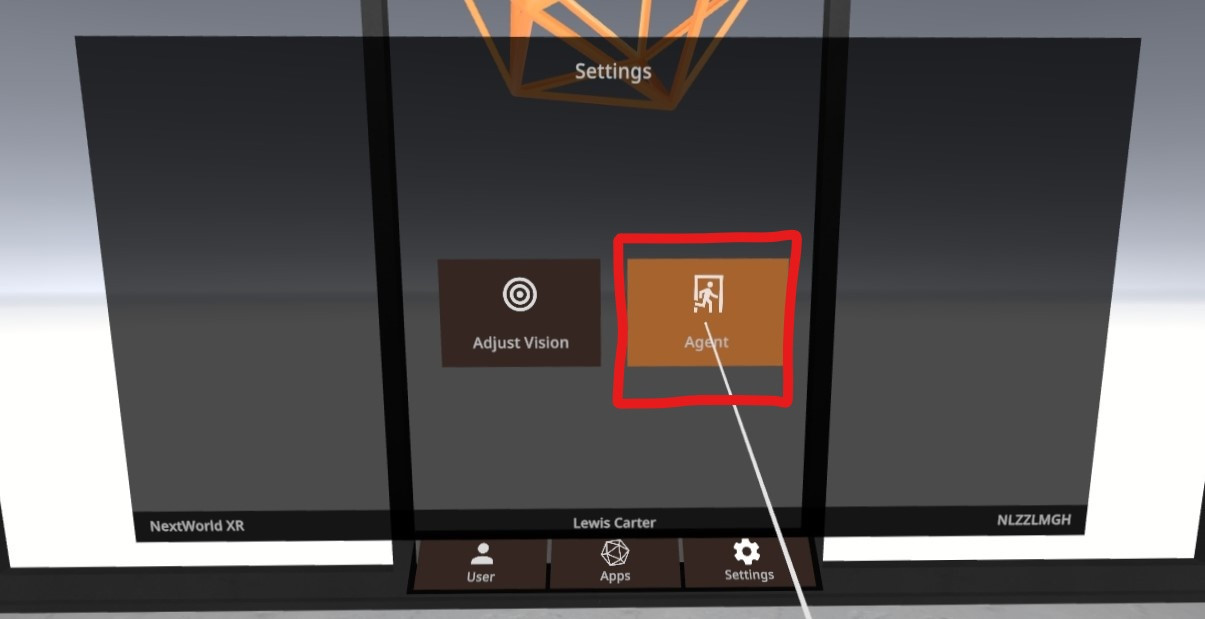
From this screen, select **Agent**.

[![InkedScreenshot_com.NextWorld.NextWorldMenu_2023.04.28-09.20.54.685_575_cropped.jpg](https://docs.nwxr.app/uploads/images/gallery/2023-04/scaled-1680-/inkedscreenshot-com-nextworld-nextworldmenu-2023-04-28-09-20-54-685-575-cropped.jpg)](https://docs.nwxr.app/uploads/images/gallery/2023-04/inkedscreenshot-com-nextworld-nextworldmenu-2023-04-28-09-20-54-685-575-cropped.jpg)
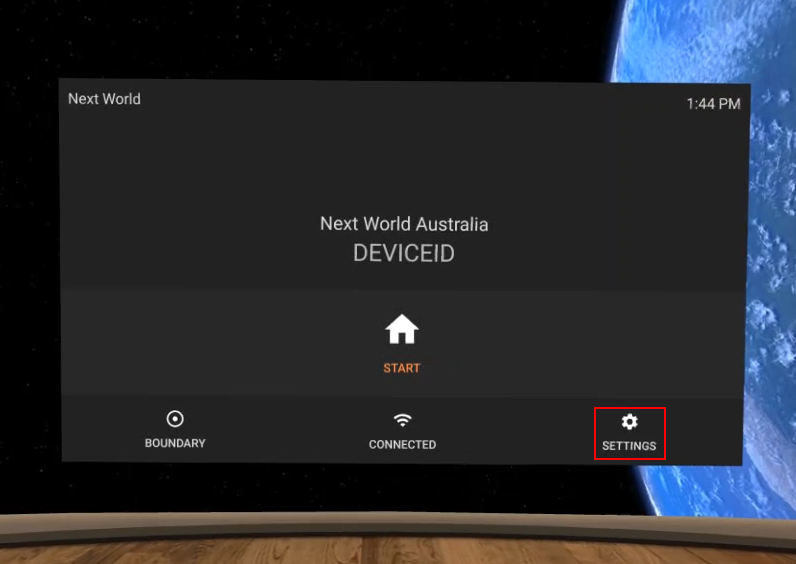
#### Reset/Uninstall Home

From Next World Agent, press the **Settings** button in the bottom-right corner.

[![image.png](https://docs.nwxr.app/uploads/images/gallery/2023-04/scaled-1680-/tkyimage.png)](https://docs.nwxr.app/uploads/images/gallery/2023-04/tkyimage.png)
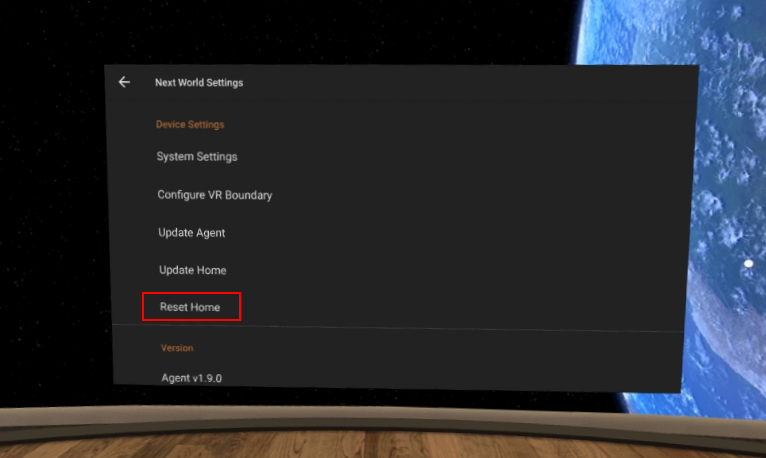
This will take you to the Agent Settings screen. Find **Reset Home**, and select it.

[![image.png](https://docs.nwxr.app/uploads/images/gallery/2023-04/scaled-1680-/fXSimage.png)](https://docs.nwxr.app/uploads/images/gallery/2023-04/fXSimage.png)
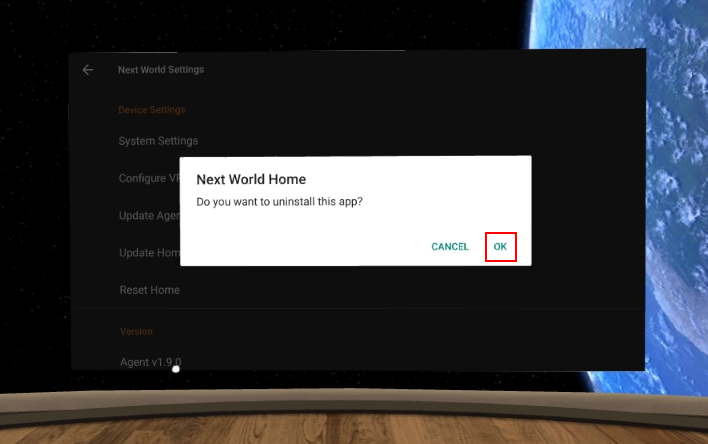
You will be asked to confirm you want to uninstall this app. Select **Ok**.

[![image.png](https://docs.nwxr.app/uploads/images/gallery/2023-04/scaled-1680-/R86image.png)](https://docs.nwxr.app/uploads/images/gallery/2023-04/R86image.png)
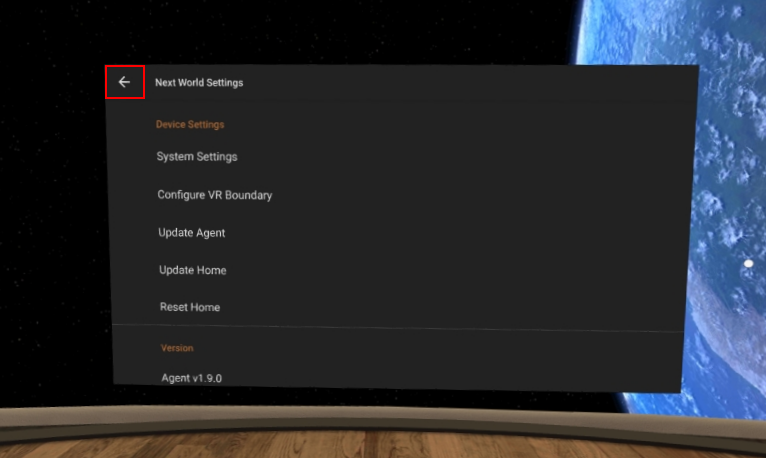
Return to the Next World Agent's main screen by clicking on the back button in the top-left.

[![image.png](https://docs.nwxr.app/uploads/images/gallery/2023-04/scaled-1680-/gVjimage.png)](https://docs.nwxr.app/uploads/images/gallery/2023-04/gVjimage.png)
#### Install Home

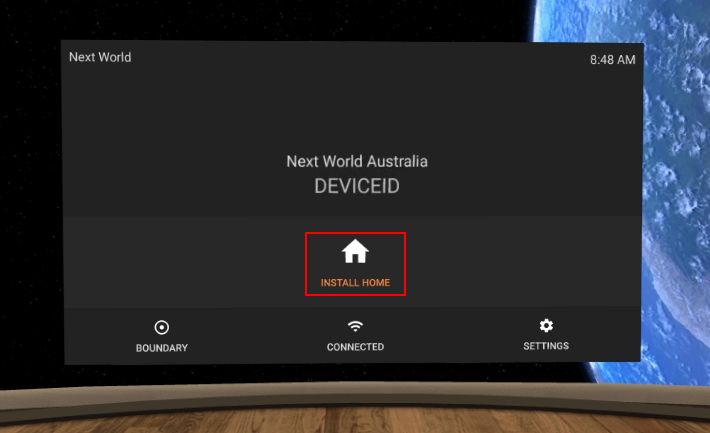
You will now be able to install Home again. Click on the **Install Home** button and follow the prompts on screen.

[![image.png](https://docs.nwxr.app/uploads/images/gallery/2023-04/scaled-1680-/NE6image.png)](https://docs.nwxr.app/uploads/images/gallery/2023-04/NE6image.png)
# Headset tracking doesn't move along with you

All Next World experiences give you a full movement experience, where you can not just use your hands in virtual reality but lean forward, backwards, stand-up, and reach down to fully experience the training. Occasionally, an update may disable this functionality. Here is how to turn it back on to get the most out of your training.

#### Pico Headsets

Click on the **Settings** button in Next World Agent within the Pico headset.

[![image.png](https://docs.nwxr.app/uploads/images/gallery/2023-04/scaled-1680-/ye6image.png)](https://docs.nwxr.app/uploads/images/gallery/2023-04/ye6image.png)
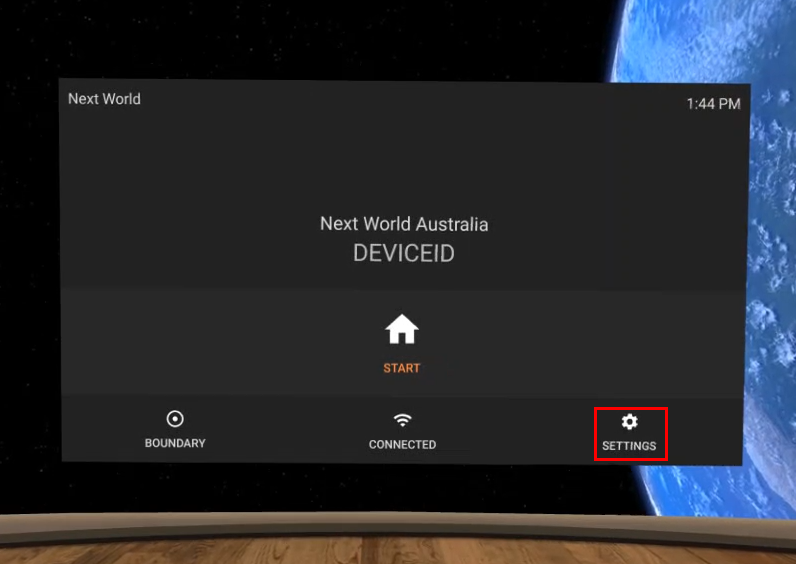
Click on **System Settings**.

[![image.png](https://docs.nwxr.app/uploads/images/gallery/2023-04/scaled-1680-/R9Cimage.png)](https://docs.nwxr.app/uploads/images/gallery/2023-04/R9Cimage.png)
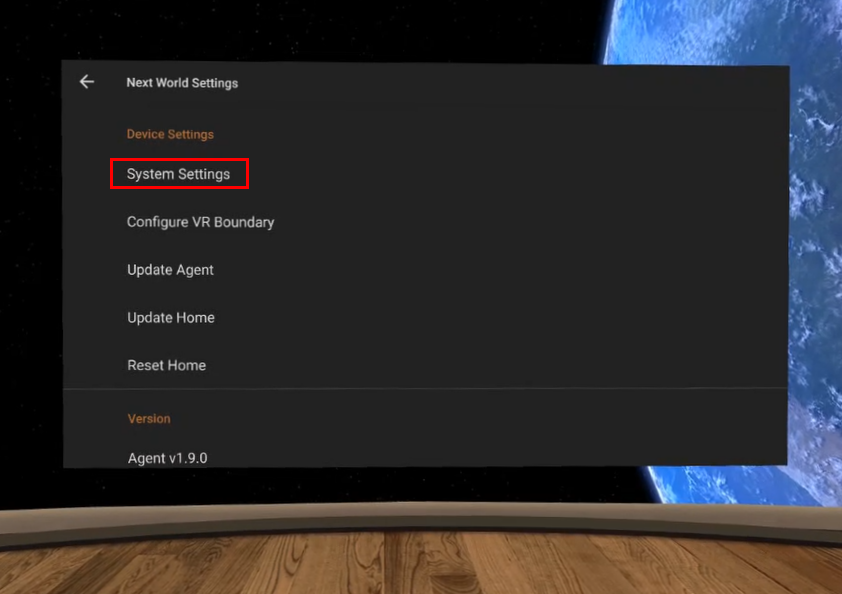
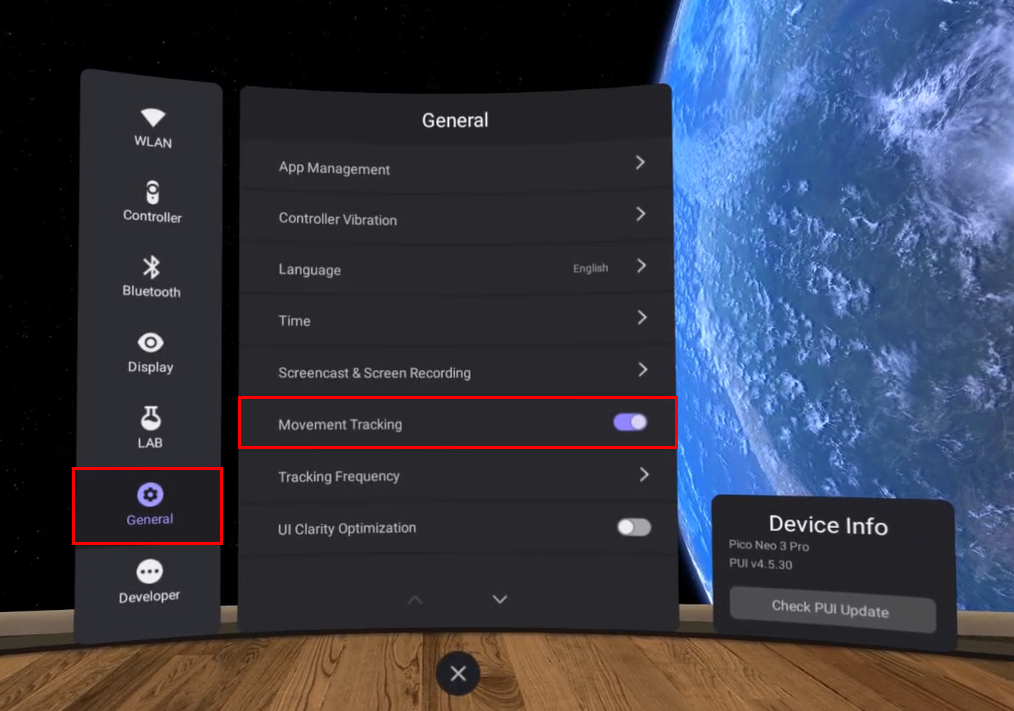
Go to **General** and make sure **Movement Tracking** is turned on.

[![image.png](https://docs.nwxr.app/uploads/images/gallery/2023-04/scaled-1680-/LcQimage.png)](https://docs.nwxr.app/uploads/images/gallery/2023-04/LcQimage.png)
If this does not solve your tracking issue, please contact [Next World Support.](mailto:support@nextworldxr.com)

# How to setup your controllers

If this is the first time your headset is being used, or you are having issues with your controllers, the following is a list of steps and checks you can do to help identify the problem.

#### Check for Battery Tags

It could be that the tag for the controller's battery has not been removed which would mean the current from the battery is not able to flow. The left side of the left controller or the right side of the right controller can be removed by sliding it (with a little bit of force) towards the bottom of the controller. Check if there is a small white tag on one end of one of the batteries and if so, remove it.

#### Test for Dead Batteries

If this is not the case, the issue could simply be that the batteries have run out. If you have two spare AA batteries available, you could try replacing the batteries.

#### Re-bind the Controller to the headset  


If this still does not solve the issue, then you may need to bind the controller to the headset again. Follow the instructions below to un-bind and re-bind a controller.

Press the **Settings** button on Next World Agent.

[![image.png](https://docs.nwxr.app/uploads/images/gallery/2023-04/scaled-1680-/hT5image.png)](https://docs.nwxr.app/uploads/images/gallery/2023-04/hT5image.png)
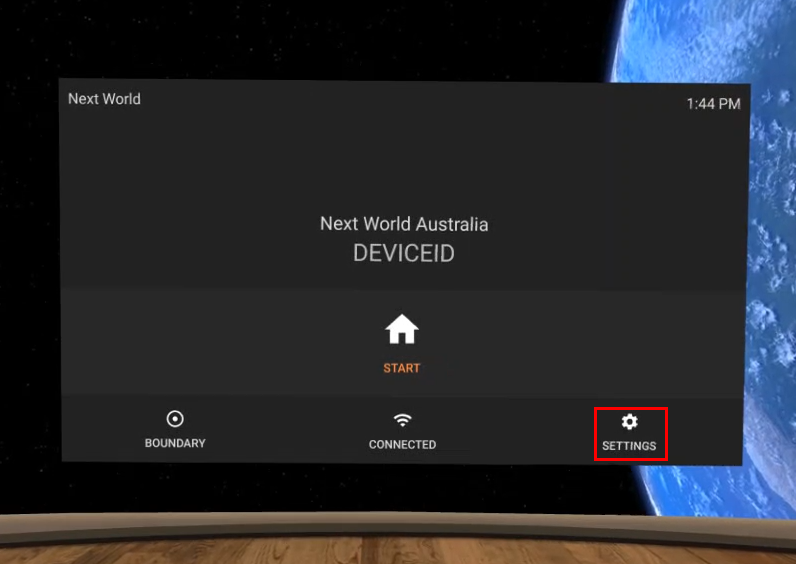
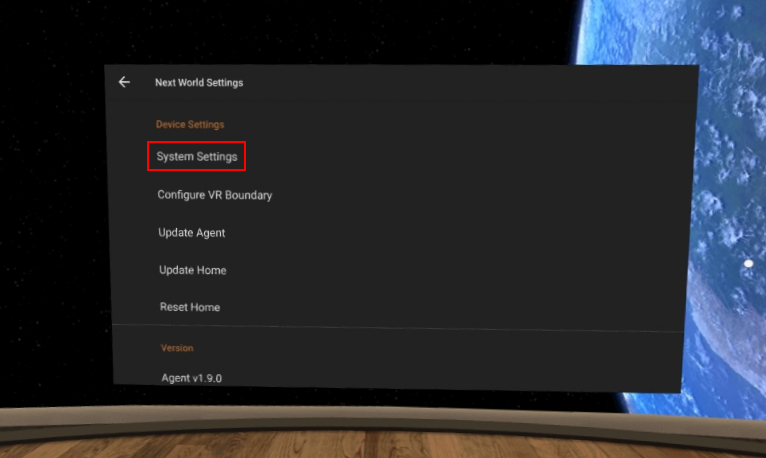
Press the **System Settings** button.

[![image.png](https://docs.nwxr.app/uploads/images/gallery/2023-04/scaled-1680-/WsDimage.png)](https://docs.nwxr.app/uploads/images/gallery/2023-04/WsDimage.png)
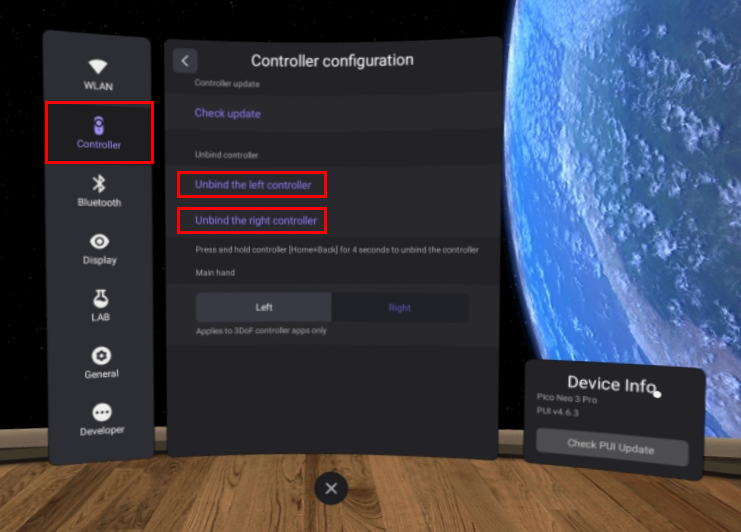
Go to **Controller** and then press either **Unbind the left controller** if you are having issues with your left controller or **Unbind the right controller** if it is the right controller that is having issues.

[![image.png](https://docs.nwxr.app/uploads/images/gallery/2023-04/scaled-1680-/1E6image.png)](https://docs.nwxr.app/uploads/images/gallery/2023-04/1E6image.png)
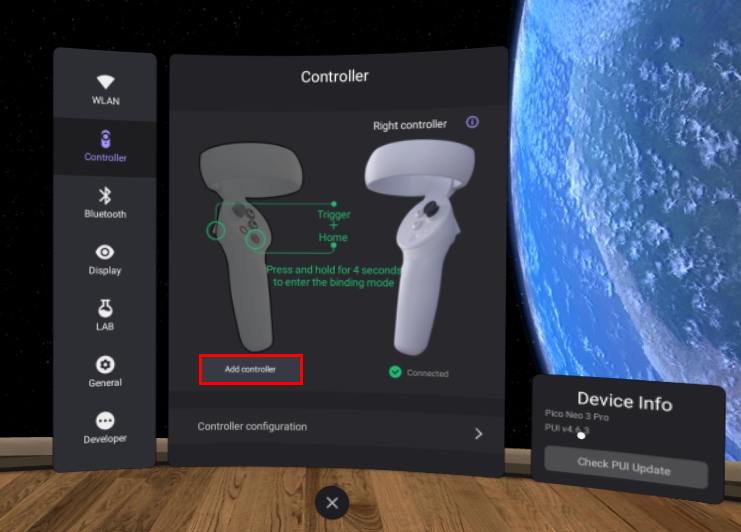
Now press **Add controller** for the controller you unbound and follow the instructions displayed in green to re-bind your controller.

[![image.png](https://docs.nwxr.app/uploads/images/gallery/2023-04/scaled-1680-/C7qimage.png)](https://docs.nwxr.app/uploads/images/gallery/2023-04/C7qimage.png)
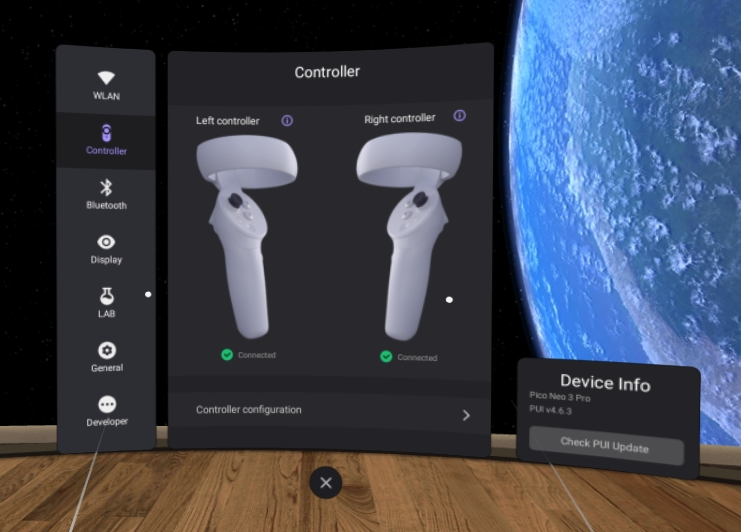
Both controllers should now be working, with **Connected** appearing on screen below each of the controllers.

[![image.png](https://docs.nwxr.app/uploads/images/gallery/2023-04/scaled-1680-/7iHimage.png)](https://docs.nwxr.app/uploads/images/gallery/2023-04/7iHimage.png)
If none of these troubleshooting steps solved the issue you are having with the controller, please send [Next World Support ](mailto:support@nextworldxr.com)an email stating you have tried all the possibilities in this article, and we will assist you further.

# How to Access Other VR Applications

#### How to Access Non-Next World Applications

The Next World software natively runs in kiosk-mode, meaning it only allows one application (Next World Home) to run. However, if you need to access other Apps installed on your device, you can do so by following the below steps:

1. From the main agent screen, select the **Settings** button on the bottom right to go to Next World Agent's settings
2. Scroll down and select **System Apps**
3. Click on **Appmanager** and select "yes" to launch. This will show you all of the currently installed Apps on your device

To go back to the Next World Agent, select **Back** or **Exit** on the bottom navigation buttons until your reach the home screen.

# Screencasting to an Android Device Completely Offline

The below steps will walk you through how to set up a hotspot on your Android device so that you can screencast your Pico to your Android device completely offline.

##### Step 1. Turn off mobile data

1. Open the "Settings" app on your Android device. You can usually find it in the app drawer or by swiping down and tapping the gear-shaped Settings icon in the notification shade.
2. In the Settings app, look for the "Network &amp; internet" or "Connections" section (the name might vary depending on your device’s manufacturer and Android version).
3. Within this section, you should see "Mobile data”, "Data usage", or similar options. Tap on it to access the mobile data settings.
4. On the mobile data settings page, you'll see a toggle switch or checkbox to enable or disable mobile data. Tap on the switch or uncheck the box to turn off mobile data.
5. A confirmation dialog may appear. Tap "OK" or "Disable" to confirm the action.

##### Step 2. Turn on the hotspot

1. Within the "Network &amp; internet" or "Connections" section, look for the "Hotspot &amp; tethering" or "Mobile hotspot &amp; tethering" option, and tap on it.
2. You should see a toggle switch or an option labeled "Mobile Hotspot," "Portable Hotspot," or "Tethering." Tap on the toggle switch or the option to turn on the hotspot.

<p class="callout warning">**Do not** **turn off** (or **disable**) the **Wi-Fi/WLAN** because **Hotspot** needs the **Wi-Fi/WLAN** to work.</p>


##### Step 3. Connect your VR Headset to the Mobile Hotspot of your Android device

1. Within Next World Agent, go to its settings and press on the first option (“Configure Connection”).
2. Select the mobile hotspot of your Android device

##### Step 4. Screen cast to your browser

1. Press the Pico button on your controller to open the Pico menu in your headset.
2. Press the “Screencast” Icon on the left.
3. Choose the “Cast to Browser” option in the middle.
4. Type the Screencast web address shown on your headset to your mobile device’s web browser.
5. Click the “Start Screencast” button on your mobile device’s web browser.
6. A dialog will open in your headset requesting permission to allow Screencast. Select the “Allow” button.

##### All set. Your headset will now screencast to your Android device completely disconnected from the internet.

# Screencasting to an Apple Device Completely Offline

The below steps will walk you through how to set up a hotspot on your Apple device so that you can screencast your Pico to your Apple device completely offline.

##### Step 1. Turn off mobile data

1. Unlock your iOS device and find the "Settings" app on the home screen. The Settings app icon looks like a gear.
2. In the Settings app, scroll down and look for the "Cellular" or "Mobile Data" option. The name may vary depending on your iOS version and region.
3. You'll see a toggle switch next to "Cellular Data" or "Mobile Data." Tap on the toggle switch to turn off mobile data. When the toggle switch is in the off position, it will be grayed out.
4. A pop-up message may appear to confirm that you want to turn off mobile data. Tap "Turn Off" to confirm.

##### Step 2. Turn on the hotspot

1. In the Cellular or Mobile Data settings, you'll see an option called "Personal Hotspot" or "Mobile Hotspot." Tap on it to access the Personal Hotspot settings.
2. On the Personal Hotspot screen, you'll see a toggle switch next to "Personal Hotspot" or "Allow Others to Join". Tap on the toggle switch to turn on the hotspot. The switch should turn green or show "On" when the hotspot is active.

<p class="callout warning">**Do not** **turn off** (or **disable**) the **Wi-Fi** because **Hotspot** needs the **Wi-Fi** to work.</p>

##### Step 3. Connect your VR Headset to the Mobile Hotspot of your Apple device

1. Within Next World Agent, go to its settings and press on the first option (“Configure Connection”).
2. Select the mobile hotspot of your Apple device

##### Step 4. Screen cast to your browser

1. Press the Pico button on your controller to open the Pico menu in your headset.
2. Press the “Screencast” Icon on the left.
3. Choose the “Cast to Browser” option in the middle.
4. Type the Screencast web address shown on your headset to your mobile device’s web browser.
5. Click the “Start Screencast” button on your mobile device’s web browser.
6. A dialog will open in your headset requesting permission to allow Screencast. Select the “Allow” button.

##### All set. Your headset will now screencast to your Apple device completely disconnected from the internet.

# Screencasting to a Windows Device Completely Offline

The below steps will walk you through how to set up a hotspot on your Windows device so that you can screencast your Pico to your Windows device completely offline.

##### Step 1. Turn on Mobile Hotspot

1. Press the "Windows + I" keys on your keyboard to open the Settings app.
2. In the Settings window, select "Network &amp; Internet" from the available options.
3. On the left pane, choose "Mobile hotspot."
4. In the Mobile hotspot section, toggle the switch to turn on "Share my Internet connection with other devices."

##### Step 2. Disconnect From Wi-Fi Network

1. Look at the bottom-right corner of your screen, where you'll find the system tray and the network icon (it looks like Wi-Fi signal bars or a computer monitor with wireless signals).
2. Click on the network icon once. A list of available Wi-Fi networks should appear.
3. From the list, locate and click on the Wi-Fi network to which you are currently connected. It will have a checkmark or say "Connected" next to it.
4. Click on the "Disconnect" button for the selected network. This will disconnect your computer from the Wi-Fi network.
5. Uncheck “Connect Automatically” to keep your computer not connected to any Wi-Fi network.
6. Try opening a website on your browser to confirm that your computer doesn’t have the internet.

<p class="callout warning">**Do not** **turn off** or **disable** the **Wi-Fi adapter** because **Hotspot** needs the **Wi-Fi adaptor** to work.</p>

##### Step 3. Connect your VR Headset to the Mobile Hotspot of your Windows device

1. Within Next World Agent, go to its settings and press on the first option (“Configure Connection”).
2. Select the mobile hotspot of your Windows device

##### Step 4. Screen cast to your browser

1. Press the Pico button on your controller to open the Pico menu in your headset.
2. Press the “Screencast” Icon on the left.
3. Choose the “Cast to Browser” option in the middle.
4. Type the Screencast web address shown on your headset to your mobile device’s web browser.
5. Click the “Start Screencast” button on your mobile device’s web browser.
6. A dialog will open in your headset requesting permission to allow Screencast. Select the “Allow” button.

##### All set. Your headset will now screencast to your Windows device completely disconnected from the internet.

# How Do I Find My Pico Device's MAC Address

<span data-identifyelement="480" dir="ltr">*Your IT department may request you to find the MAC address of the Pico you use. In this case, it is reasonably easy to view it to then pass along to your IT department.*</span>

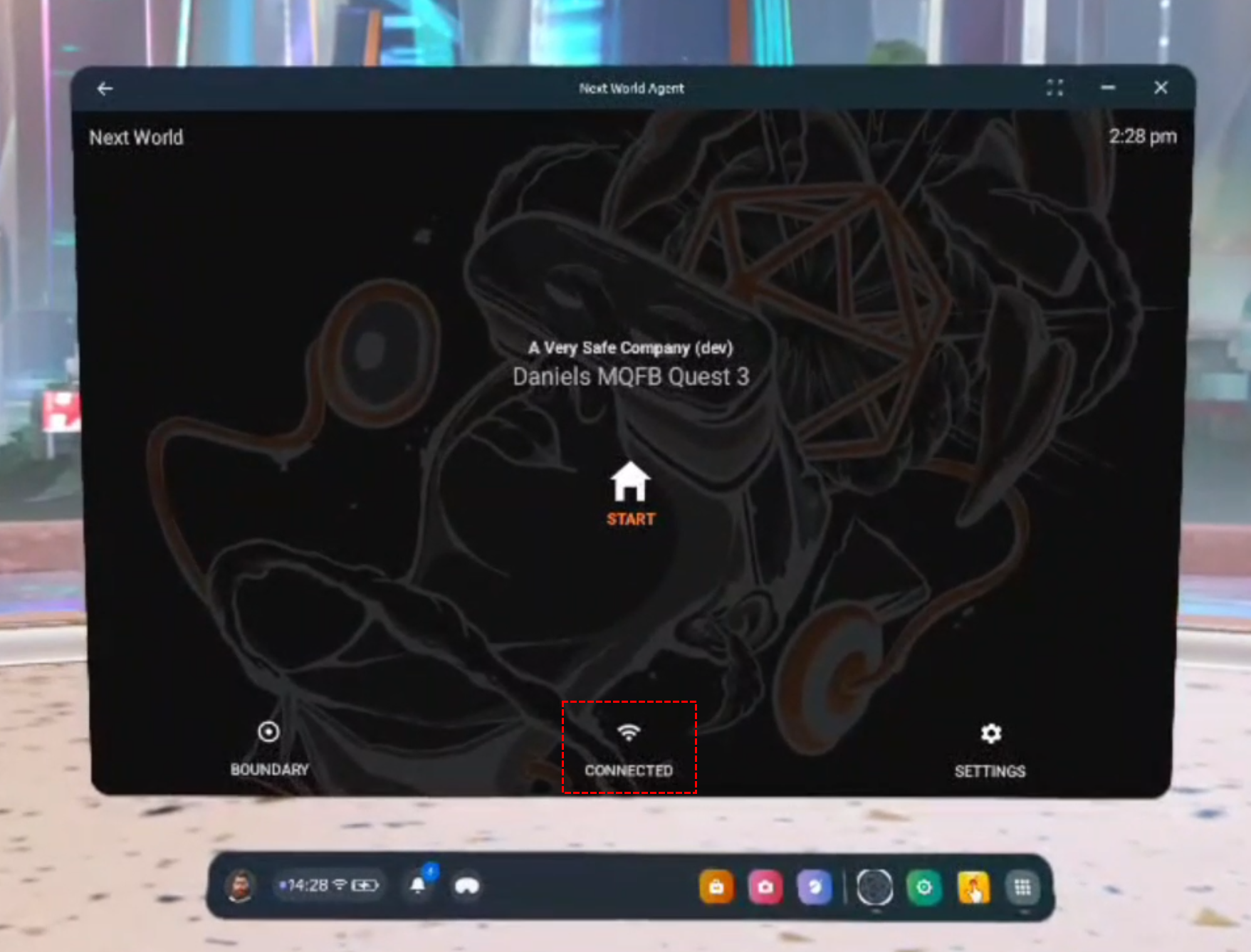
<span data-identifyelement="483" dir="ltr">1. Within Next World Agent on the headset, click on the connection button down the bottom.</span>

<span data-identifyelement="485" dir="ltr">![](https://s3-ap-southeast-2.amazonaws.com/aus-cdn.freshdesk.com/data/helpdesk/attachments/production/51157830214/original/lbfQ3UeTen0tepE-UHyXdaaCMYbxrgxa0g.jpeg?1714620504)</span>

<span data-identifyelement="490" dir="ltr">2. <span data-identifyelement="491" dir="ltr">Scroll right down to the bottom of the WLAN settings. You will see an option "Add Network". Click this option.</span></span>

<span data-identifyelement="493" dir="ltr">![](https://s3-ap-southeast-2.amazonaws.com/aus-cdn.freshdesk.com/data/helpdesk/attachments/production/51157830383/original/8Y0tSJw_r1zHsVttG_p2aWFvbnlz3mYZ6A.jpeg?1714620522)</span>

<span data-identifyelement="498" dir="ltr">3. </span><span data-identifyelement="499">Scroll right down to the bottom and you will see an option called "Wi-Fi preferences". Click this button.</span>

<span data-identifyelement="501" dir="ltr">![](https://s3-ap-southeast-2.amazonaws.com/aus-cdn.freshdesk.com/data/helpdesk/attachments/production/51157830886/original/bKE-L_VZAHKzRQY_pW_ldaFwrozGWye37g.jpeg?1714620600)</span>

<span data-identifyelement="506" dir="ltr">4. </span><span data-identifyelement="507" dir="ltr">Click on "Advanced" and you will see one of the options is "MAC address". Copy it down and send it to the relevant person in your IT department. </span>

<span data-identifyelement="509" dir="ltr">![](https://s3-ap-southeast-2.amazonaws.com/aus-cdn.freshdesk.com/data/helpdesk/attachments/production/51157830993/original/4_w7ivst40DwEg5k7Man8fDAOL00K02SIw.jpeg?1714620614)![](https://s3-ap-southeast-2.amazonaws.com/aus-cdn.freshdesk.com/data/helpdesk/attachments/production/51157831121/original/jlH6XzGjYBLwgzNNJA1s-B2Q_viSqaUqOA.jpeg?1714620627)</span>

# How Do I Find My Meta Device's MAC Address

<span data-identifyelement="480" dir="ltr">*Your IT department may request you to find the MAC address of the Meta device you use. In this case, it is reasonably easy to view it to then pass along to your IT department.*</span>

<span data-identifyelement="483" dir="ltr">1. Within Next World Agent on the headset, click on the connection button down the bottom.</span>

[![1.png](https://docs.nwxr.app/uploads/images/gallery/2025-01/scaled-1680-/1.png)](https://docs.nwxr.app/uploads/images/gallery/2025-01/1.png)

<span data-identifyelement="490" dir="ltr">2. <span data-identifyelement="491" dir="ltr">A list of Wi-Fi connections will appear, <span data-identifyelement="483" dir="ltr">click on the one</span> your device is connected to.</span></span>

[![2.png](https://docs.nwxr.app/uploads/images/gallery/2025-01/scaled-1680-/2.png)](https://docs.nwxr.app/uploads/images/gallery/2025-01/2.png)

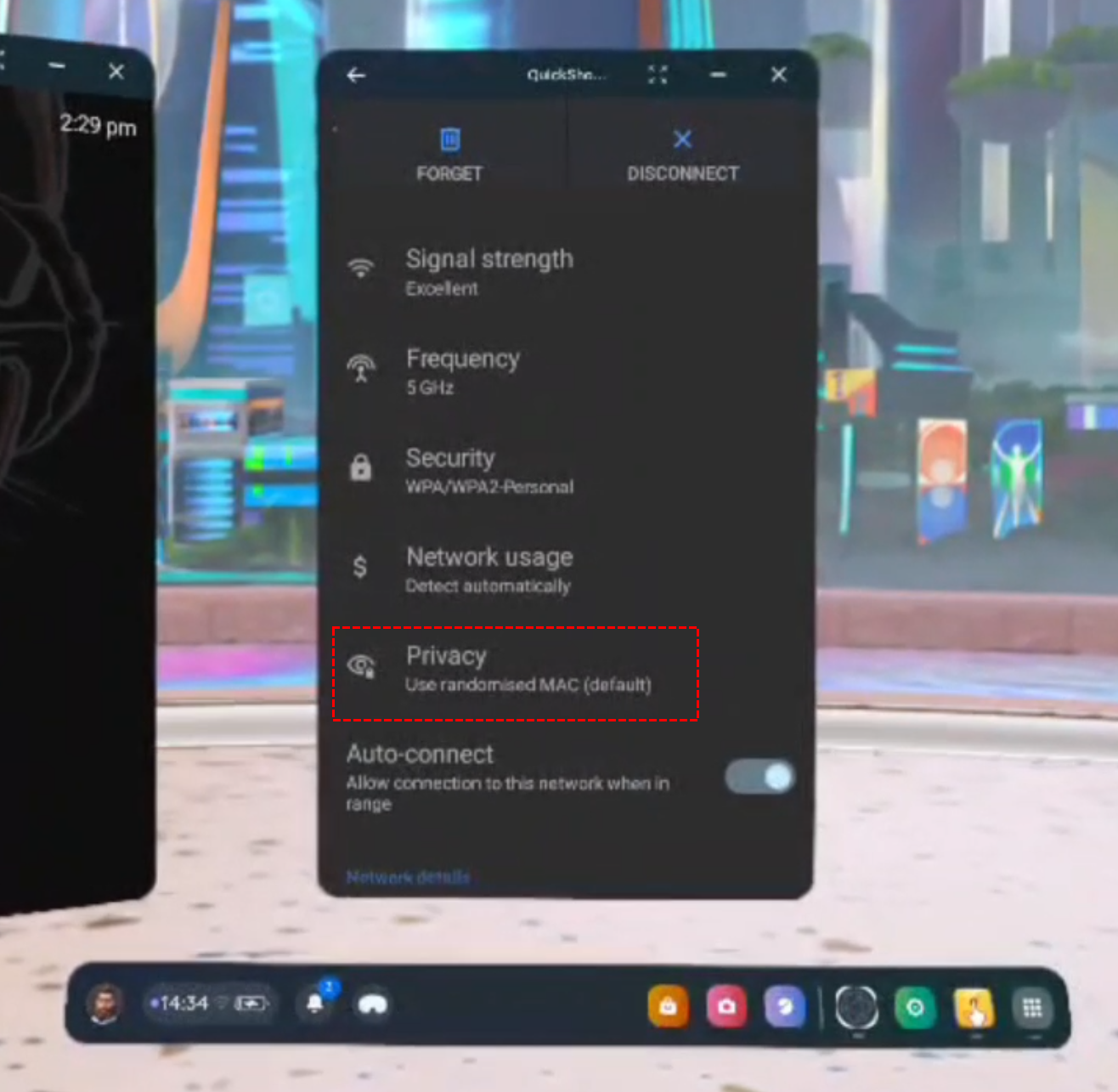
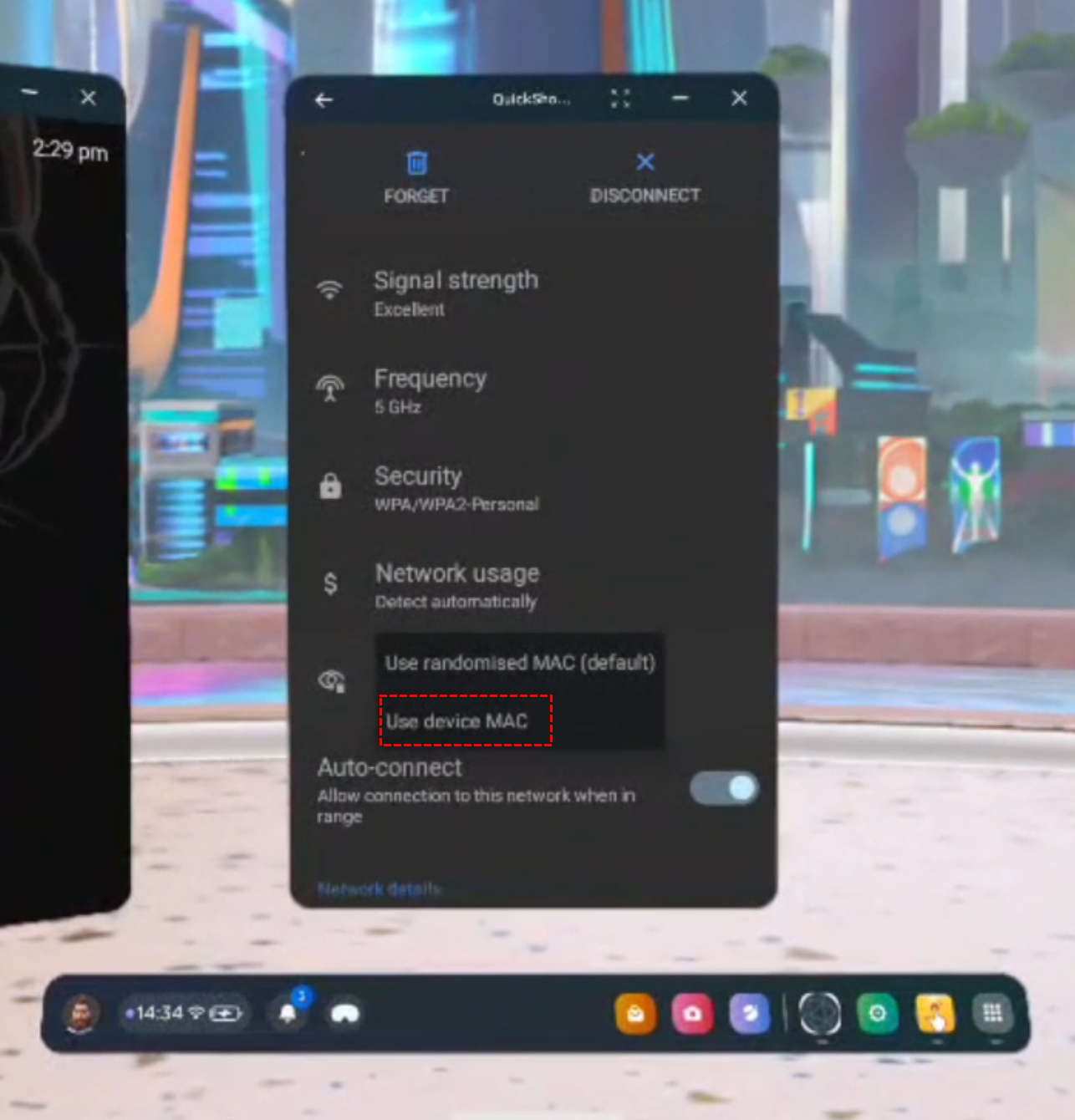
<span data-identifyelement="498" dir="ltr">3. </span><span data-identifyelement="499">Scroll down until you see an option titled 'Privacy'. If it says **Use randomised MAC (default)** then continue to step 4, otherwise if it says **Use device MAC** then skip to step 5.</span>

[![3.png](https://docs.nwxr.app/uploads/images/gallery/2025-01/scaled-1680-/3.png)](https://docs.nwxr.app/uploads/images/gallery/2025-01/3.png)

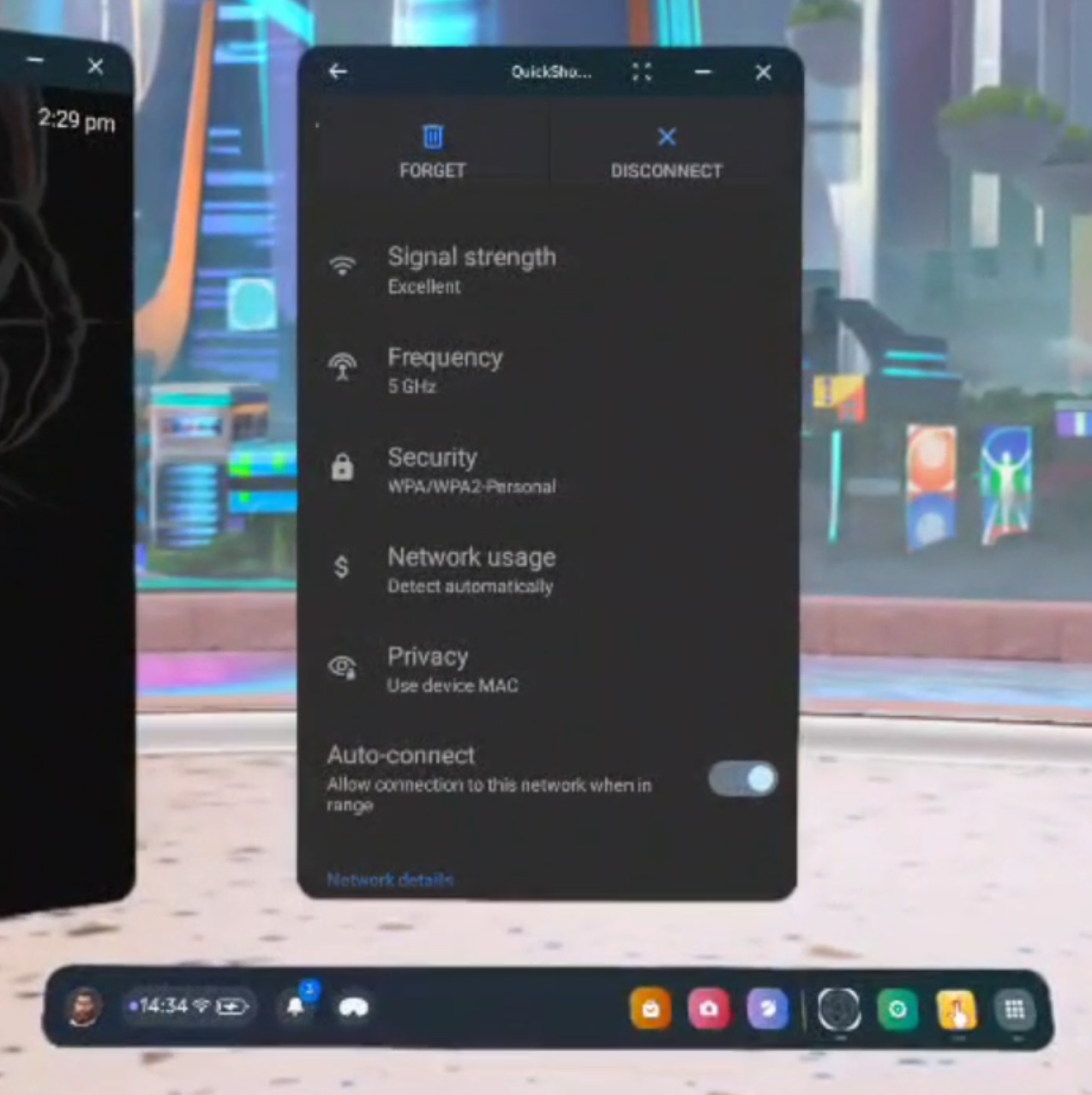
<span data-identifyelement="506" dir="ltr">4. </span><span data-identifyelement="507" dir="ltr">Clicking on the **Privacy** option highlighted above, a small menu will appear as shown below. Select **Use device MAC**.</span>

<span data-identifyelement="509" dir="ltr">[![4.png](https://docs.nwxr.app/uploads/images/gallery/2025-01/scaled-1680-/4.png)](https://docs.nwxr.app/uploads/images/gallery/2025-01/4.png)[![5.png](https://docs.nwxr.app/uploads/images/gallery/2025-01/scaled-1680-/5.png)](https://docs.nwxr.app/uploads/images/gallery/2025-01/5.png)</span>

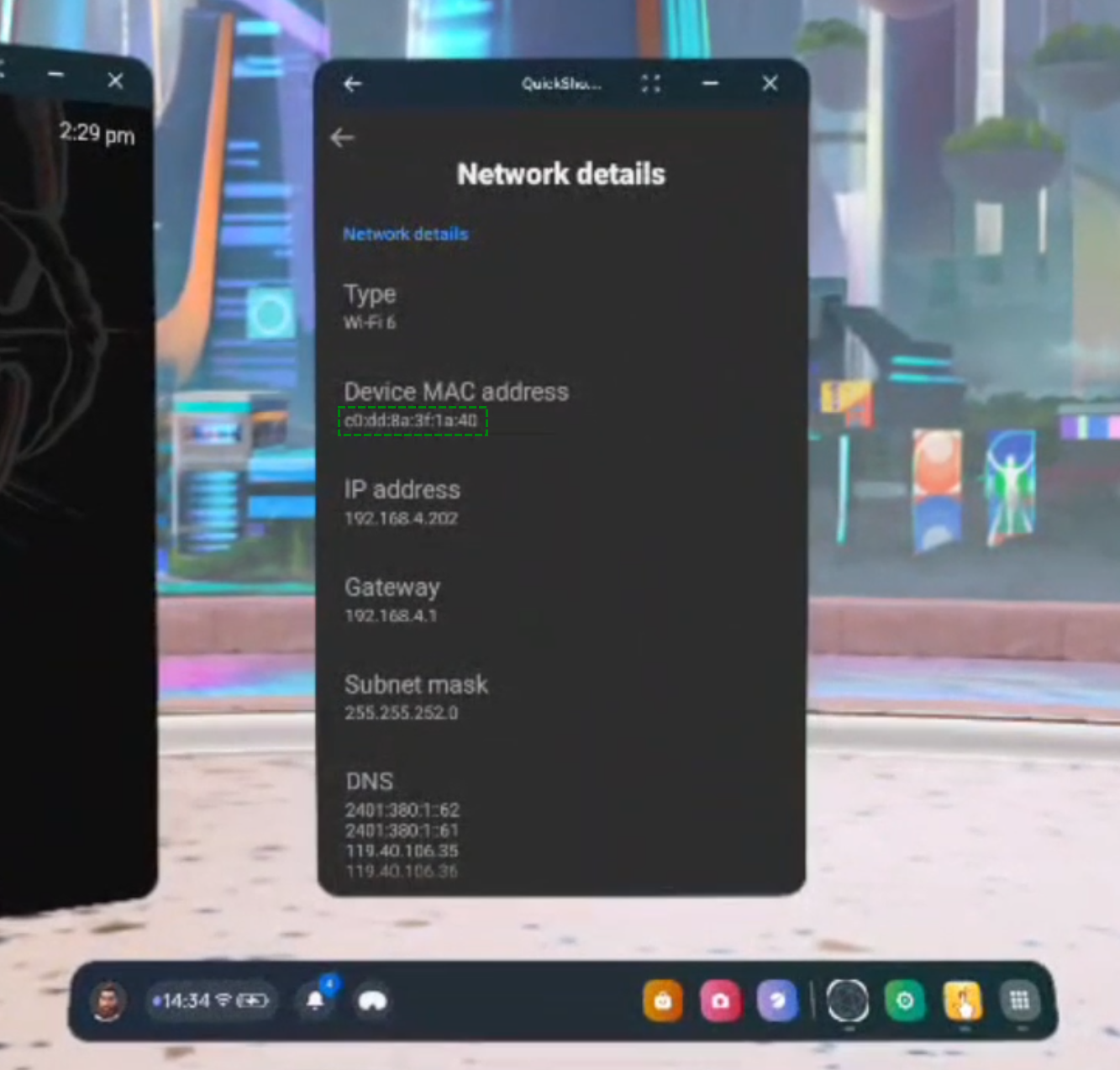
<span data-identifyelement="509" dir="ltr"><span data-identifyelement="506" dir="ltr">5. </span><span data-identifyelement="507" dir="ltr">Now scroll down until you see an option that says **Device MAC address**. on the line below the title you will see a MAC address, for example in the below image the device's MAC address is **c0:dd:8a:3f:1a:40**.</span></span>

<span data-identifyelement="509" dir="ltr"><span data-identifyelement="507" dir="ltr">[![6.png](https://docs.nwxr.app/uploads/images/gallery/2025-01/scaled-1680-/6.png)](https://docs.nwxr.app/uploads/images/gallery/2025-01/6.png)</span></span>

<span data-identifyelement="509" dir="ltr"><span data-identifyelement="507" dir="ltr">Success! Take note of your device's MAC address to send to the relevant people.</span></span>

# Release Notes

Notes describing the features in each Next World version at the time of release.

# v2.6.5: Demo Mode

In this release, we've added a Demo Mode to our LMS and our VR application so that people of the community can get a taste for what Next World has to offer before signing up with us, a way to try-before-you-buy!

#### Platform/LMS

- Demo Mode - you can now view a version of the LMS without having signed up! The LMS will show demo data and acts as a sandbox to play around with all features and get a taste of what Next World has to offer before you buy
- Improvements including: 
    - Requests to generate a CSV over a certain size will be emailed instead of downloaded
    - You can see the scores of various data points for each session in your request in the Sessions CSV
    - The Session Insights view now shows how many questions were answered/correct out of how many were available
- Various bugfixes

#### Agent/Home

- Demo Mode - you can now download and install our Next World Agent application on your device and be able to get a taste for what Next World has to offer without needing to sign up! You can play our Slips, Trips and Falls experience in-full as part of the demo, and can also try out a demo experience from our Soft Skills partner Bodyswaps!

[![2.6.5 Article 1st.png](https://docs.nwxr.app/uploads/images/gallery/2024-07/scaled-1680-/2-6-5-article-1st.png)](https://docs.nwxr.app/uploads/images/gallery/2024-07/2-6-5-article-1st.png)[![2.6.5 Article 2nd.png](https://docs.nwxr.app/uploads/images/gallery/2024-07/scaled-1680-/2-6-5-article-2nd.png)](https://docs.nwxr.app/uploads/images/gallery/2024-07/2-6-5-article-2nd.png)[![2.6.5 Article 3rd.png](https://docs.nwxr.app/uploads/images/gallery/2024-07/scaled-1680-/2-6-5-article-3rd.png)](https://docs.nwxr.app/uploads/images/gallery/2024-07/2-6-5-article-3rd.png)
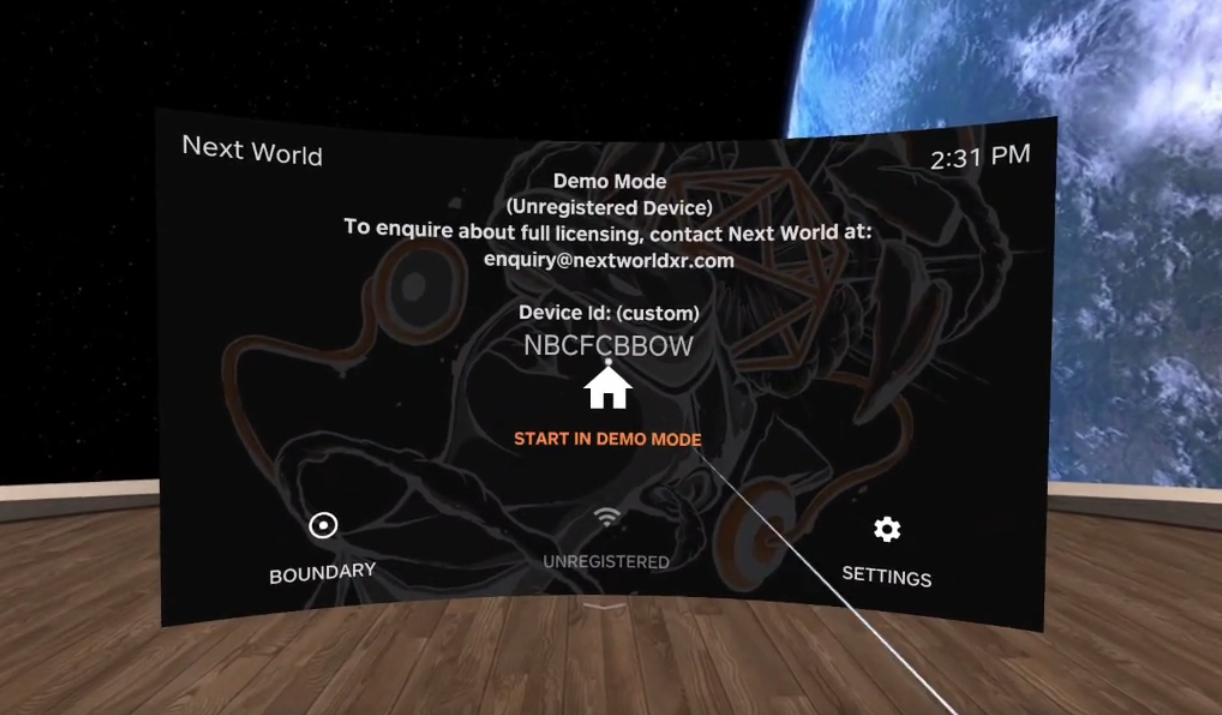
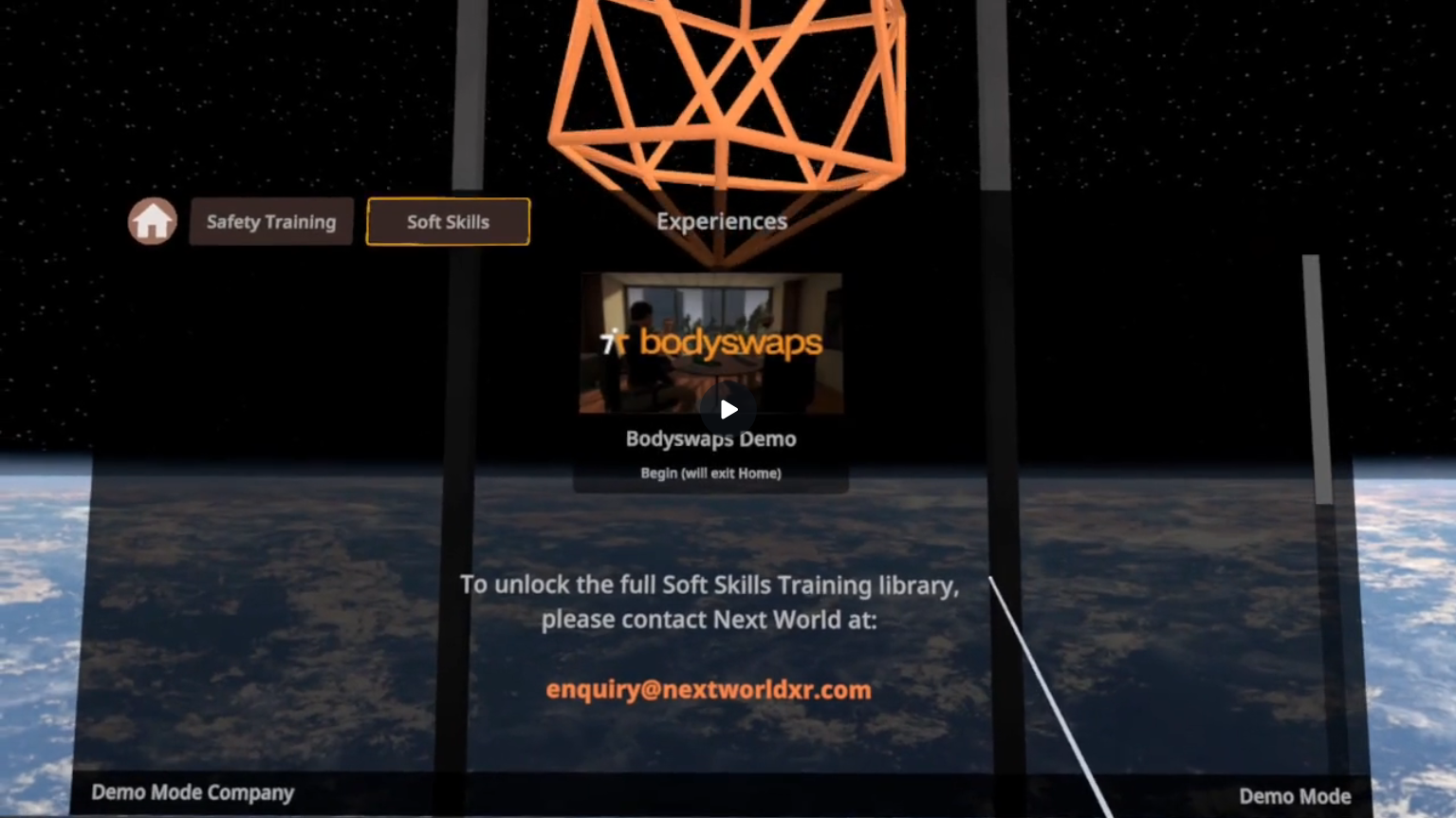
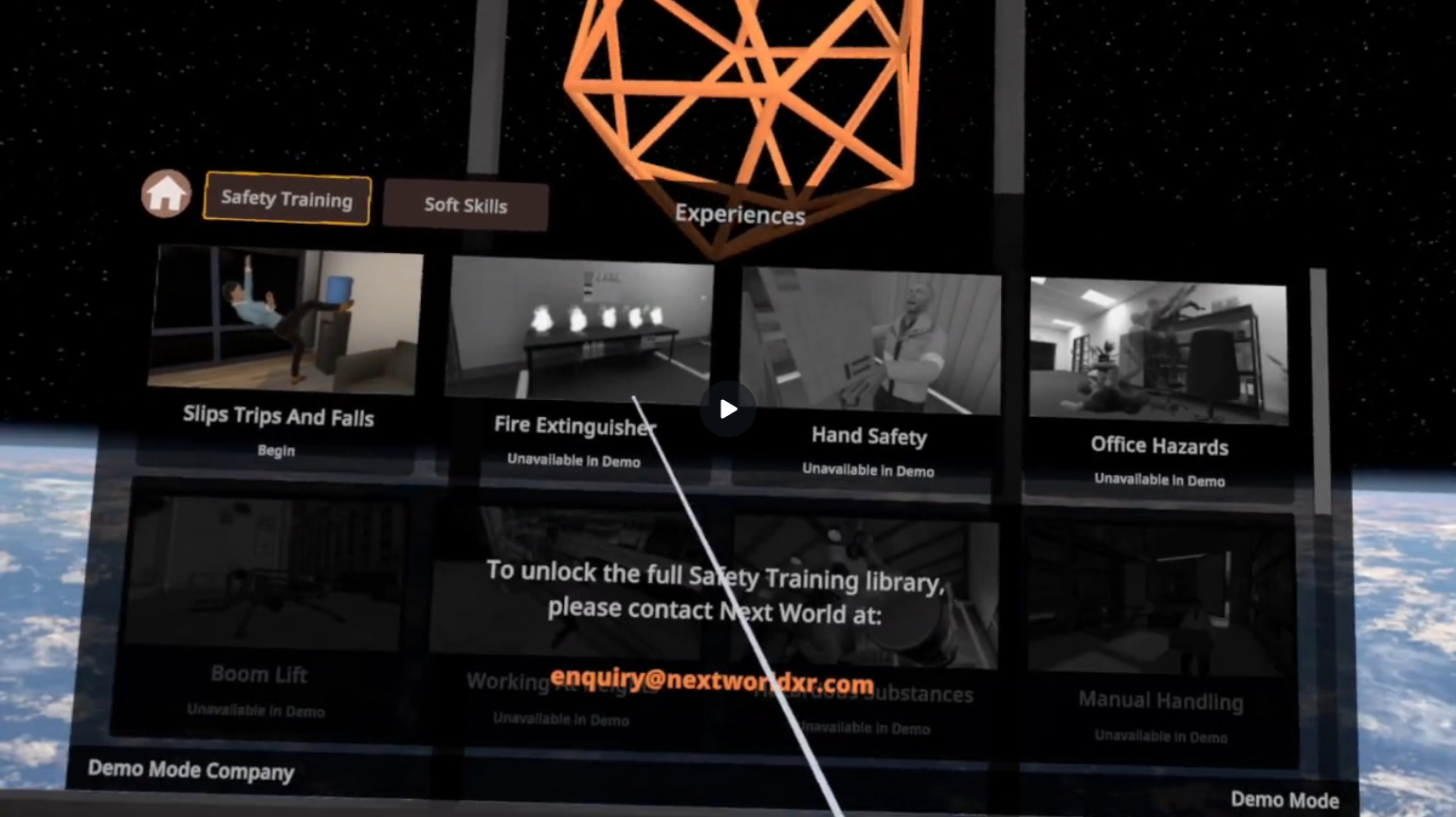
A Heck of a lot more is happening behind the scenes too, bringing more functionality and user experience improvements, some of which have been suggested by you! Continue providing us with feedback, letting us know of any issues you experience, and we take all feature suggestions into consideration! Watch this space for more updates soon.

That's all for now!

# v2.5.8: Soft Skills and Arabic Locale Updated

In this release, we've released Soft Skills experiences for our clients to use, the Arabic language for our experiences and applications has been drastically improved, and many bug fixes and improvements have been completed for our LMS.

##### Platform / LMS

Many bug fixes and improvements, including with batch user adding and some CSV generation.

You can now view experience overviews and course guides without needing to log into the LMS, as long as you have the URL for the experience you wish to view

##### New Soft Skills partner - Bodyswaps!

We have partnered with Bodyswaps, a VR Soft Skills provider, to bring you many soft skills training experiences including but not limited to:

- Public Speaking
- Interview Skills
- Communication in the Workplace
- Saying No to Sexual Harassment
- Microagressions
- Biases and Inclusion
- Giving Feedback
- Acting with Empathy

You can enquire about access to these soft skills training courses and more at <enquiry@nextworldxr.com> or contact your Next World representative.

##### Arabic 2.0

We have done a major overhaul of the Arabic language for our Home application and all of our experiences. This applies to both written Arabic and spoken Arabic.

If you have any questions related to the update or things mentioned in this news article, please feel free to reach out. If you are experiencing any issues or have additional suggestions for these features and improvements, we gladly accept your feedback.

That's all for now, look forward to the next release!

# v2.4.0: Archiving and Notifications

In this release, we've improved the functionality of the Archive feature across the board and refreshed the look and feel of our email notifications, as well as implementing reminder emails for trainees and trainers alike!

#### Archiving

The archiving feature should now function as expected across the board:

- Devices can now be archived and restored
- Members can now be archived and restored
- Training Programs can no longer be archived, and instead are permanently removed
- Divisions and subdivisions can now be archived and restored \*
- Viewing archived entities is now possible through the filter button on each table view

\* When archiving or restoring a **division**, all related entities (devices, members, training programs and subdivisions) are also archived or restored.

This has been a long requested user experience change and we're hoping it helps to further improve the functionality of the Platform.

#### Email Notifications and Reminders

Email reminders will now be sent out for various tasks that will help to improve users safety training targets, and have also received a much needed visual overhaul in line with the current platform visual design.

This is a new feature we will be monitoring closely and collecting feedback on, with planned additional functionality in scope for the future.

That's all for now!

# New Release! v2.5.2

In this release, we've added brand new experience information pages along with a refreshed look for the Session view.

#### Experience Overview

Each Experience now has an associated Overview page, with information detailing what a trainee should expect to learn throughout the experience, along with the languages available for that experience. These will be a fantastic resource for trainers to learn about the experience prior to having their trainees play them.

They can be accessed through the **Experiences** link in the navigation menu, or through this link

[https://nwxr.app/experiences](https://nwxr.app/experiences)

Individual pages will be rolled out incrementally as their content is updated.

[![image.png](https://docs.nwxr.app/uploads/images/gallery/2023-10/scaled-1680-/image.png)](https://docs.nwxr.app/uploads/images/gallery/2023-10/image.png)


#### Experience Course Guide

Along with an overview page, most Next World experiences now have an associated Course Guide view. This view enables trainers to seek and understand the questions and scenarios their trainees will encounter during an Experience.

[![image.png](https://docs.nwxr.app/uploads/images/gallery/2023-10/scaled-1680-/DMoimage.png)](https://docs.nwxr.app/uploads/images/gallery/2023-10/DMoimage.png)

#### Session View (Refreshed look and feel)

With the new updates to the Experience Overview and Course Guide, we have updated the Session view to share the same look and feel as the new features. It has also received a small information overhaul, with information about the device and language the session was played in now available.

[![image.png](https://docs.nwxr.app/uploads/images/gallery/2023-10/scaled-1680-/09Limage.png)](https://docs.nwxr.app/uploads/images/gallery/2023-10/09Limage.png)

Overall, we hope you make use of these features as we look to expand upon them in the future.

That's all for now!

# v1.19: The New Look Portal

The Next World Platform Portal got a major overhaul in May 2023, here's what's new.

<iframe allowfullscreen="allowfullscreen" height="435" src="https://www.youtube.com/embed/R0-PuwjDINo" style="width: 776px; height: 435px;" width="776"></iframe>

#####   
An Overview 

In this article, we will be discussing the latest portal release from Next World - Version 1.19. This update includes several new features and a massive visual overhaul that gives a new look and feel to the platform. Navigating the pages is easier than ever, and there are many areas users can quickly access the necessary features. The Trainees Page is a valuable addition that provides an overview of the overall training progress of users. The Training Programmes feature allows users to edit and add new programmes easily.

#####   
Massive Visual Overhaul

[![image.png](https://docs.nwxr.app/uploads/images/gallery/2023-05/scaled-1680-/4ZQimage.png)](https://docs.nwxr.app/uploads/images/gallery/2023-05/4ZQimage.png)One of the most significant changes in this release is the massive visual overhaul of the portal, which now looks completely different and a lot nicer. Although the key functionalities remain the same, all the navigation features have moved to the left-hand side for easier and more intuitive access.

#####   
New Navigation Features

[![image.png](https://docs.nwxr.app/uploads/images/gallery/2023-05/scaled-1680-/s0kimage.png)](https://docs.nwxr.app/uploads/images/gallery/2023-05/s0kimage.png)Starting from the top to bottom, the new navigation feature includes the user's name and access code, which can be used to change the password, manage training programs, and access other features. The company information is next, which allows users to switch views between divisions within their organization.

##### Dashboard

[![image.png](https://docs.nwxr.app/uploads/images/gallery/2023-05/scaled-1680-/yONimage.png)](https://docs.nwxr.app/uploads/images/gallery/2023-05/yONimage.png)The dashboard is the first thing that users see when they log in, and shows the most recent session experiences that have gone through the organisation in the past seven days. Users can view the number of sessions completed and trainees that have gone through.

##### Training Insights

[![image.png](https://docs.nwxr.app/uploads/images/gallery/2023-05/scaled-1680-/43aimage.png)](https://docs.nwxr.app/uploads/images/gallery/2023-05/43aimage.png)The training insights feature allows users to view an analysis of data from the sessions that users are doing. Users can filter the data via searchability and filter options, such as searching from a date range or by experience. They can see users from different divisions, the incomplete sessions, or sessions in progress.

[For more information, head to this article.](https://docs.nwxr.app/books/next-world-support/page/finding-training-insights-and-data "Finding training insights and data")

#####   
Trainees

**[![image.png](https://docs.nwxr.app/uploads/images/gallery/2023-05/scaled-1680-/5hVimage.png)](https://docs.nwxr.app/uploads/images/gallery/2023-05/5hVimage.png)**The Trainees page is a new feature that provides an overview of the overall training progress of users, as well as the status of each individual trainee. Users can view all the trainees in their organisation, the courses completed, the number of sessions done, and the training status. This is a useful place for individual training management and seeing overall health scores.

[For more information, head to this article.](https://docs.nwxr.app/books/next-world-support/page/how-to-find-trainees-who-require-training-expired-or-untrained "Finding training insights and data")

#####   
Training Programs 

[![image.png](https://docs.nwxr.app/uploads/images/gallery/2023-05/scaled-1680-/pTdimage.png)](https://docs.nwxr.app/uploads/images/gallery/2023-05/pTdimage.png)The Training Programmes page shows a list of all current training programmes. Users can edit the name, description, frequency, experience, and members that are part of the programme. They can also add new programmes from this feature.

[For more information, head to this article.](https://docs.nwxr.app/books/next-world-support/page/organising-your-trainees-into-training-programmes "Finding training insights and data")

# v1.16: Training States

<article class="article-body" id="bkmrk-in-this-latest-updat">In this latest update, we bring higher visibility into what trainees require training, and the current state of their training within their Training Cohorts.

 **NEW FEATURE!**

### Training States (managed by Training Cohorts)

After assigning trainees to one or many Training Cohorts, their overall training status will now be displayed as an icon on their avatar. There are many states, each denoting a stage on a trainees journey from being added to the platform, to achieving their completion certificate.

[You can find out more about this feature here](https://docs.nwxr.app/books/next-world-support/page/training-states-how-to-tell-what-stage-an-employees-training-is-at "Training States: How to tell what stage an employee's training is at")

### Looking Forward

We hope these new features improve how training is allocated, and increase visibility into who requires the most help to succeed!

</article>

# v1.14: Training Cohorts Overhaul

<article class="article-body" id="bkmrk-reimagined-feature%21">**REIMAGINED FEATURE!**</article>### Training Cohorts

This update brings great functionality and applicability improvements to the Training Cohorts feature, formerly known as Training Groups. You will notice that we have reimagined the look, feel and overall process of creating and managing Training Cohorts. We wanted the process and manageability of the feature to be more streamlined and we greatly increased the functionality in anticipation of features to be released in the coming months.

#### Trainees Categorised by Training Required

Training Cohorts are your ticket to classifying your trainees by the training they require. Do your office administration staff need Fire Training and Occupational Health and Safety training? Create a cohort called "Office Admin" and add the relevant experiences they require.

Cohorts can additionally contain members from all divisions under the company which it was created. This allows cohorts to span multiple divisions of your company so that those members are included and their training be managed by the parent company. If you add a Manager from a division as an Owner, they will be able to manage their own trainees within the Training Group.  
Start by naming the Training Cohort, optionally giving it a description, and choose a frequency which members of this Training Cohort will be required to complete this training.

<div class="image-container " id="bkmrk-"><s data-identifyelement="496" dir="ltr" style="font-family: 'Trebuchet MS', Helvetica, sans-serif;">[![1.png](https://docs.nwxr.app/uploads/images/gallery/2023-05/1.png)](https://s3-ap-southeast-2.amazonaws.com/aus-cdn.freshdesk.com/data/helpdesk/attachments/production/51074823888/original/5gzdgP8PzYh2xs0jKZCH7jent8O4nbLsDw.png?1666245138)</s></div>Next, select the Experiences you want any trainee assigned to this Training Cohort to be required to complete.

<div class="image-container " id="bkmrk--1">[![2.png](https://docs.nwxr.app/uploads/images/gallery/2023-05/2.png)](https://s3-ap-southeast-2.amazonaws.com/aus-cdn.freshdesk.com/data/helpdesk/attachments/production/51074824930/original/Au0JBz9OVvXOo92SG8mkT1ubs4R7lZUY7w.png?1666245421)</div><span data-identifyelement="475" style="font-family: Arial, Helvetica, sans-serif;"><span data-identifyelement="476" dir="ltr" style="font-size: 14px;">Lastly, select at least one Manager to be Owner of the Training Cohort and assign all the trainees who require this training.</span></span>

<div class="image-container " id="bkmrk--2">[![3.png](https://docs.nwxr.app/uploads/images/gallery/2023-05/3.png)](https://s3-ap-southeast-2.amazonaws.com/aus-cdn.freshdesk.com/data/helpdesk/attachments/production/51074825399/original/pwZbfxrK_YQaaCT0CfG-FbRrzzZOjCnYSA.png?1666245572)</div><span data-identifyelement="475" style="font-family: Arial, Helvetica, sans-serif;"><span data-identifyelement="476" dir="ltr" style="font-size: 14px;">You are done! Confirm the choices you made in the summary, press Create Cohort and the new Training Cohort will appear in the list of Training Cohorts. </span></span>

<div class="image-container " id="bkmrk--3">[![4.png](https://docs.nwxr.app/uploads/images/gallery/2023-05/4.png)](https://s3-ap-southeast-2.amazonaws.com/aus-cdn.freshdesk.com/data/helpdesk/attachments/production/51074827004/original/-37sony0e-1h_Oe1W1KlsMAqgi4ieFmFNw.png?1666246131)</div><div class="image-container " id="bkmrk--4">[![5.png](https://docs.nwxr.app/uploads/images/gallery/2023-05/5.png)](https://s3-ap-southeast-2.amazonaws.com/aus-cdn.freshdesk.com/data/helpdesk/attachments/production/51075560561/original/RXTSzT6hZWTLifSN-sh7O9fps6bM52aHtA.png?1666761633)</div>#### Modifying a Cohort is Easy!

When new members join your team, or if team members move on, it is quite a simple process to update relevant cohorts. Simply click on the Training Cohort in the list you want to modify and the below modal will show up. Click on a circle next to the member's name to add or remove that member from the role type you selected. If a member has one of the role options active, they are a member of that Training Cohort as that role type. A member with neither of the two role types selected is not a member of the Training Cohort.

<div class="image-container " id="bkmrk--6">[![6.png](https://docs.nwxr.app/uploads/images/gallery/2023-05/6.png)](https://s3-ap-southeast-2.amazonaws.com/aus-cdn.freshdesk.com/data/helpdesk/attachments/production/51075573172/original/FyT3M-JI8FKhhlvqY1-Da4r_trKO759-kA.png?1666765041)</div>You are additionally able to edit the Training Cohort's title, description, frequency of training and experiences trainees are required to do from this modal.

Pressing the Update button will solidify the changes you made to the Training Cohort.

# v1.13: Certificates, Slips, Trips and Hand Safety

In this update, we have refreshed the look, feel and functionality of the session insights view. We’ve made large strides toward providing a more defined and clearer view of metrics provided by experiences, how the trainee stepped through the experience and how well they did at each point throughout.

**REFRESHED VIEW!**

#### Performance Measured

Trainees receive a score (an overall indication of how well they performed throughout the experience) derived from key performance metrics throughout the experience.

[![image.png](https://docs.nwxr.app/uploads/images/gallery/2023-04/scaled-1680-/image.png)](https://docs.nwxr.app/uploads/images/gallery/2023-04/image.png)

##### Progress Measured

Progress is measured in segments for each trainee, depending on the experience. Trainees generally experience a Discovery (prior knowledge) phase, along with Practice and Exam phases. A trainees playthrough is then mapped to each segment, highlighting decisions they did (or didn't) make, and where they went right and wrong.

[![image.png](https://docs.nwxr.app/uploads/images/gallery/2023-04/scaled-1680-/MWYimage.png)](https://docs.nwxr.app/uploads/images/gallery/2023-04/MWYimage.png)

**NEW EXPERIENCE!**

### Slips, Trips and Falls

Slips, trips and falls make up some of the most common injuries that occur in the workplace. In this experience, you'll learn about common causes of slips, trips and falls, how to avoid them, and learn to identify slip, trip and fall incidents before they happen. You'll investigate multiple workplaces for potential slip, trip and fall hazards, and be assessed on your ability to identify hazards before they happen.

[![image.png](https://docs.nwxr.app/uploads/images/gallery/2023-04/scaled-1680-/gIFimage.png)](https://docs.nwxr.app/uploads/images/gallery/2023-04/gIFimage.png)

**NEW EXPERIENCE!**

### Hand Safety

Our hands are involved in almost every task we complete while at work, placing them at constant risk of serious injury. For employees, a hand injury can have devastating consequences, often resulting in painful amputations, breaks and lacerations. Next World’s Hand Safety VR training course is designed to give employees the knowledge and critical understanding they need to manage and eliminate the risk of these hazardous situations. This course drops participants in a dynamic warehouse environment and challenges them to think about their hand safety.

[![image.png](https://docs.nwxr.app/uploads/images/gallery/2023-04/scaled-1680-/Z7Dimage.png)](https://docs.nwxr.app/uploads/images/gallery/2023-04/Z7Dimage.png)

**NEW FEATURE!**

### Training Certificates

Training certificates have been a highly requested addition to the Next World Platform, providing a target for accomplishment for the trainee and managers alike. In our latest update, along with a refreshed Session Insights view, training certificates are finally here!

Trainees will receive a certificate in their email inbox upon successful completion of a training experience. Certificates can be shared via link or QR code (located on the certificate) with anyone! Managers can also access these via a link on the Session Insights view.

[![image.png](https://docs.nwxr.app/uploads/images/gallery/2023-04/scaled-1680-/E3Cimage.png)](https://docs.nwxr.app/uploads/images/gallery/2023-04/E3Cimage.png)

These features and updates come from our ongoing commitment toward providing greater value to our customers, and are part of many more exciting updates yet to come!

**NEW FEATURE!**

### Trainer Headset Login

Trainers have been given increased visibility for the trainees on their system when they log in - this should help trainers find the codes for their trainees and start training on a trainee's behalf. To access the new feature, log in with a valid four digit trainer code.

[![image.png](https://docs.nwxr.app/uploads/images/gallery/2023-04/scaled-1680-/vLYimage.png)](https://docs.nwxr.app/uploads/images/gallery/2023-04/vLYimage.png)

# v1.12: Training Scheduler Update

In the 1.12 update, we have released our newest feature - the Training Schedule!

**NEW FEATURE!**

### Training Schedule

The Training Schedule allows managers to see and schedule training events for trainees on a calendar based on the company's time zone. Trainees are then notified of their training time via email.

This is a fantastic feature that empowers companies and organisations even further. Check it out today!

[![image.png](https://docs.nwxr.app/uploads/images/gallery/2023-04/scaled-1680-/3Coimage.png)](https://docs.nwxr.app/uploads/images/gallery/2023-04/3Coimage.png)

  
**NEW FEATURE!**

### Lock-Out Tag-out

Lock-out tag-out is a set of procedures designed to control hazardous energy during processes such as maintenance, inspection and servicing. In this experience, you'll learn how to complete a lock-out tag-out procedure safely, and in the correct order. You'll also learn how to use lock-out tag-out equipment to lock a machine before performing maintenance activities, how to identify and release stored energy and the importance of communication with affected personnel to ensure your safety and theirs.

[![LockoutTagoutStill](https://docs.nwxr.app/uploads/images/gallery/2023-04/scaled-1680-/0ILimage.png)](https://docs.nwxr.app/uploads/images/gallery/2023-04/0ILimage.png)

# v1.9: Headset and Insights Update

As part of our 1.9 update, we have released a new experience, Office Hazards, as well as improvements to our headset software and to the Training and Insights Platform.

**NEW EXPERIENCE!**

### Office Hazards

Our latest experience, Office Hazards, has trainees learning about how to be safe in an office environment. It's available right now. Contact your administrator or Next World if you don't yet have access.

[![officehazards.jpg](https://docs.nwxr.app/uploads/images/gallery/2023-04/scaled-1680-/officehazards.jpg)](https://docs.nwxr.app/uploads/images/gallery/2023-04/officehazards.jpg)

##### First Support for Arabic and Hindi

Thanks to improved localisation support and access to localisation teams, Next World has released Office Hazards and Working At Heights in Arabic and Hindi.

### Headset Improvements

##### Offline Mode

Next World headsets have always been able to recover from internet connection issues and run without internet connection for a prolonged amount of time, but what if you have unreliable internet connection or can't afford to run updates right now? Offline mode has come to the rescue.

<span class="fr-view collab-annotatable" data-test-id="article-description" id="bkmrk--2" style="position: relative; display: block; cursor: auto;"></span>

[![image.png](https://docs.nwxr.app/uploads/images/gallery/2023-04/scaled-1680-/YqRimage.png)](https://docs.nwxr.app/uploads/images/gallery/2023-04/YqRimage.png)

[![image.png](https://docs.nwxr.app/uploads/images/gallery/2023-04/scaled-1680-/eTTimage.png)](https://docs.nwxr.app/uploads/images/gallery/2023-04/eTTimage.png)

##### Localisation and Support for new Regions and Languages

Next World aims to make the world a safer place and, in order to do that, we're going to need to learn how to speak a few more languages. Now we do: namely Arabic and Hindi for select experiences.

### Insights and Training Platform Features

The Insights and Training Platform has had some mammoth new features added.

##### Organisational Divisions

You can now add subsidiaries to your company or organisation and appoint managers and administrators for them. Setting up multi-tiered companies, educational institutions and franchises became a lot easier to manage.

[![image.png](https://docs.nwxr.app/uploads/images/gallery/2023-04/scaled-1680-/xlmimage.png)](https://docs.nwxr.app/uploads/images/gallery/2023-04/xlmimage.png)

##### Design Refinement and Mobile Compatibility

Numerous tweaks and changes have been made to the Insights Platform's User Interface to make navigation on desktop, tablet and mobile easier. Go check it out for yourself.

[![image.png](https://docs.nwxr.app/uploads/images/gallery/2023-04/scaled-1680-/gXgimage.png)](https://docs.nwxr.app/uploads/images/gallery/2023-04/gXgimage.png)

##### Training Cohorts

Not all your trainees, staff or students need the same training so we created Training Cohorts to help you organise them. Whether it's for your warehouse staff, your first year students or just the people you need to make sure get fire training - making sure users are up to speed is much easier with training cohorts. Training cohorts are a great way to assign required training to individuals.

[![image.png](https://docs.nwxr.app/uploads/images/gallery/2023-04/scaled-1680-/rCximage.png)](https://docs.nwxr.app/uploads/images/gallery/2023-04/rCximage.png)

##### Experience Selection

Now that you have Organisational Divisions and Training Groups, you'll need a way to decide what training they should be allowed access to and what training they are required to do.

#####   
Scheduling Training

We have massive plans when it comes to scheduling trainees and we're really excited to share some of the upcoming features - so we've made portions of them available today. Even though the massive scheduling view isn't quite ready, we've created a way for you to begin to schedule training.

# v1.5: Insights Overviews

<span class="fr-view collab-annotatable" data-test-id="article-description" id="bkmrk-a-new-update-for-the-1" style="position: relative; display: block; cursor: auto;">A new update for the Next World Platform and Insights Dashboard has been released today, with a suite of new tools to help manage and administer trainees.  
  
</span>

#### <span class="fr-view collab-annotatable" data-test-id="article-description" style="position: relative; display: block; cursor: auto;">Dashboard Updates</span>

##### <span class="fr-view collab-annotatable" data-test-id="article-description" style="position: relative; display: block; cursor: auto;">Insights Dashboard Reframe</span>

[![Nupb4xa8jG2liysPv07ay3ipDIEwUESihA.gif](https://docs.nwxr.app/uploads/images/gallery/2023-04/nupb4xa8jg2liyspv07ay3ipdiewuesiha.gif)](https://docs.nwxr.app/uploads/images/gallery/2023-04/nupb4xa8jg2liyspv07ay3ipdiewuesiha.gif)

<span class="fr-view collab-annotatable" data-test-id="article-description" style="position: relative; display: block; cursor: auto;">The dashboard has been overhauled to better bit wide screens and provide access to more information at once. There’s been overhauls of menus, title bars, fonts and colours to make it more usable on desktop devices. There’s plenty more to come in this space so keep an eye out.</span>

##### <span class="fr-view collab-annotatable" data-test-id="article-description" style="position: relative; display: block; cursor: auto;">  
30 Day Overview</span>

<span class="fr-view collab-annotatable" data-test-id="article-description" style="position: relative; display: block; cursor: auto;"><span class="fr-view collab-annotatable" data-test-id="article-description" id="bkmrk-the-30-day-overview--1" style="position: relative; display: block; cursor: auto;">The 30 Day Overview is now the first thing you'll see after you log in. It'll give you a quick summary of your recent experience usage.</span></span>

[![image.png](https://docs.nwxr.app/uploads/images/gallery/2023-04/scaled-1680-/IZoimage.png)](https://docs.nwxr.app/uploads/images/gallery/2023-04/IZoimage.png)

##### <span class="fr-view collab-annotatable" data-test-id="article-description" style="position: relative; display: block; cursor: auto;"><span class="fr-view collab-annotatable" data-test-id="article-description" style="position: relative; display: block; cursor: auto;">  
New Trainees Page</span></span>

[![image.png](https://docs.nwxr.app/uploads/images/gallery/2023-04/scaled-1680-/p6Pimage.png)](https://docs.nwxr.app/uploads/images/gallery/2023-04/p6Pimage.png)

<span class="fr-view collab-annotatable" data-test-id="article-description" style="position: relative; display: block; cursor: auto;"><span class="fr-view collab-annotatable" data-test-id="article-description" style="position: relative; display: block; cursor: auto;"><span class="fr-view collab-annotatable" data-test-id="article-description" id="bkmrk-the-trainees-page-ha-1" style="position: relative; display: block; cursor: auto;">The Trainees page has undergone significant improvements including a new look and feel, better filters and a brand new grading system. We’re looking forward to showing more on the new grading system in the near future.</span></span></span>

##### <span class="fr-view collab-annotatable" data-test-id="article-description" style="position: relative; display: block; cursor: auto;"><span class="fr-view collab-annotatable" data-test-id="article-description" style="position: relative; display: block; cursor: auto;"><span class="fr-view collab-annotatable" data-test-id="article-description" style="position: relative; display: block; cursor: auto;">  
New Session Filters</span></span></span>

<span class="fr-view collab-annotatable" data-test-id="article-description" style="position: relative; display: block; cursor: auto;"><span class="fr-view collab-annotatable" data-test-id="article-description" style="position: relative; display: block; cursor: auto;"><span class="fr-view collab-annotatable" data-test-id="article-description" style="position: relative; display: block; cursor: auto;"><span class="fr-view collab-annotatable" data-test-id="article-description" id="bkmrk-there%E2%80%99s-new-filters--1" style="position: relative; display: block; cursor: auto;">There’s new filters on your sessions list which allow you to find sessions by experience and show or hide incomplete sessions. The sessions table will also show sessions that are live and currently in progress.</span></span></span></span>

<span class="fr-view collab-annotatable" data-test-id="article-description" style="position: relative; display: block; cursor: auto;"><span class="fr-view collab-annotatable" data-test-id="article-description" style="position: relative; display: block; cursor: auto;"><span class="fr-view collab-annotatable" data-test-id="article-description" style="position: relative; display: block; cursor: auto;"><span class="fr-view collab-annotatable" data-test-id="article-description" style="position: relative; display: block; cursor: auto;">[![3uOeR_Tip2dF45QLA3bAC3t4k5n3GOFK8Q.gif](https://docs.nwxr.app/uploads/images/gallery/2023-04/wJH3uoer-tip2df45qla3bac3t4k5n3gofk8q.gif)](https://docs.nwxr.app/uploads/images/gallery/2023-04/wJH3uoer-tip2df45qla3bac3t4k5n3gofk8q.gif)</span></span></span></span>

##### <span class="fr-view collab-annotatable" data-test-id="article-description" style="position: relative; display: block; cursor: auto;"><span class="fr-view collab-annotatable" data-test-id="article-description" style="position: relative; display: block; cursor: auto;"><span class="fr-view collab-annotatable" data-test-id="article-description" style="position: relative; display: block; cursor: auto;"><span class="fr-view collab-annotatable" data-test-id="article-description" style="position: relative; display: block; cursor: auto;">  
Long, Searchable Admin Tables</span></span></span></span>

<span class="fr-view collab-annotatable" data-test-id="article-description" style="position: relative; display: block; cursor: auto;"><span class="fr-view collab-annotatable" data-test-id="article-description" style="position: relative; display: block; cursor: auto;"><span class="fr-view collab-annotatable" data-test-id="article-description" style="position: relative; display: block; cursor: auto;"><span class="fr-view collab-annotatable" data-test-id="article-description" style="position: relative; display: block; cursor: auto;"><span class="fr-view collab-annotatable" data-test-id="article-description" id="bkmrk-tables-are-now-full--1" style="position: relative; display: block; cursor: auto;">Tables are now full length and searchable in admin areas, allowing you to find your users, devices and training information more quickly.</span></span></span></span></span>

[![5FoUS4TYjaLOK8HFfJzU9oado7wa0blSgA.gif](https://docs.nwxr.app/uploads/images/gallery/2023-04/5fous4tyjalok8hffjzu9oado7wa0blsga.gif)](https://docs.nwxr.app/uploads/images/gallery/2023-04/5fous4tyjalok8hffjzu9oado7wa0blsga.gif)

##### <span class="fr-view collab-annotatable" data-test-id="article-description" style="position: relative; display: block; cursor: auto;"><span class="fr-view collab-annotatable" data-test-id="article-description" style="position: relative; display: block; cursor: auto;"><span class="fr-view collab-annotatable" data-test-id="article-description" style="position: relative; display: block; cursor: auto;"><span class="fr-view collab-annotatable" data-test-id="article-description" style="position: relative; display: block; cursor: auto;"><span class="fr-view collab-annotatable" data-test-id="article-description" style="position: relative; display: block; cursor: auto;">  
Agent Admin Assume</span></span></span></span></span>

<span class="fr-view collab-annotatable" data-test-id="article-description" id="bkmrk-thanks-to-powerful-n-1" style="position: relative; display: block; cursor: auto;">Thanks to powerful new authentication tools, agents can now log in as an admin for any company, allowing easier viewing of insights.</span>

[![JqgQwqYqoBQX9hs88ax5xsLmrR9z0WwZRA.gif](https://docs.nwxr.app/uploads/images/gallery/2023-04/jqgqwqyqobqx9hs88ax5xslmrr9z0wwzra.gif)](https://docs.nwxr.app/uploads/images/gallery/2023-04/jqgqwqyqobqx9hs88ax5xslmrr9z0wwzra.gif)

# Setting up Next World and Software Installation

Information on how to get going on Next World training and management.

# Components, Glossary and Terms

### The Portal

**The Next World Portal** is the web application used to manage trainees, schedule training and view insights and results for training undertaken on **The Next World Platform.**

[![image.png](https://docs.nwxr.app/uploads/images/gallery/2023-05/scaled-1680-/ayDimage.png)](https://docs.nwxr.app/uploads/images/gallery/2023-05/ayDimage.png)

Here's a few things you can do on the Portal:

- Administer your company
- Get an overview of your company's training
- Enrol your trainees in training programs
- Find out who needs training
- View the outcomes from training

### The Agent

**The Next World Agent** is an application and service that runs within your VR headset. Its purpose is to feed data to the Next World Platform and monitor for updates. Other than managing your system and connection settings, you shouldn't need to interact with this too much.

[![image.png](https://docs.nwxr.app/uploads/images/gallery/2023-05/scaled-1680-/8fUimage.png)](https://docs.nwxr.app/uploads/images/gallery/2023-05/8fUimage.png)

### Home

**Next World Home** is the app you'll become most familiar with on your VR headset. It allows you to select and undertake training and provides access to the various learning experiences.

[![image.png](https://docs.nwxr.app/uploads/images/gallery/2023-05/scaled-1680-/Gneimage.png)](https://docs.nwxr.app/uploads/images/gallery/2023-05/Gneimage.png)

### The Platform

**The Platform** is the umbrella term for Next World's software and cloud infrastructure. Next World's service and software constitute an absolutely massive technology base and The Platform is our name for it.

# Setting Up a VR Device for the Next World Environment

If you've received a headset from Next World, you'll have received a getting started guide.

This article aims to provide details on how to set up a Next World-supported VR headset for the Next World experience environment.

Below are the headsets that Next World support. More headsets may be supported in the future.

![image.png](https://docs.nwxr.app/uploads/images/gallery/2024-11/scaled-1680-/image.png)

After confirming the headset type you possess is supported by Next World, please visit the relevant article below to read through the instructions on how to set up either a Meta or a Pico device.

Meta Devices: [Preparing a Meta VR Device for Usage With Next World Software](https://nwxr.app/support/setting-up-next-world-and-software-installation/preparing-a-meta-vr-device-for-usage-with-next-world-software "Preparing a Meta VR Device for Usage With Next World Software")

Pico Devices: [How to Install Next World Software on to a New Headset](https://nwxr.app/support/setting-up-next-world-and-software-installation/how-to-install-next-world-software-on-to-a-new-headset "How to Install Next World Software on to a New Headset")

# How to Install Next World Software on to a New Headset

<span data-identifyelement="477" dir="ltr">To get your headset started with Next World, you'll need to run installation from a Windows or Mac PC and register your device with Next World. This article can run you through those steps.  
  
</span>

#### <span data-identifyelement="479" dir="ltr">1. Download the Next World Manager</span>

<span data-identifyelement="480" dir="ltr">The Next World Manager is a Windows and Mac application that can administer your device or get it set up.</span>

<span data-identifyelement="483" dir="ltr">**To grab the manager, head to:**[ http://app.nextworldenterprises.com/](http://app.nextworldenterprises.com/)</span>

<span data-identifyelement="487" dir="ltr">From that website, you'll be able to download the Next World Manager for Windows or Mac.</span>

<span data-identifyelement="487" dir="ltr">For **Windows** computers, simply open the Next World Manager application and go to step 2.</span>

<span data-identifyelement="487" dir="ltr">For **Mac** computers, it may show a message as seen below:</span>

<div class="image-container " id="bkmrk-or"><div class="image-container ">[![1.png](https://docs.nwxr.app/uploads/images/gallery/2025-11/scaled-1680-/1.png)](https://docs.nwxr.app/uploads/images/gallery/2025-11/1.png)</div><div class="image-container align-center">OR</div></div>[![2.png](https://docs.nwxr.app/uploads/images/gallery/2025-11/scaled-1680-/2.png)](https://docs.nwxr.app/uploads/images/gallery/2025-11/2.png)

<div class="image-container " id="bkmrk--1"></div><span dir="ltr">In this case, press OK or Done, then instead of double-clicking on the application, Command+Click or simply right-click on the application and press "Open" from the context menu. The same message as seen in the above image will show up, but instead of the "OK" or "Done" button, it will show "Open". Click the "Open" button to continue.  
  
</span>

#### <span data-identifyelement="489" dir="ltr">2. Install Agent from the Next World Manager</span>

<span data-identifyelement="490" dir="ltr">Plug-in your device to your computer, open the manager and select **SUBSCRIBER** if shown the below screen.</span>

[![3.png](https://docs.nwxr.app/uploads/images/gallery/2025-11/scaled-1680-/3.png)](https://docs.nwxr.app/uploads/images/gallery/2025-11/3.png)

<span dir="ltr">You may get a message showing that says "*No headset detected*", try pressing the "*Rescan Devices*" button.</span>

<span data-identifyelement="498" dir="ltr">From there, you can click **INSTALL** for the Next World Agent.</span>

<div class="image-container " id="bkmrk--4">[![4.png](https://docs.nwxr.app/uploads/images/gallery/2025-11/scaled-1680-/4.png)](https://docs.nwxr.app/uploads/images/gallery/2025-11/4.png)</div><span data-identifyelement="498" dir="ltr">If the Next World application successfully installed on your device, your device will restart within 10 seconds, and you will now have the Agent application available on your headset. At this stage you may disconnect your headset from your computer.</span>

---

***<span data-identifyelement="498" dir="ltr">If you have just set up a Meta Quest device and are not using Meta Quest for Business, the Next World app is available in the Unknown Sources category in the Library on your device. Open the Library application on your Meta device and you should see a filter dropdown in the top bar which has the current selected option as "All Apps". You will need to click on this and select "Unknown Sources" from the dropdown menu, you should then be able to see the "Next World" application.</span>***

***<span data-identifyelement="498" dir="ltr">[![Unknown Sources (1).png](https://docs.nwxr.app/uploads/images/gallery/2025-07/scaled-1680-/unknown-sources-1.png)](https://docs.nwxr.app/uploads/images/gallery/2025-07/unknown-sources-1.png)</span>***

---

<span data-identifyelement="498" dir="ltr"><span style="text-decoration: underline;">If you are not already subscribed to Next World's VR training solution, your devices will be unregistered and therefore will display as being in "*Demo Mode"*. You will only have access to one of our experiences as part of Demo Mode. In order to experience the full VR Training solution Next World has to offer, you will need to contact Next World to discuss a subscription.</span>  
  
</span>

#### <span data-identifyelement="510" dir="ltr">3. Registering Your Headset With an Active Subscription</span>

<span data-identifyelement="511" dir="ltr">Once subscribed to Next World's VR Training solution, you will need to register your headset in order to upgrade your device from Demo Mode to our full solution, allowing access to our full VR Library. The 9-character code shown in your headset will need to be added to the Next World Portal (our LMS). If you are unsure of how to do this, you'll need to send your 9-character code shown in your headset to your Next World representative or contact <support@nextworldxr.com>. Your Next World rep or support agent will add your device to the registry to get you started.</span>

*<span data-identifyelement="511" dir="ltr">An example of the 9-character code is pictured below:</span>*

[![image.png](https://docs.nwxr.app/uploads/images/gallery/2023-12/scaled-1680-/image.png)](https://docs.nwxr.app/uploads/images/gallery/2023-12/image.png)

<span data-identifyelement="518" dir="ltr">Once you or your Next World rep have registered the device on the Next World Portal, you may move on to the next step.  
  
</span>

#### <span data-identifyelement="525" dir="ltr">Using the VR Device</span>

<span data-identifyelement="527" dir="ltr">You should be greeted with a screen showing your device ID and company name if the device is registered. If the device is not registered, see the above instructions.</span>

<div class="image-container " id="bkmrk--8">![](https://s3-ap-southeast-2.amazonaws.com/aus-cdn.freshdesk.com/data/helpdesk/attachments/production/51118346115/original/vevZsQehwObpugTsBPbPeZzKGkbAXpE1LA.png?1692664899)</div><span data-identifyelement="534" dir="ltr">Open the menu by selecting the **Start** button with a house icon from the Agent dashboard. If there is an update pending, the home button will read **Update.** If that happens, follow the update and, once complete, the button will say Start.</span>

<div class="image-container " id="bkmrk--9">[![Login Screen.png](https://docs.nwxr.app/uploads/images/gallery/2024-11/scaled-1680-/login-screen.png)](https://docs.nwxr.app/uploads/images/gallery/2024-11/login-screen.png)</div><span data-identifyelement="538" dir="ltr">Go through the tutorial/set-up process, and when you reach the screen to log in, enter your 4-character login code. If you do not know your code, you can find it in the Next World Portal, or contact your Next World representative and they will let you know your code. </span>

<span data-identifyelement="538" dir="ltr">Next, select an experience from the list. If the experience isn't installed and your device is currently connected to the internet it will download and install automatically. If it has already been downloaded and installed, the experience will load and begin.</span>

<div class="image-container " id="bkmrk--10">[![Experience Screen.png](https://docs.nwxr.app/uploads/images/gallery/2024-11/scaled-1680-/experience-screen.png)](https://docs.nwxr.app/uploads/images/gallery/2024-11/experience-screen.png)</div><span data-identifyelement="542" dir="ltr">You're device is now up and running and you may start training on it!</span>

# Preparing a Meta VR Device For Usage With Next World Software

This article provides the steps to set up your Meta VR device before installing Next World's software on to the headset. Next World currently support Meta Quest 2, Meta Quest 3 and Meta Quest 3S.

<div class="x16g9bbj x17gzxuv x3a6nna xm5vtmc x1t2x7uc x1o1n6r0 x1wsgf3v x1c773n9 x1k03ns3 xpbi8i2 x9820fh x1npfmwo xhj0du5 xrm2kyc xjprkx4 xlu1awn x12429cg x6tc29j xbq7h4v x6jdkww xq9mrsl xw7yly9 x1yztbdb" id="bkmrk-in-the-current-state">In the current state of Next World supporting Meta headsets, you must enable developer mode for the Meta device from within the Meta Horizon mobile app on your mobile phone. Before you can put your device in developer mode, you must belong to (or have created) a developer organization on the [<span class="xmy21w2 x17gzxuv x3a6nna xm5vtmc x1t2x7uc x1o1n6r0 x1wsgf3v x1c773n9 x1k03ns3 xpbi8i2 x9820fh x1npfmwo xhj0du5 xrm2kyc xjprkx4 xlu1awn x12429cg x6tc29j xbq7h4v x6jdkww xq9mrsl">Meta Quest Developer Dashboard</span>](https://developers.meta.com/horizon/manage/).</div><div class="x16g9bbj x17gzxuv x3a6nna xm5vtmc x1t2x7uc x1o1n6r0 x1wsgf3v x1c773n9 x1k03ns3 xpbi8i2 x9820fh x1npfmwo xhj0du5 xrm2kyc xjprkx4 xlu1awn x12429cg x6tc29j xbq7h4v x6jdkww xq9mrsl xw7yly9 x1yztbdb" id="bkmrk-">  
</div><span dir="ltr">To create a new organization, go to the [<span class="xmy21w2 x17gzxuv x3a6nna xm5vtmc x1t2x7uc x1o1n6r0 x1wsgf3v x1c773n9 x1k03ns3 xpbi8i2 x9820fh x1npfmwo xhj0du5 xrm2kyc xjprkx4 xlu1awn x12429cg x6tc29j xbq7h4v x6jdkww xq9mrsl">Create New Organization</span>](https://developers.meta.com/horizon/manage/organizations/create/) page of the Meta Quest Developer Dashboard and fill in the appropriate information.  
  
</span>

<div class="x16g9bbj x17gzxuv x3a6nna xm5vtmc x1t2x7uc x1o1n6r0 x1wsgf3v x1c773n9 x1k03ns3 xpbi8i2 x9820fh x1npfmwo xhj0du5 xrm2kyc xjprkx4 xlu1awn x12429cg x6tc29j xbq7h4v x6jdkww xq9mrsl xw7yly9 x1yztbdb" id="bkmrk--8"></div>![](https://docs.nwxr.app/uploads/images/gallery/2024-11/scaled-1680-/wA2image.png)

Next, go to the [<span class="xmy21w2 x17gzxuv x3a6nna xm5vtmc x1t2x7uc x1o1n6r0 x1wsgf3v x1c773n9 x1k03ns3 xpbi8i2 x9820fh x1npfmwo xhj0du5 xrm2kyc xjprkx4 xlu1awn x12429cg x6tc29j xbq7h4v x6jdkww xq9mrsl">verification tab</span>](https://developers.meta.com/horizon/manage/verify/) of the Meta Quest Developer Dashboard. If prompted, login with your Meta Developer account.

![](https://docs.nwxr.app/uploads/images/gallery/2024-11/scaled-1680-/1lAimage.png)

Verify your account with one of the two following options:

- Confirm your mobile number to set up SMS two-factor verification

OR

- Add a payment method to your account (no payment will be made, this is purely for verification purposes).

<div id="bkmrk-enable-developer-mod"><div id="bkmrk-enable-developer-mod-1"><div class="xeuugli x2lwn1j x6s0dn4 x78zum5 x1r0jzty x17zd0t2 xyamay9"><div>**Enable Developer Mode**<svg aria-hidden="true" class="x1lliihq x1heor9g xlup9mm x1kky2od" fill="currentColor" height="1em" role="img" viewbox="0 0 24 24" width="1em"></svg></div></div></div></div><div class="x16g9bbj x17gzxuv x3a6nna xm5vtmc x1t2x7uc x1o1n6r0 x1wsgf3v x1c773n9 x1k03ns3 xpbi8i2 x9820fh x1npfmwo xhj0du5 xrm2kyc xjprkx4 xlu1awn x12429cg x6tc29j xbq7h4v x6jdkww xq9mrsl xw7yly9 x1yztbdb" id="bkmrk-once-you-have-set-up">Once you have set up the Meta developer organization, follow these steps to put your device in developer mode:  
  
</div>1. <span dir="ltr">First, download the Meta Horizon mobile app from your mobile device's app store, it is available for both Android and iOS.  
      
    </span>
2. <span dir="ltr">Login to your newly created developer account on the app.  
      
    </span><span dir="ltr">*If your mobile device has the Meta Horizon app installed already, you have likely created a personal Meta account and set up your Meta device inside the app under this personal account. If this is the case,*</span><span dir="ltr"> *you will need to remove the device from your personal Meta account before continuing. After removing the device, log out of your personal account before logging into the newly created Meta developer account.*  
      
    </span>
3. <span dir="ltr">There are two different steps depending on if your device has completed the initial set up phase or not.  
      
    a. If you have not yet completed the setup of your Meta device, as part of the setup it will ask you to connect your device to your Meta Horizon mobile app. At this stage it gives you a pairing code, displaying some numbers you must enter on the app to connect the device. The app may auto-detect there is a device waiting to be linked in which case you do not need to enter the pairing code, but if this is not the case, you will need to a</span><span dir="ltr">dd a new device, following the instructions, starting with selecting your Meta device type as shown in the images below.  
      
    </span><span dir="ltr">b. If the device has already completed set up, you likely had to remove the device from your personal Meta account. After doing this, you will need to add the device to your developer Meta account. Open the Meta Horizon app (and ensure you are logged into the developer Meta account), follow the steps shown in the images below to add your device.  
      
    </span>
    
    ![](https://docs.nwxr.app/uploads/images/gallery/2024-11/scaled-1680-/1.png)
    
    ![](https://docs.nwxr.app/uploads/images/gallery/2024-11/scaled-1680-/2.png)
    
    ![](https://docs.nwxr.app/uploads/images/gallery/2024-11/scaled-1680-/3.png)
    
    <span dir="ltr">![](https://docs.nwxr.app/uploads/images/gallery/2024-11/scaled-1680-/4.png)  
    </span>

1. <span dir="ltr">If the Meta Horizon app did not auto-complete the device setup and you see the above pairing code screen, you can view your pairing code from the Meta device's settings. Put on your headset and go to **Settings** &gt; **General &gt; About** and under the **Device** section you will see your 5-digit Pairing code. Enter this code into the mobile app and continue with the setup. The below images show how you may access the pairing code in the settings.  
    </span>
    
    <span dir="ltr">[![Pairing Code 1.png](https://docs.nwxr.app/uploads/images/gallery/2025-04/scaled-1680-/pairing-code-1-1.png)](https://docs.nwxr.app/uploads/images/gallery/2025-04/pairing-code-1-1.png)[![Pairing Code 2.png](https://docs.nwxr.app/uploads/images/gallery/2025-04/scaled-1680-/pairing-code-2-1.png)](https://docs.nwxr.app/uploads/images/gallery/2025-04/pairing-code-2-1.png)[![Pairing Code 3.png](https://docs.nwxr.app/uploads/images/gallery/2025-04/scaled-1680-/pairing-code-3-1.png)](https://docs.nwxr.app/uploads/images/gallery/2025-04/pairing-code-3-1.png)  
      
    </span>
2. <span dir="ltr">Once your device has been successfully set up and added to the app, select the headset in the app, then select **Headset Settings** &gt; **Developer Mode** and switch on **Developer Mode**  
    </span>
    
    [![Horizon 1.jpg](https://docs.nwxr.app/uploads/images/gallery/2025-04/scaled-1680-/hzrhorizon-1.jpg)](https://docs.nwxr.app/uploads/images/gallery/2025-04/hzrhorizon-1.jpg)  
    [![Horizon 2.jpg](https://docs.nwxr.app/uploads/images/gallery/2025-04/scaled-1680-/IyMhorizon-2.jpg)](https://docs.nwxr.app/uploads/images/gallery/2025-04/IyMhorizon-2.jpg)  
    [![Horizon 3.jpg](https://docs.nwxr.app/uploads/images/gallery/2025-04/scaled-1680-/Rz2horizon-3.jpg)](https://docs.nwxr.app/uploads/images/gallery/2025-04/Rz2horizon-3.jpg)  
    <span dir="ltr">[![Horizon 4.jpg](https://docs.nwxr.app/uploads/images/gallery/2025-04/scaled-1680-/KCxhorizon-4.jpg)](https://docs.nwxr.app/uploads/images/gallery/2025-04/KCxhorizon-4.jpg)  
      
    </span>
3. <span dir="ltr">Connect the headset to the computer using a USB-C cable and put on the headset. In the headset, go to **Settings** &gt; **System** &gt; **Developer**, and turn on **Enable custom settings** and **MTP Notification**.  
    </span>
    
    ![](https://docs.nwxr.app/uploads/images/gallery/2024-11/scaled-1680-/k6wimage.png)
    
    <span dir="ltr">  
    </span>
4. <span dir="ltr">When prompted to allow USB debugging, select **Always allow from this computer** as shown below and then press **OK**  
    </span>
    
    <span dir="ltr">[![Pairing Code 4.png](https://docs.nwxr.app/uploads/images/gallery/2025-04/scaled-1680-/pairing-code-4.png)](https://docs.nwxr.app/uploads/images/gallery/2025-04/pairing-code-4.png)  
      
    </span>

Once all the above steps are completed, your device is now set up and is ready to install the Next World software onto the headset. Please follow the instructions from the below link to continue with the installation of Next World's software onto your Meta headset: [How to Install Next World Software on to a New Headset](https://nwxr.app/support/setting-up-next-world-and-software-installation/how-to-install-next-world-software-on-to-a-new-headset "How to Install Next World Software on to a New Headset")

# Setting Up a Meta Quest 2/3 for Horizon Managed Services (HMS)

\_Last updated: April 17, 2025\_  
  
This guide walks you through the process of factory resetting a Meta Quest headset and configuring it for use under Horizon Managed Services (HMS).

<p class="callout warning">**Important:** Performing a factory reset will erase all apps, files, and settings from the headset. Ensure any important data is backed up before proceeding.  
  
**Note:** The images in this guide are representative only and may not exactly match what you will see in the headset. This is because it’s not possible to record or screenshot the headset display during the factory reset or initial setup process. The visuals provided are intended to give a general idea of what to expect.</p>

---

## **Section 1: Factory Reset Your Device**

1. **Turn off the headset completely.**

- Press and hold the power button until the shutdown menu appears.
- Select **Power Off** or hold the button until the device shuts down.

2. **Enter the Android Recovery Menu (Bootloader):**

- Press and **hold the Volume Down (-)** button.
- While holding Volume Down, press and hold the **Power** button
- Continue holding both buttons until the **bootloader menu** appears on the screen.

3. **Navigate to Factory Reset Option:**

- Use the **Volume buttons** to scroll through the bootloader options.
- Highlight **“Factory Reset”**.
- Press the **Power button** to select it.

[![QuestFactoryResetFromBootloader1.png](https://docs.nwxr.app/uploads/images/gallery/2025-04/scaled-1680-/questfactoryresetfrombootloader1.png)](https://docs.nwxr.app/uploads/images/gallery/2025-04/questfactoryresetfrombootloader1.png)
4. **Confirm Factory Reset:**

- When prompted with **“Are you sure?”**, highlight **“Yes, erase and factory reset”**.
- Press the **Power button** again to confirm.

[![QuestFactoryResetFromBootloader2.png](https://docs.nwxr.app/uploads/images/gallery/2025-04/scaled-1680-/klpquestfactoryresetfrombootloader2.png)](https://docs.nwxr.app/uploads/images/gallery/2025-04/klpquestfactoryresetfrombootloader2.png)
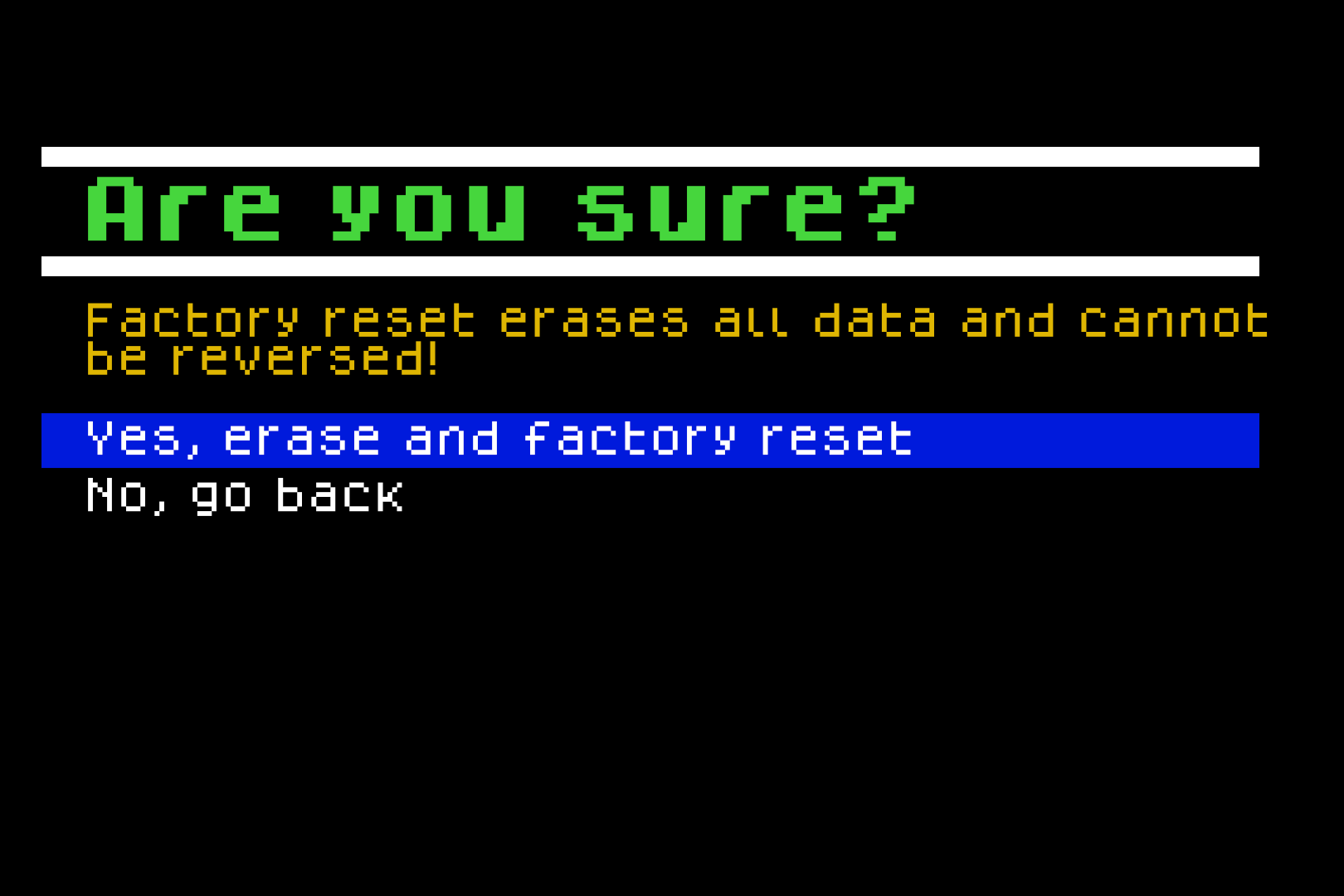
5. **Wait for Device to Reboot:**

- The headset will wipe all data and automatically restart.

---

## **Section 2: Initial Device Setup**

Once the headset restarts, follow the guided setup process:

6. **Controller Pairing Screen:**

- If the headset doesn’t detect controllers, a screen will appear instructing you to **pull the battery tab** from each controller.
- If your controllers are already active, this step will be skipped automatically.

[![PairingControllers1.png](https://docs.nwxr.app/uploads/images/gallery/2025-04/scaled-1680-/pairingcontrollers1.png)](https://docs.nwxr.app/uploads/images/gallery/2025-04/pairingcontrollers1.png)
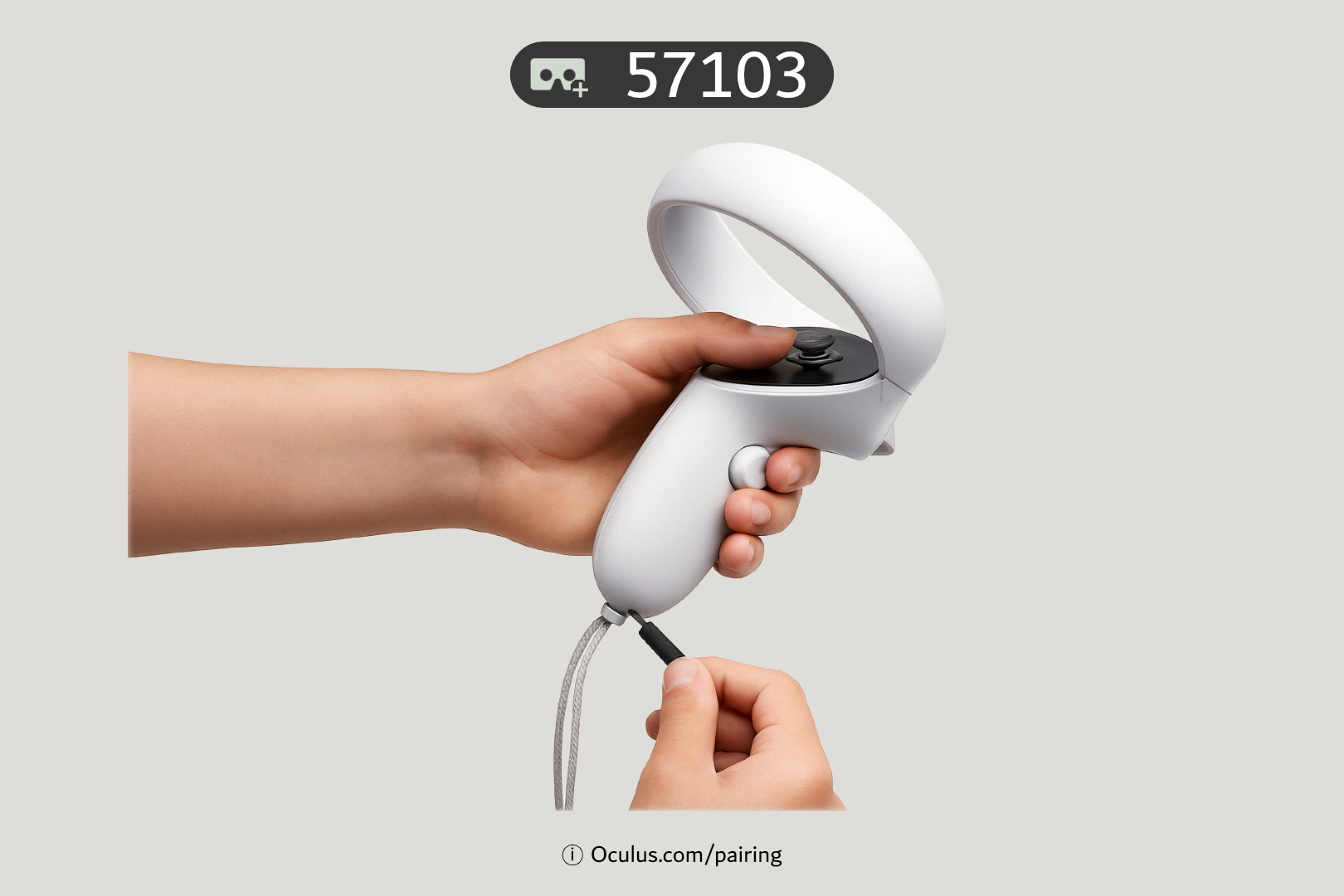
7. **Start Setup:**

- You’ll be prompted to point at a **“Continue”** button.
- Use the **trigger button** on the controller to select it.

[![PairingControllers2.png](https://docs.nwxr.app/uploads/images/gallery/2025-04/scaled-1680-/pairingcontrollers2.png)](https://docs.nwxr.app/uploads/images/gallery/2025-04/pairingcontrollers2.png)
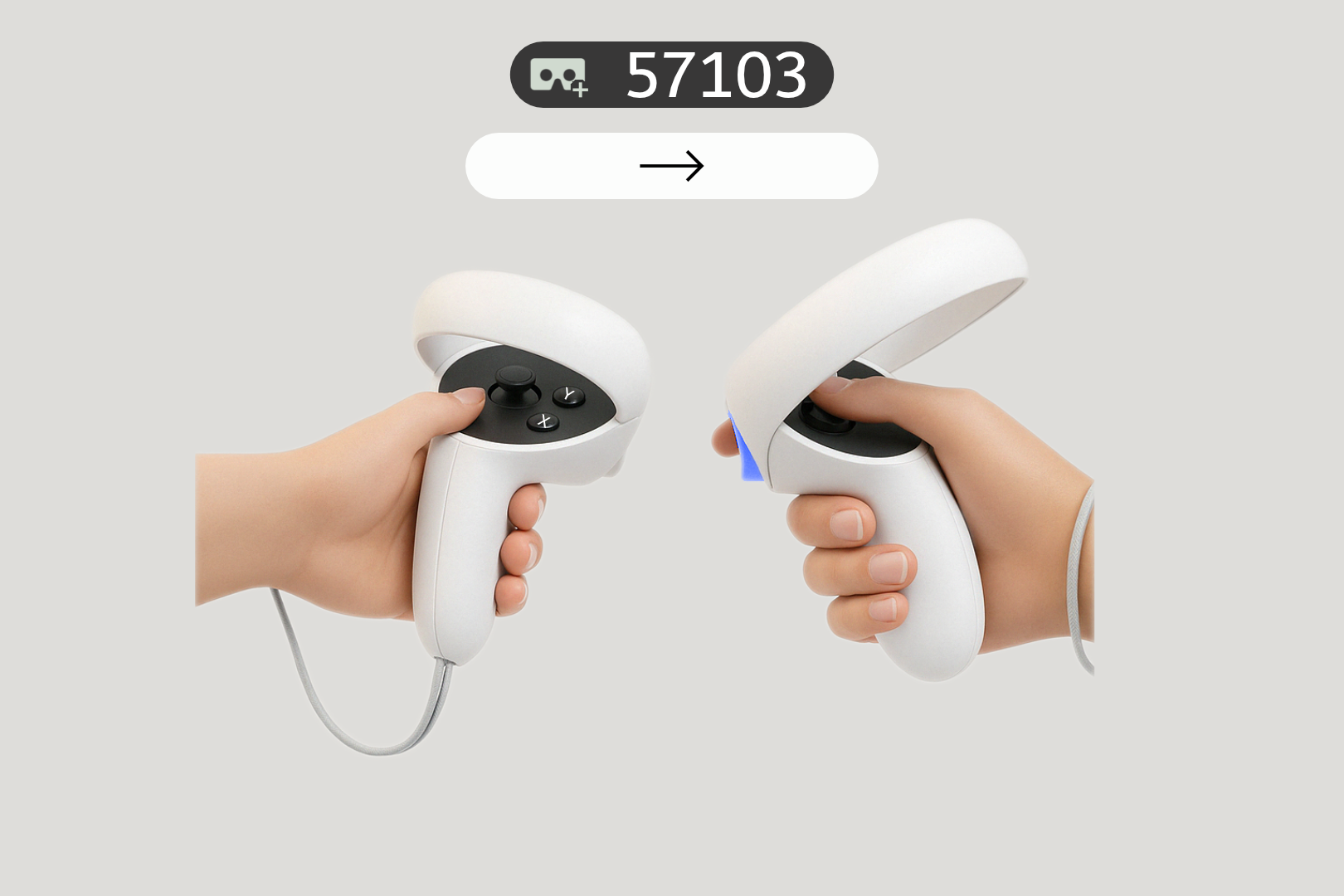
8. **Language Selection:**

- Scroll through the list using the **joystick**.
- Point and click on your preferred language.

[![SelectLanguage.png](https://docs.nwxr.app/uploads/images/gallery/2025-04/scaled-1680-/selectlanguage.png)](https://docs.nwxr.app/uploads/images/gallery/2025-04/selectlanguage.png)
9. **Adjust Headset Fit (Visual Clarity):**

- Follow on-screen instructions to properly fit the headset.
- Ensure text and visuals are sharp before pressing **Continue**.

[![CheckForClarity.png](https://docs.nwxr.app/uploads/images/gallery/2025-04/scaled-1680-/checkforclarity.png)](https://docs.nwxr.app/uploads/images/gallery/2025-04/checkforclarity.png)
10. **Set IPD (interpupillary distance):**

- Adjust the lenses to match your interpupillary distance. Press **Continue** when ready.

[![AdjustLenses.png](https://docs.nwxr.app/uploads/images/gallery/2025-04/scaled-1680-/adjustlenses.png)](https://docs.nwxr.app/uploads/images/gallery/2025-04/adjustlenses.png)
11. **Seating Position:**

- When asked, ensure you're seated in a safe space and press **Continue**.

[![StaySeated.png](https://docs.nwxr.app/uploads/images/gallery/2025-04/scaled-1680-/fDrstayseated.png)](https://docs.nwxr.app/uploads/images/gallery/2025-04/fDrstayseated.png)
12. **Connect to Wi-Fi:**

- Use the joystick to scroll through available networks.
- Select your network and enter the password using the on-screen keyboard.

[![SetupWifi.png](https://docs.nwxr.app/uploads/images/gallery/2025-04/scaled-1680-/7yQsetupwifi.png)](https://docs.nwxr.app/uploads/images/gallery/2025-04/7yQsetupwifi.png)
13. Watch the **safety guideline animation**, covering:

- Minimum age requirement (typically 13+).
- Use indoors to avoid sun damage to lenses.
- Remove obstacles from the play area.
- Use appropriate content in safe, supervised environments.  
      
    [![Surroundings.png](https://docs.nwxr.app/uploads/images/gallery/2025-04/scaled-1680-/surroundings.png)](https://docs.nwxr.app/uploads/images/gallery/2025-04/surroundings.png)

14. **Acknowledge Safety Compliance:**

- After watching the video, you’ll be asked to confirm that you understand the safety guidelines.

[![SafetyAcknowledgement.png](https://docs.nwxr.app/uploads/images/gallery/2025-04/scaled-1680-/safetyacknowledgement.png)](https://docs.nwxr.app/uploads/images/gallery/2025-04/safetyacknowledgement.png)
---

## **Section 3: Enroll the Headset with Horizon Managed Services (HMS)**

  
At this point, do not follow the instructions for pairing with the mobile app. Instead, proceed with enterprise configuration.

15. **Skip Mobile App Pairing – Select Organization Setup:**

- On the screen prompting you to connect using the Meta mobile app, click “Connect to your organization” instead.

[![Step1.png](https://docs.nwxr.app/uploads/images/gallery/2025-04/scaled-1680-/step1.png)](https://docs.nwxr.app/uploads/images/gallery/2025-04/step1.png)
16. **Connect to Work/School Account:**

- The next screen is titled **“Connect your headset to your work or school”**.
- Click **Continue** to proceed.

[![Step2.png](https://docs.nwxr.app/uploads/images/gallery/2025-04/scaled-1680-/step2.png)](https://docs.nwxr.app/uploads/images/gallery/2025-04/step2.png)
17. **Enroll Using Work Meta Portal:**

- The headset will now display a unique **device code**.
- On a separate device (PC or smartphone), go to: [**work.meta.com/device**](https://work.meta.com/device)
- Log in with your organization's Meta admin credentials.
- Enter the device code to enroll the headset under your organization.

[![Step3.png](https://docs.nwxr.app/uploads/images/gallery/2025-04/scaled-1680-/yHqstep3.png)](https://docs.nwxr.app/uploads/images/gallery/2025-04/yHqstep3.png)
18. **Enrollment Confirmation:**

- You’ll see a **“Linking Account…”** message.
- Once successful, a confirmation will appear.

[![Step4.png](https://docs.nwxr.app/uploads/images/gallery/2025-04/scaled-1680-/RFpstep4.png)](https://docs.nwxr.app/uploads/images/gallery/2025-04/RFpstep4.png)
[![Step5.png](https://docs.nwxr.app/uploads/images/gallery/2025-04/scaled-1680-/2p4step5.png)](https://docs.nwxr.app/uploads/images/gallery/2025-04/2p4step5.png)

19. **Install Required Components:**

- The headset will automatically begin **installing system components**.
- This process may take a few minutes.

[![Step6.png](https://docs.nwxr.app/uploads/images/gallery/2025-04/scaled-1680-/step6.png)](https://docs.nwxr.app/uploads/images/gallery/2025-04/step6.png)
20. **Connect to Device Management:**

- Press Continue when prompted.

[![Step7.png](https://docs.nwxr.app/uploads/images/gallery/2025-04/scaled-1680-/step7.png)](https://docs.nwxr.app/uploads/images/gallery/2025-04/step7.png)
21. **Configure Your Headset:**

- Click Continue to allow the system to auto-configure the device.

[![Step8.png](https://docs.nwxr.app/uploads/images/gallery/2025-04/scaled-1680-/step8.png)](https://docs.nwxr.app/uploads/images/gallery/2025-04/step8.png)
22. **Wait for Configuration to Complete:**

- A progress screen will display. Wait until the process completes.

[![Step9.png](https://docs.nwxr.app/uploads/images/gallery/2025-04/scaled-1680-/step9.png)](https://docs.nwxr.app/uploads/images/gallery/2025-04/step9.png)
23. **Headset Configured Confirmation:**

- Once done, press Continue on the “Headset Configured” screen.

[![Step10.png](https://docs.nwxr.app/uploads/images/gallery/2025-04/scaled-1680-/step10.png)](https://docs.nwxr.app/uploads/images/gallery/2025-04/step10.png)
24. **Privacy Notice:**

- Read the **“Designed for your privacy”** message and click **Continue**.

[![Step11.png](https://docs.nwxr.app/uploads/images/gallery/2025-04/scaled-1680-/step11.png)](https://docs.nwxr.app/uploads/images/gallery/2025-04/step11.png)
25. **Data Sharing Preferences:**

- Choose whether to share anonymized usage data with Meta.
- For enterprise devices, we recommend selecting **“Don’t Share”**, but this is optional.

[![Step13.png](https://docs.nwxr.app/uploads/images/gallery/2025-04/scaled-1680-/13wstep13.png)](https://docs.nwxr.app/uploads/images/gallery/2025-04/13wstep13.png)
26. **Create a Guardian Boundary:**

- Follow on-screen instructions to map your play space.
- Choose Stationary Boundary if seated, or Roomscale for standing/walking setups.

[![Step14.png](https://docs.nwxr.app/uploads/images/gallery/2025-04/scaled-1680-/step14.png)](https://docs.nwxr.app/uploads/images/gallery/2025-04/step14.png)
27. **Learn to Reset View:**

- You’ll be shown how to **recenter your view** by holding the **Meta button** on the right controller. Press **Continue**.

[![Step15.png](https://docs.nwxr.app/uploads/images/gallery/2025-04/scaled-1680-/step15.png)](https://docs.nwxr.app/uploads/images/gallery/2025-04/step15.png)
28. **Complete Setup:**

- The final screen will show **“Device Setup Complete.”**
- Press the **Meta button** to enter the Home environment.

[![Step17.png](https://docs.nwxr.app/uploads/images/gallery/2025-04/scaled-1680-/step17.png)](https://docs.nwxr.app/uploads/images/gallery/2025-04/step17.png)
---

## **Section 4: Accessing Next World Software on Your HMS Headset**

29. From the **Home screen**, open the **Library**.

30. Navigate to the **“For Work”** tab to find the **Next World** app.

31. The app will launch in **Demo Mode** by default.

32. **Enroll Device in Next World Platform:**

- Log in to the **Next World Platform.**
- Register the device using the displayed Device ID under your organization's account.
- This will unlock access to all assigned content and features associated with your subscription.

# Whitelisting Domains Required By Next World Services

For networks that have strict policies which may prevent access to certain websites or domains that are required for Next World's services to function, you may need to contact your IT team to whitelist the following URLs and hostnames depending on your network's configuration and restrictions. The below are required for our services to function, including to download necessary apps and components, and to sync events to our LMS:

#### **Primary URL Pattern for Next World-specific Downloads**

<div data-ogsc="black" id="bkmrk-our-services-run-thr">Our services run through AWS (Amazon Web Services), and downloads occur via AWS S3. The primary pattern that should be whitelisted is: [https://app.nextworldenterprises.com/\*](https://app.nextworldenterprises.com/*)</div><div id="bkmrk--1">  
</div><p class="callout info">**Examples of specific download locations that are handled by the above whitelisted URL pattern**   
• Next World's "Agent" Android application: https://app.nextworldenterprises.com/nwagent/nwagent.apk   
• Experience download example: https://app.nextworldenterprises.com/packs/com-nextworld-manualhandling.2.7.1.intl.nwpz   
  
**Alternative S3 URLs**   
Since these files are hosted in S3 buckets, the actual Amazon AWS S3 links would replace "app.nextworldenterprises.com" with "app.nextworldenterprises.com.s3.amazonaws.com". However, allowing traffic from "app.nextworldenterprises.com/\*" should work fine for your needs.</p>

#### **Bodyswaps Soft-Skills Library**

<div id="bkmrk-if-your-deployment-i"><div data-ogsc="black" id="bkmrk-if-your-deployment-i-1">If your deployment includes Bodyswaps modules delivered through our Home library, please also whitelist the domains listed in Bodyswaps’ networking guide: [https://support.bodyswaps.co/knowledge/minimum-hardware-requirements](https://support.bodyswaps.co/knowledge/minimum-hardware-requirements)  
  
Add those domains (and any ports they specify) alongside the Next World entries above.</div></div>#### **Device Firmware Updates**

<span data-teams="true">For **Pico** devices (Such as "Pico Neo 3 Pro" and "Pico 4 Enterprise"), the firmware is downloaded from the [static.us-pui.picovr.com/\*](https://static.us-pui.picovr.com/* "https://static.us-pui.picovr.com/*") domain.</span>

<span data-teams="true">For **Meta** devices (Such as "Meta Quest 2" or "Meta Quest 3"), the firmware is downloaded from the [scontent.oculuscdn.com/\*](https://scontent.oculuscdn.com/*) domain.</span>